Participating Frequently
July 28, 2021
Question

Photoshop CC 2021 - 22.4.2 - Can't Create Transparent Document

  • July 28, 2021
  • 3 replies
  • 1681 views

Good afternoon everyone!


I'm having a strange issue where I don't seem to be able to create a transparent document in Photoshop.


Here are some screenshots to give better example of what I'm talking about:


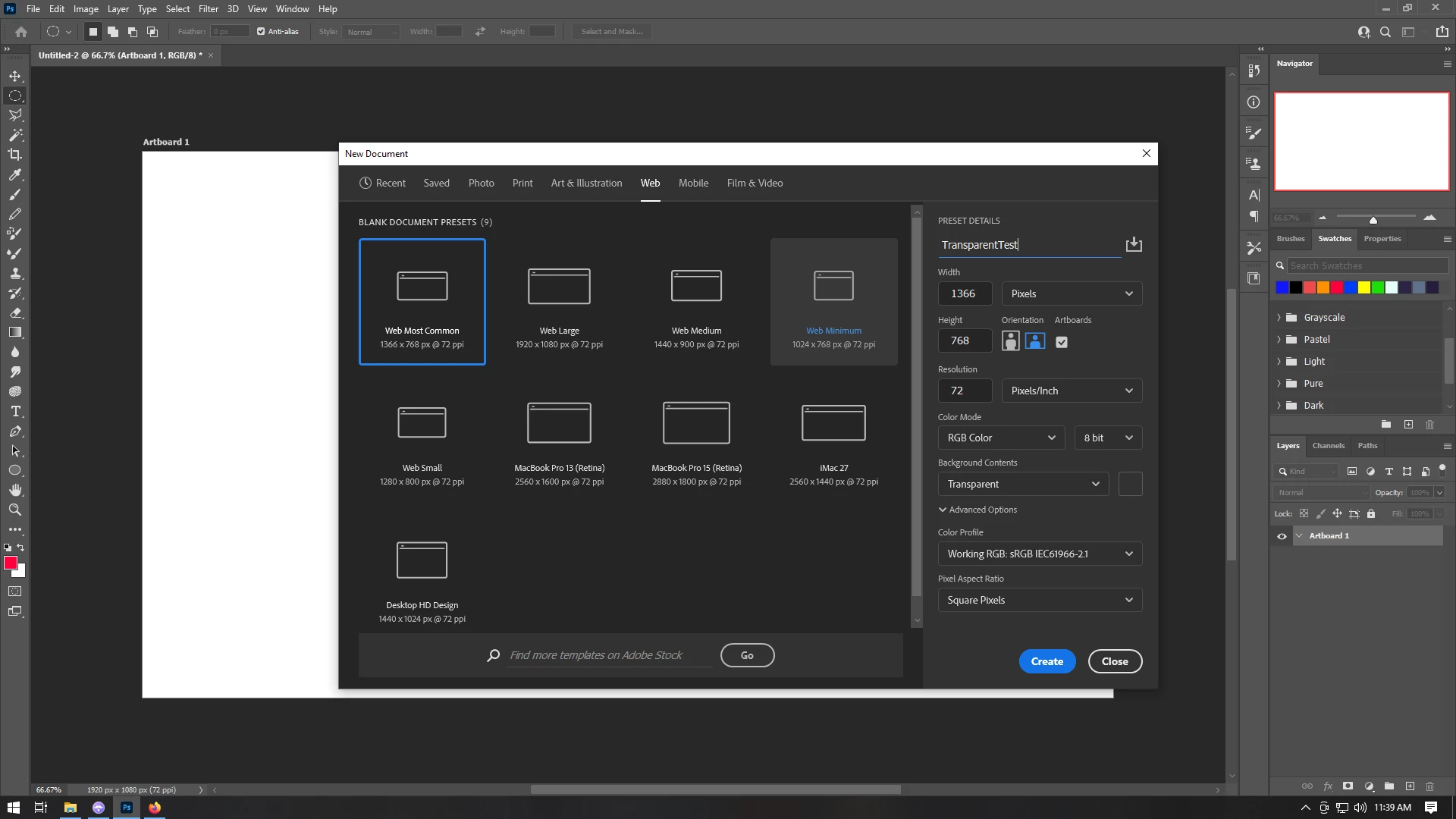
In my steps I create a new document in Photoshop and set the background to transparent

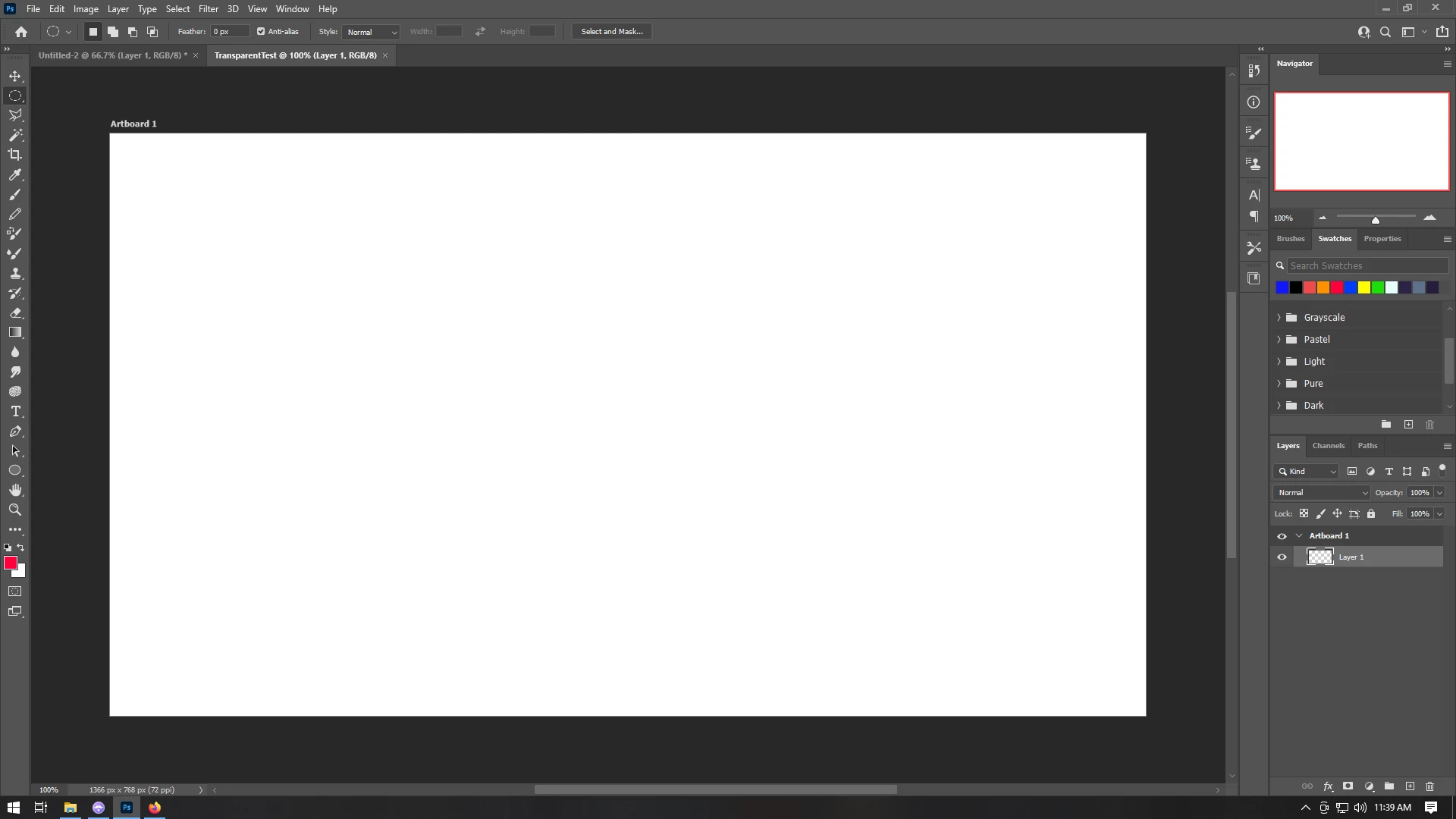
My document appears solid white even though there is no background

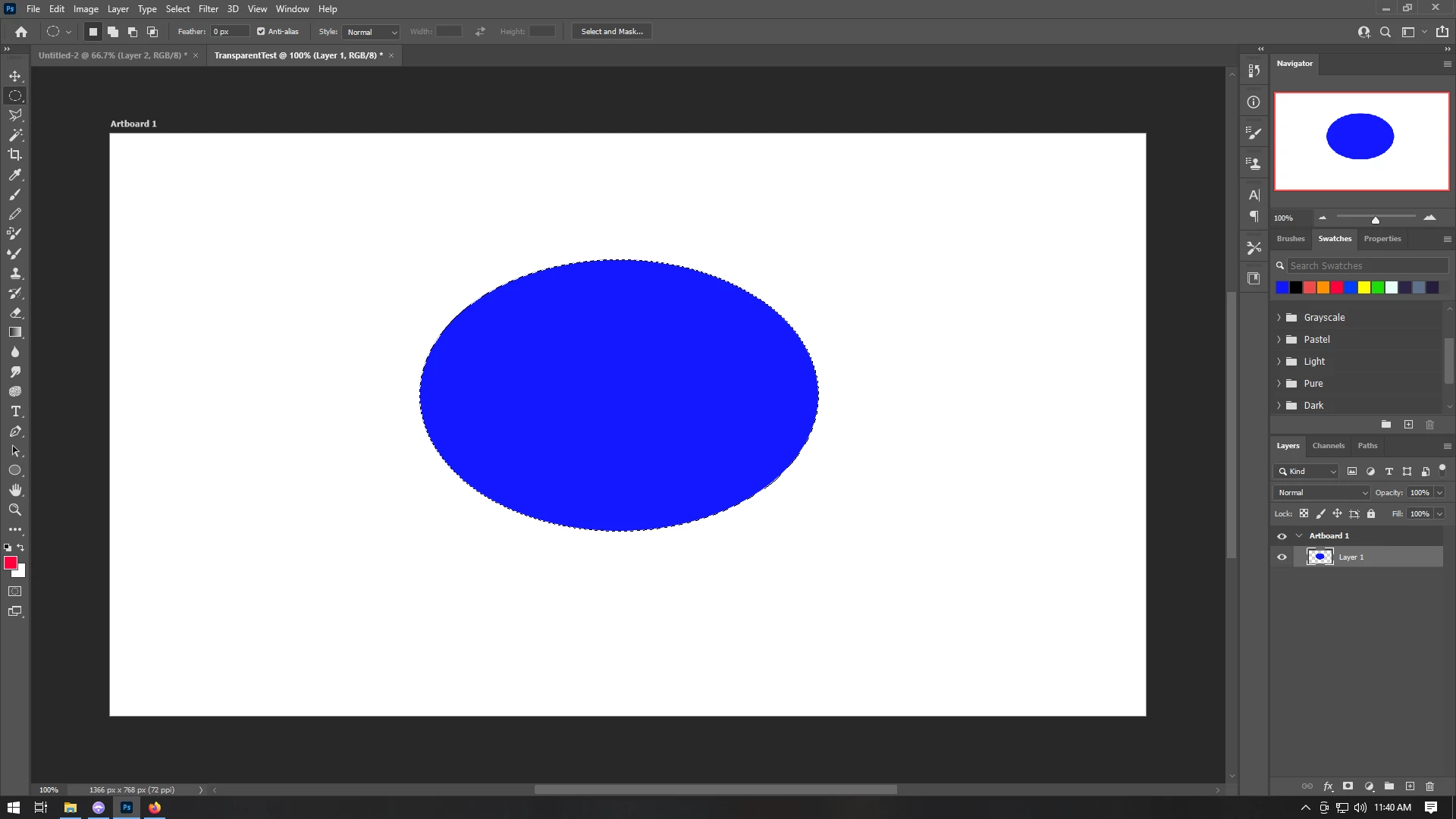
I create a shape using the fill tool

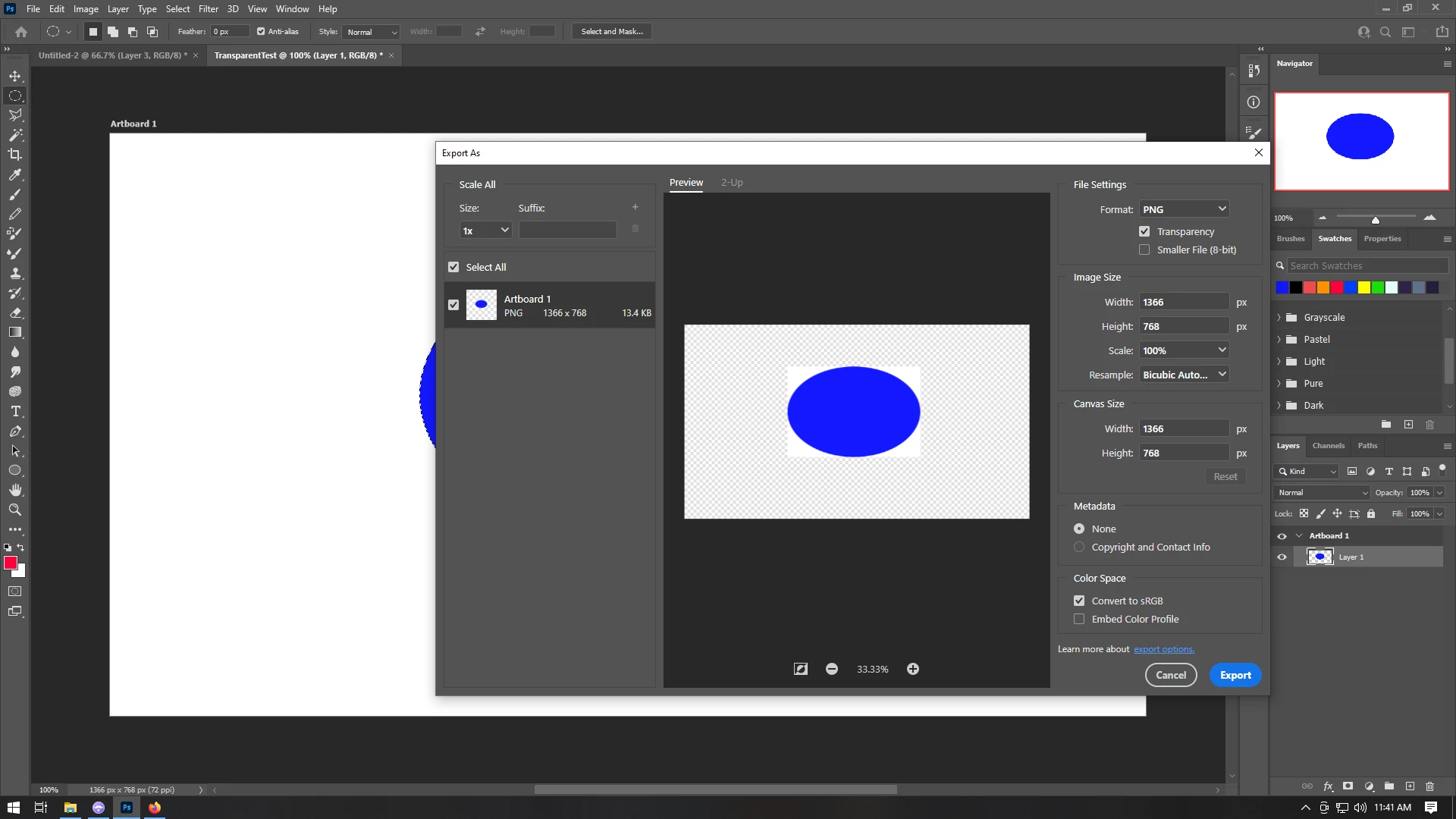
When exporting the document to PNG, the shape is surrounded by a non-transparent white box
I've been banging my head on this all morning and could use some new perspective.


Things I've tried:

Program restart

PC restart

Creating New Documents using multiple presets

Creating several new custom presets

Changing Color Profiles to "SRBG IEC61966-2.1" to "Don't Color Manage" to "Apple RGB" to "image P3" and to "ProPhoto RGB"

Changing Color Settings from "North America General Purpose 2" to North American Web/Internet"


If I open a known transparent PNG file, the image will show with a transparent background, and I can even export it to a new transparent PNG without issue. If I copy and paste the image into a document I created though, the image will appear with a box around it.


If I add my own custom background to the image, no box will appear around any of my transparent objects.


Any help would be greatly appreciated!


My system is running Windows 10 Pro - 21H1 - OS Build 19043.1110


Thank you much!

This topic has been closed for replies.

3 replies

Revu5C90Author
Participating Frequently
August 22, 2021

It took a while to get back to troubleshooting this, but here are some strange updates.


As I mentioned before it appears the problem has to do specifically with Artboards. Whenever artboards are in use, even when set to transparent, the background is solid white.


After uninstalling Photoshop and requesting all settings be removed with it, then reinstalling, nothing had changed.


I noticed that there were still some settings that remained in-tact, such as my recent documents. So knowing there were still some references I uninstalled again, did a search for Photoshop in the AppData folder, and deleted everything that wasn't a plugin for other applications.


Reinstalled, all memory seems to be reset, but again no change in the application.


I'll try installing from a fresh installer download next, but I know my installer has worked on two other systems without having this issue.


I'll post an update when that happens.

Revu5C90Author
Participating Frequently
August 24, 2021

Still no luck.


Old version of Photoshop was installed using an installer with the 6/8/21 patch, fresh install was done with an installer with the latest 8/17/21 installer, and this machine still won't make artboards transparent.


At this point something else must be interfering with the functionality.


There are no plugins installed.


Other applications that might be interacting with Photoshop include Wacom Desktop, Fontbase, and AMD Radeon Software.


If anyone can think of any other possibilities that would keep artboards from displaying a transparent background, or anything else to try, I'd be super super grateful.


Thanks!

Mohammad.Harb
Community Expert
Community Expert
July 29, 2021

Which photoshop version are you using? 
I'm on the most recent version and everything is perfect. Try resetting photoshop preferences settings 

Revu5C90Author
Participating Frequently
July 30, 2021

Thank you so much for the reply!


My Photoshop is version CC 2021 - 22.4.2


I tried using the option in the General section of Preferences to "Reset Preferences on Quit". Unfortunately that hasn't made any noticeable change.


I got to use a friend's laptop who is running the same version (22.4.2) and their artboards are working exactly as I would have expected them to work in regards to transparent backgrounds. So it's defiinitely somethng weird on my system.


I'm going to try a full reinstall of the software tomorrow. I'll post any update here after that.


If you can think of anything else to try however, please let me know.


Thanks again!

Revu5C90Author
Participating Frequently
July 28, 2021

New progress!


This has something to do with the way it's handling Artboards.


I'm afraid I'm not familiar with Artboards or their settings.


Is this intended behavior for an Artboard or is there a way to make an Artboard's background transparent?


Thanks!

Revu5C90Author
Participating Frequently
July 29, 2021

I found that inside the Properties panel with the Artboard selected there is a setting for "Artboard Background Color". But unfortunately in my case the background for the Artboard is already set to "Transparent".


Any thoughts on if this is some kind of bug or if I should be looking at a different setting to change this behavior?


For the time being my workaround is to simply not use Artboards, but it's a very useful tool to just ignore entirely, and it does get really annoying that most included presets have Artboards activated by default.


Thanks for any advice!