
Kidigrafisk
Participating Frequently
July 1, 2022
Answered

Photoshop Crashing

  • July 1, 2022
  • 10 replies
  • 508 views

Anyone there can help me, my photoshop cashing again again, and i have try uninstall, install again, and i have try install other versions what i need to do, please really help me 
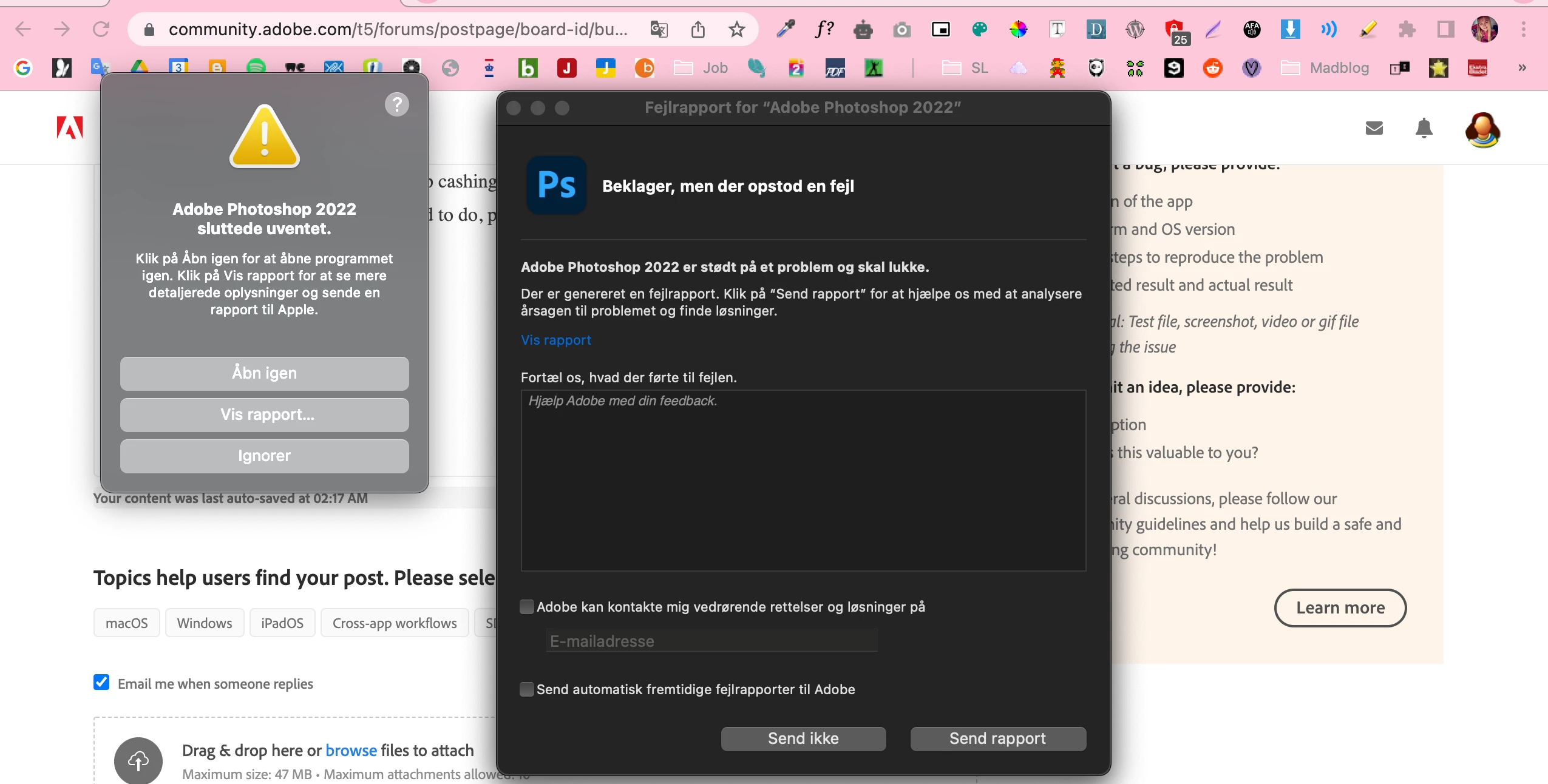


[Subject renamed by moderator for clarity. Was "Please help me with Photoshop!"]


This topic has been closed for replies.
Correct answer TheDigitalDog

When Photoshop crashes, this is the first thing to do, try resetting your Photoshop preferences. Press and hold Alt+Control+Shift (Windows) or Option+Command+Shift (Mac OS) immediately after launching Photoshop. You will be prompted to delete the current settings. You can also reset preferences upon a quit if Photoshop is running by going into General Preferences>General>Reset on Quit.
If that doesn't fix the issue:
Go to Preferences > Performance... and uncheck Multithreaded Compositing - and restart Photoshop. 
Still crashing? 
Go to Preferences > Performance... click Advanced Settings... and uncheck "GPU Compositing" - then restart Photoshop. Still crashing? 

10 replies

Kidigrafisk
Participating Frequently
July 1, 2022

Its work thank yoooou! 🙂


TheDigitalDog
TheDigitalDogCorrect answer
Inspiring
July 1, 2022

When Photoshop crashes, this is the first thing to do, try resetting your Photoshop preferences. Press and hold Alt+Control+Shift (Windows) or Option+Command+Shift (Mac OS) immediately after launching Photoshop. You will be prompted to delete the current settings. You can also reset preferences upon a quit if Photoshop is running by going into General Preferences>General>Reset on Quit.
If that doesn't fix the issue:
Go to Preferences > Performance... and uncheck Multithreaded Compositing - and restart Photoshop. 
Still crashing? 
Go to Preferences > Performance... click Advanced Settings... and uncheck "GPU Compositing" - then restart Photoshop. Still crashing? 

Author “Color Management for Photographers" & "Photoshop CC Color Management/pluralsight"
Derek Cross
Community Expert
Community Expert
July 1, 2022

62GB is not a lot if you're processing large files.

Again, how much RAM have you got?

You can find out how much RAM you have by selecting "About this Mac" found under the Apple icon.

Kidigrafisk
Participating Frequently
July 1, 2022

Yes i have reset them, and i have alot space 62 GB of 250 GB

Kidigrafisk
Participating Frequently
July 1, 2022

I have send the report

Derek Cross
Community Expert
Community Expert
July 1, 2022

How much RAM and spare hard disk capacity do you have?

Your answer about resetting preference is not clear – you added a question mark. Have you reset them? You can do so under the General tab in Photoshop preferences, then close and reopen the application.

jane-e
Community Expert
Community Expert
July 1, 2022

Anyone there can help me, my photoshop cashing again again, and i have try uninstall, install again, and i have try install other versions what i need to do, please really help me 

By @Kidigrafisk


You did not mention that you are clicking "Send Report" (Send Rapport) and including your Adobe ID email every time it crashes. Please fill the report out and send it so the engineers can diagnose your issue.


Jane


Kidigrafisk
Participating Frequently
July 1, 2022
Please download the attached file to view this post
Kidigrafisk
Participating Frequently
July 1, 2022

MacBook Pro (Retina, 13-inch, Mid 2014)
Processer 

2,6 GHz Dual-Core Intel Core i5

MacOs Big Sur 11.6.7

Graphic card: Intel Iris 1536 MB


Does with all files
Yes i have try it resetting Photoshop preferences?

Derek Cross
Community Expert
Community Expert
July 1, 2022

Which version of Photoshop and OS?

How much RAM and spare hard disk capacity do you have?

Does this happen with all files or just one or two?

Have you tried resetting the Photoshop preferences?

We can't translate the text in your screenshots as its rasterised.