Participating Frequently
February 11, 2014
Answered

Photoshop CS5.1 text not wrapping

  • February 11, 2014
  • 3 replies
  • 20459 views

I am using photoshop cs5.1 ( 12.1 x64 ) and have a multi-layered psd I am working with.  I am trying to add a simple text block and for the life of me the text won't wrap inside my textbox?  I have tried this two different ways.  I have selected the text tool, and then clicked and dragged on the workspace to draw out my textbox.  Doing that won't allow me to insert my text?  The other way was to simply create the layer, then click the text tool and then go to the workspace and begin to type.  When I do this the text won't wrap even though I thought I selected that.  Also, when I hit enter (return), the text for the next line goes to the very bottom of the text area where I can't even see it? 

What am I doing wrong?

Thanks,

Mike
    This topic has been closed for replies.
    Correct answer Chuck Uebele

    here is the character panel......

    Thank you.


    In the drop down field on the top right (directly below "Italic"), set it to "Auto."  Also, the box above your color picker is set at 85%, which is compressing you type.  Not sure if you want that.  Normally, it's set at 100%.

    3 replies

    forums1818
    Participant
    April 6, 2017

    WOW Thanks!

    Fan from Vancouver!

    Participant
    November 11, 2015

    I had the same problem but i finally figured it out! Click on the "Toggle Character and Paragraph Panels" button (where you change the spacing beyween letters/words/etc.) and my "set the leading" (space between lines) was WAY to high so i changed it back to 10 pt. That worked for me!

    Participant
    May 26, 2018

    This worked for me. But how to set it to by default to 'auto'. Whenever I open a new text box, it changes back to the previous value.

    Chuck Uebele
    Community Expert
    Community Expert
    February 11, 2014

    You should be using the first method you described by clicking and dragging a text block area.  Once you do that, you should be able to just start typing in your text.  Is the text too large or the opacity too low for you to see it?  What is happening when you try this?

    tr6worldAuthor
    Participating Frequently
    February 11, 2014

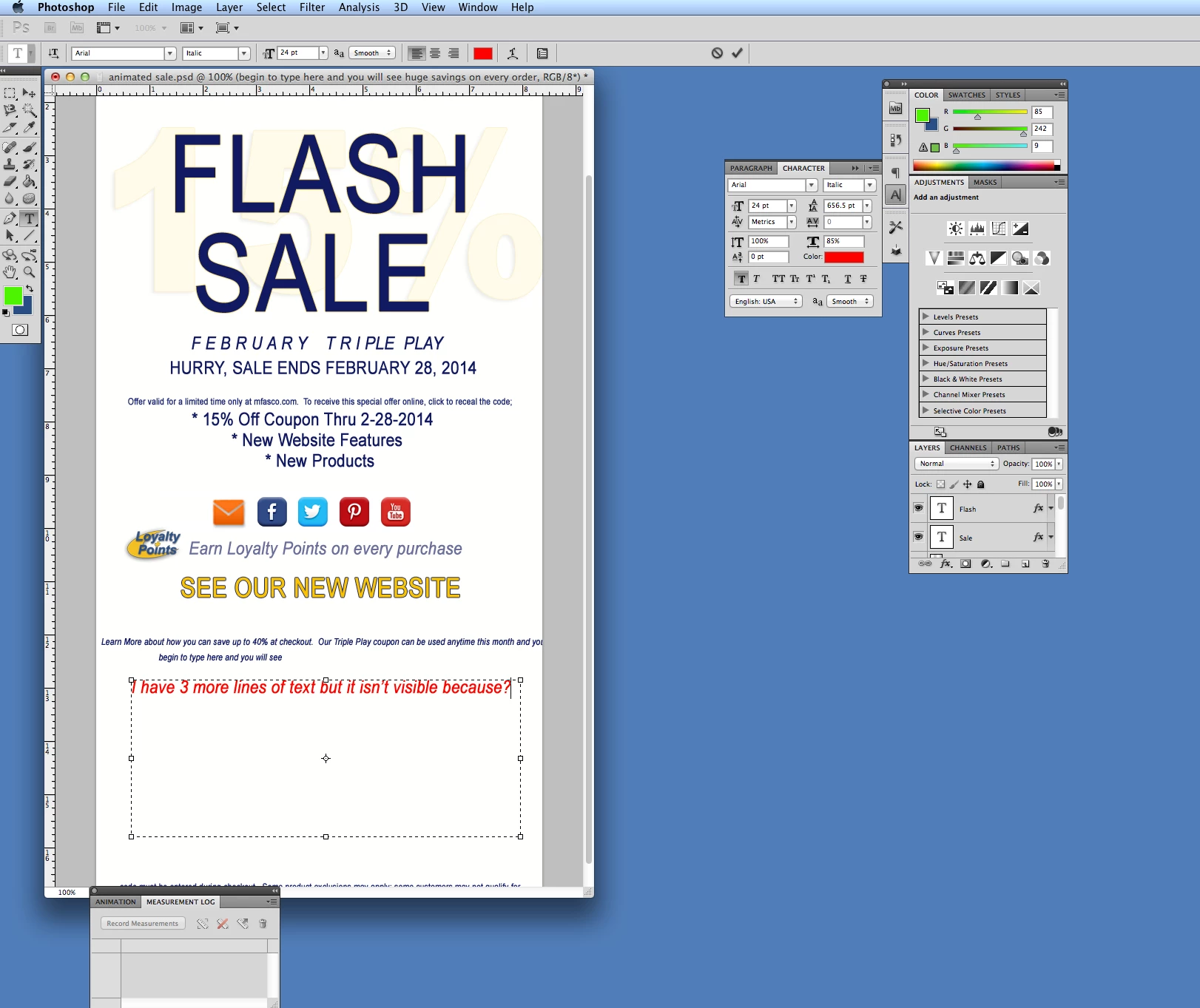
    I have attached a pic.  Using method #1 dragging the text tool cusror to create my text box I am able to add text now.  I was mistaken when I created the box and then clicked my mouse again.  This time I simply created the text box and then typed (the cursor was top center justified in the box.  BUT, still, when I type, the text won't wrap and if I hit enter, you are not taken to the next line. 

    I think what is happening is the text is beginning on the top of the box and when I hit enter for a new line it goes to the bottom of the box?

    So, here is my text box and I was able to add that text you see but you don't see the other text that continues "somewhere"

    Thanks for any help you can provide.

    Mike

    tr6worldAuthor
    Participating Frequently
    February 11, 2014

    It still isn't working.  As the image above shows, I am createing the text box and I am able to type text but the problem is :

    1.  Text isn't wrapping within the text box

    2.  When I hit the "enter" / "return" key, the next line is not visible inside the box.  I think that the next line is justifying on the bottom  somewhere?

    Any help is appreciated.

    Thank you.

    Mike