Participant
February 10, 2012
Answered

Photoshop CS5 Pen tool Selection problem?

  • February 10, 2012
  • 3 replies
  • 34183 views

I've been using photoshop for a while, and have never encountered this problem. I've had CS5 for about a year now and this is the first time it has done this, so hopefully someone can help me!

When I open photoshop, everything works. I make a new layer, go to use the pen tool,  make my shape and then complete it, and the line solidifies showing its a complete shape. I right click, and select the option: Make Selection.

Instead of turning the inside of the shape into the selected part, it selects everything outside of it!

I can't for the life of me figure out how this started happening, as it didn't do it a few days ago. I must have hit a button or something, but its still very annoying. Hopefully someone can help! Restarting both the program and the computer, does not help.

This topic has been closed for replies.
Correct answer Noel Carboni

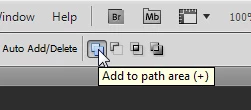
There's a button for that up in the options area, when a Path Tool is active.    It's been a while...  Ah, here:

I'm betting you have the one next to it pressed.

Look at your path icons in the PATHS panel.  If they're white inside, you're creating an enclosed path.  If they're gray inside with a white surround, you're removing a path from the surroundings.

-Noel

3 replies

Known Participant
May 23, 2019

Very Helpful. I had the same thing happen and something very similar. Knowing this makes things much easier:)

Participant
October 9, 2017

I just want to share an observation. this problem happens to me most time, I have noticed that this problem occurs when you open PS through the image... ex. right clicking on your image then selecting "open with PS".... instead of doing so; to use PS at its full potential, I suggest you open the application then from PS itself open your image. have a fun

Noel Carboni
Noel CarboniCorrect answer
Legend
February 10, 2012

There's a button for that up in the options area, when a Path Tool is active.    It's been a while...  Ah, here:

I'm betting you have the one next to it pressed.

Look at your path icons in the PATHS panel.  If they're white inside, you're creating an enclosed path.  If they're gray inside with a white surround, you're removing a path from the surroundings.

-Noel

BazeyAuthor
Participant
February 10, 2012

I did have the "Add to path area " Selected before, however reselected it anyway and it is still doing the same thing. In the paths panel, it is showing me a gray inside with a white surround still, I need it the other way around.

-------------

Opps! After restarting my program and reselecting that option it worked! Thanks for everything!

Message was edited by: Bazey