
Inspiring
May 28, 2017
Answered

Photoshop CS6 Extended Move Tool

  • May 28, 2017
  • 1 reply
  • 1636 views

I am working on another Blue Lightning tutorial: Photoshop Tutorial: How to Create GIF Animations from Video, Graphics & Photos! - YouTube

As I have said before I make mountains out of molehills.

I completed the tutorial and it looks pretty good--I downloaded the image from the site but it had a PSD extension. I wanted to start from scratch; it took me 2 hours to figure out how to select the soccer ball and head as separate images and to create the first frame as shown in the tutorial.

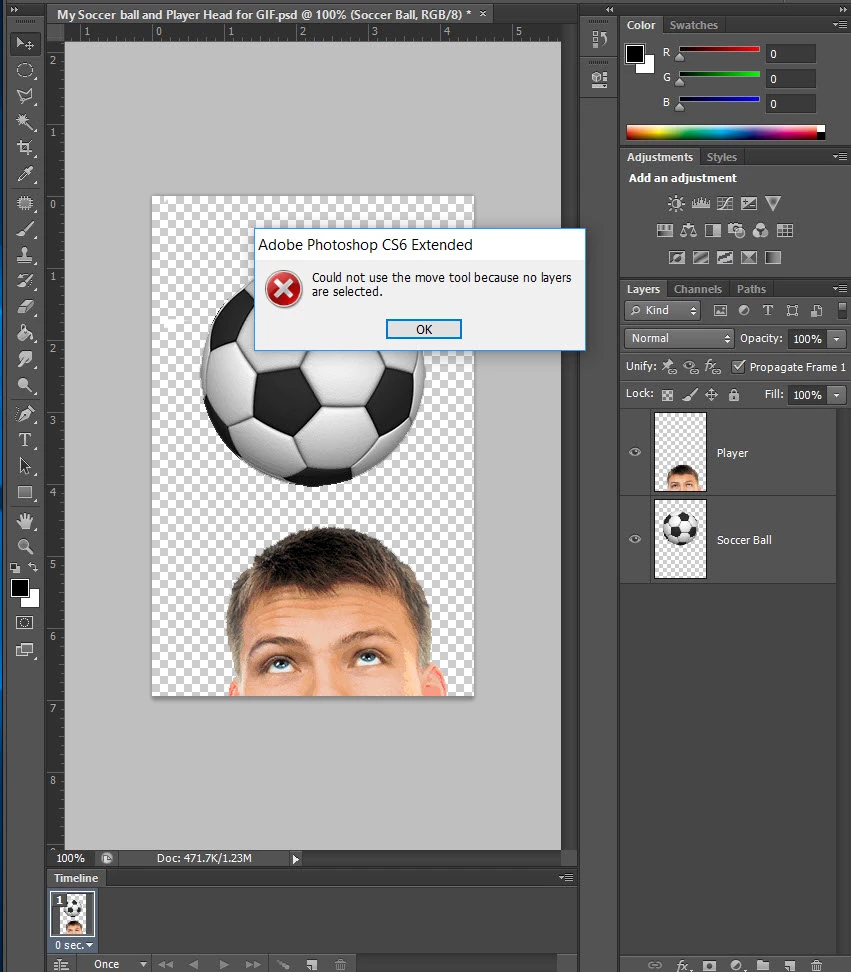
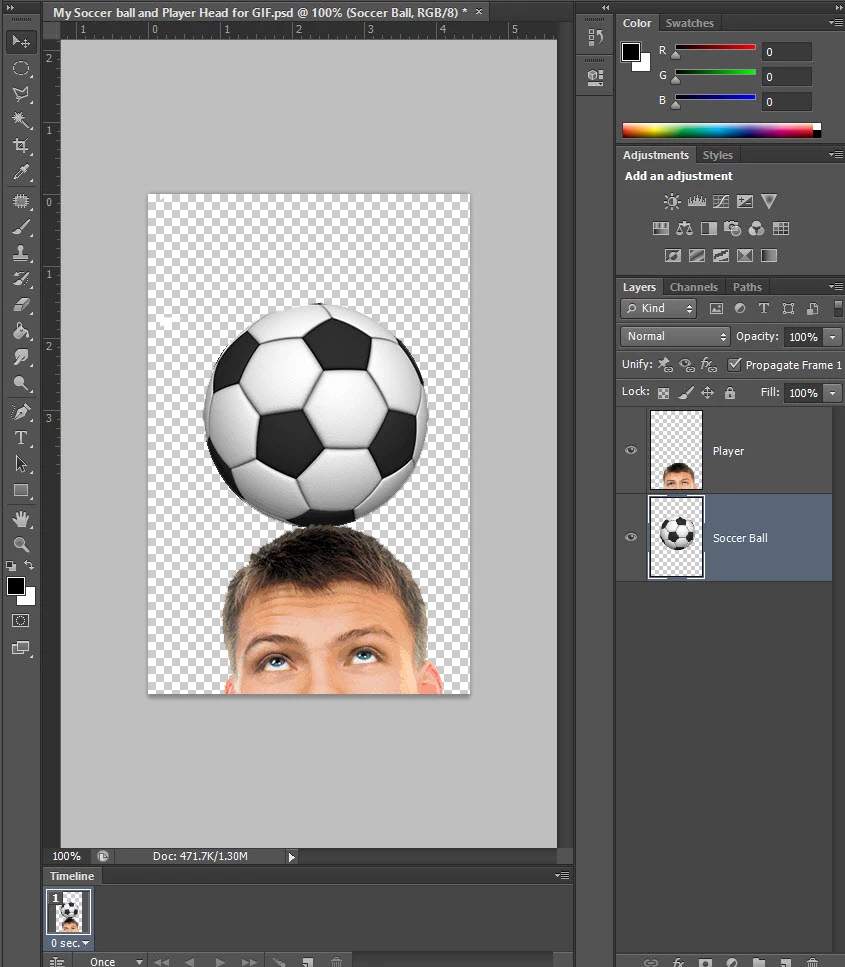
One thing that bothers me is the step where the tutorial states "Hold the Shift key, select the Move tool and drag the ball down until it touches the player's head. By holding the Shift key, I receive message as shown in image below. By not holding the Shift key and just clicking on the soccer ball I am able to move it about
This topic has been closed for replies.
Correct answer Barb Binder

File, Export, Save for Web (Legacy)

This is one of the export commands for CC. In CS6 it was File > Save for Web.

1 reply

Norman Sanders
Legend
May 28, 2017

In the Layers panel choose the layer you want to move.

Select > All

With the Move tool chosen, hold down the Shift key

Drag down

Select > Deselect

Inspiring
May 28, 2017

Thanks Norman--it worked! Two more issue

1. Instructions for saving are to click on File, Export, Save for Web (Legacy). Following is a screen shot of my Export Options; I have (File, Save for Web) option:

To make for a smoother, faster GIF I click on the option to Convert to Video Timeline, etc.

It plays as it should in my browser.

2. I am having a brain f*rt. I can't figure out how to show my GIF it here. Thanks for looking, Lucie.

Norman Sanders
Legend
May 28, 2017

Please post your additional question as a sepstate inquiry.