Totoremix
Participating Frequently
December 4, 2017
Answered

[PHOTOSHOP] - Décalage lors de l'exportation

  • December 4, 2017
  • 2 replies
  • 1655 views

Bonjour à toutes et à tous,

Je débute actuellement sur Photoshop et je viens de finir de réaliser mon premier projet. Seulement, lors de l'exportation dudit projet, l'image se retrouve complètement décalée et cela ne ressemble plus du tout à ce que je voyais dans ma zone de travail... Voici ci-dessous des captures d'écran pour que vous puissiez y voir plus clair :
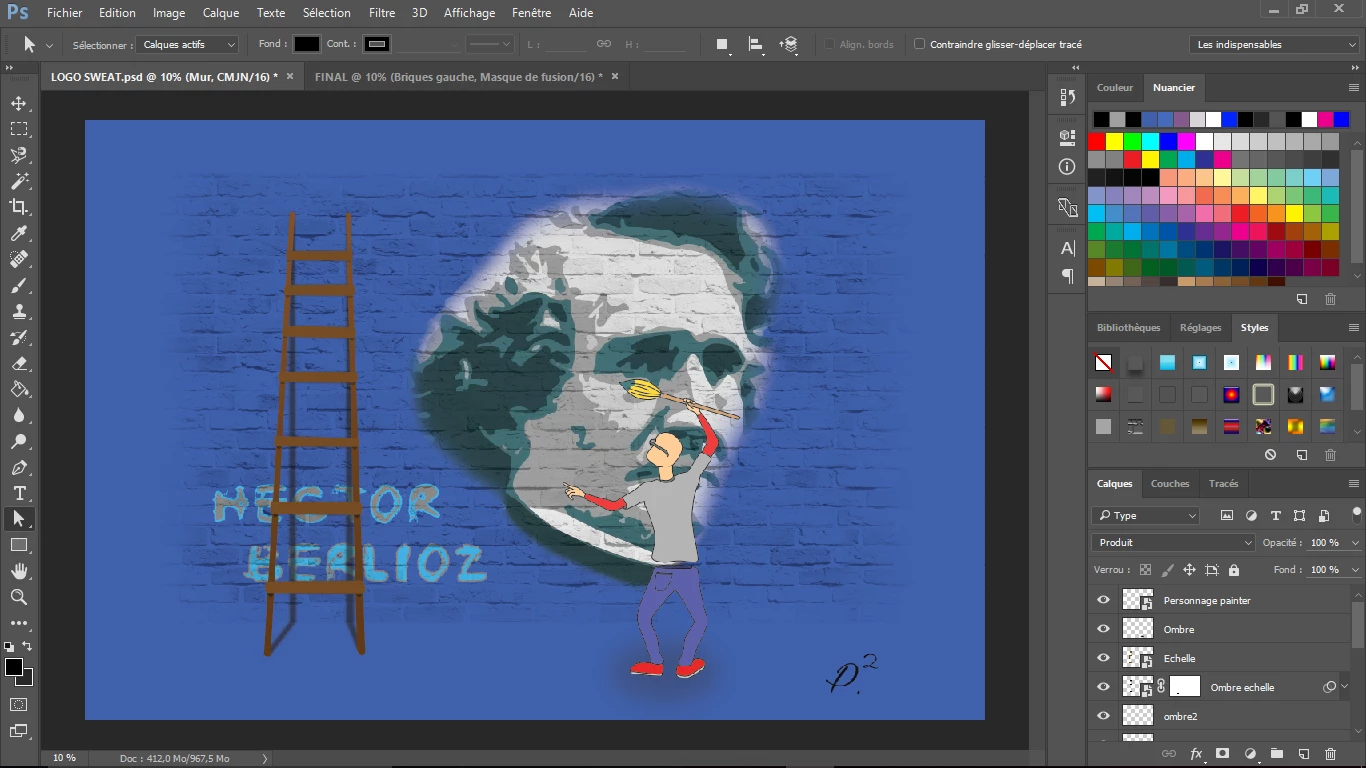
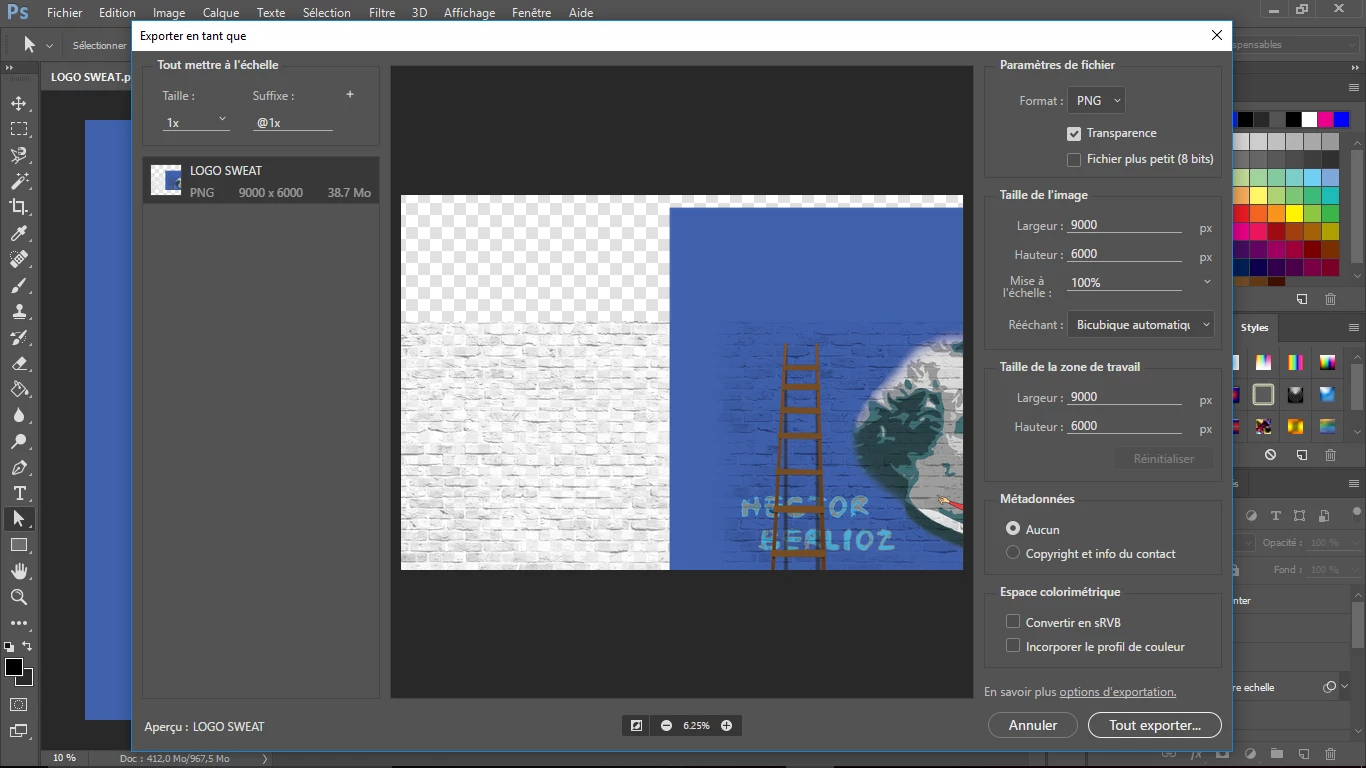
Voilà, je n'y comprend rien, j'espère que vous pourrez m'aider à comprendre l'origine de ce "décalage".

Merci beaucoup.

This topic has been closed for replies.
Correct answer pixxxelschubser

Hi Totoremix,

I hope I understood you right:

Try the following way(s) to export.

At first save your file.

  • activate the top level
  • press [Shift]+[Strg]+[Alt]+ at once
  • leftclick while holding [Alt]-key on the eye of this new created Layer (in layers palette)

This new layer will be visible, all other layers are invisible now.

Try the export again.

If the Export fails:

  • select the new created layer (selection --> select all)
  • copy
  • menu --> file --> new (from pasteboard)
  • paste

Try the export again.

Have fun

2 replies

Totoremix
TotoremixAuthor
Participating Frequently
December 9, 2017

Does anyone have another solution ?

pixxxelschubser
Community Expert
pixxxelschubserCommunity ExpertCorrect answer
Community Expert
December 9, 2017

Hi Totoremix,

I hope I understood you right:

Try the following way(s) to export.

At first save your file.

  • activate the top level
  • press [Shift]+[Strg]+[Alt]+ at once
  • leftclick while holding [Alt]-key on the eye of this new created Layer (in layers palette)

This new layer will be visible, all other layers are invisible now.

Try the export again.

If the Export fails:

  • select the new created layer (selection --> select all)
  • copy
  • menu --> file --> new (from pasteboard)
  • paste

Try the export again.

Have fun

Totoremix
TotoremixAuthor
Participating Frequently
December 10, 2017

Thanks a lot, I just tried the first solution and it worked like a charm !! Again, a big thank you !

Sahil.Chawla
Adobe Employee
Adobe Employee
December 4, 2017

Hi totoremix,

Do you have you have something outside of your canvas, because I think the export panel is trying to pick something that is outside of the canvas.

Please try using the "Crop Tool" and check Delete Cropped Pixels on top, then crop the image a little bit and then try exporting & let us know if it helps.

Regards,

Sahil

Totoremix
TotoremixAuthor
Participating Frequently
December 4, 2017

Thanks a lot for your answer, i tried what you suggested but it didn't work, the image is still offbeat..

By the way, the shift is different this time, it's very strange... And sorry for the duplicate post, it's the first time I use this forum. Again thanks a lot, and if you have another idea...

Sahil.Chawla
Adobe Employee
Adobe Employee
December 4, 2017

Did you crop the image?