Participant
September 24, 2020
Answered

Photoshop: How to set different opacity on image from 100% to 40%?

  • September 24, 2020
  • 2 replies
  • 563 views

Hello,
i am newbie. I have spent one day searching for solution and find nothing working...

Maybe i am searching for wrong keywords. I am sorry if this is stupid question.

Problem:
Photoshop 2017 CC
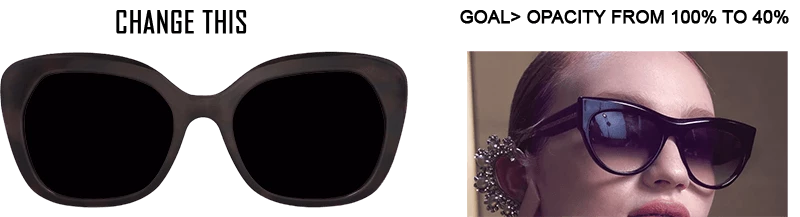
I am trying to re-create lenses for sunglasses and then put it on face.
I have cut out lenses from frame, changed color of lenses.
The goal is to make lenses (100% opacity)
with opacity continuously decreasing verticaly from 100% (upper part) to 40% (bottom part),
so bottom part will be semi-transparent and little of face will be visible via lenses.
I can not find settings which allow this.
I am able to change opacity of lenses only for whole lenses, not able to set decreasing opacity.

Any simple solution?
Thank You a lot!
Jenna
 

This topic has been closed for replies.
Correct answer Bojan Živković11378569

It is possible to decrease verticaly from 100% (upper part) to 40% (bottom part) ?

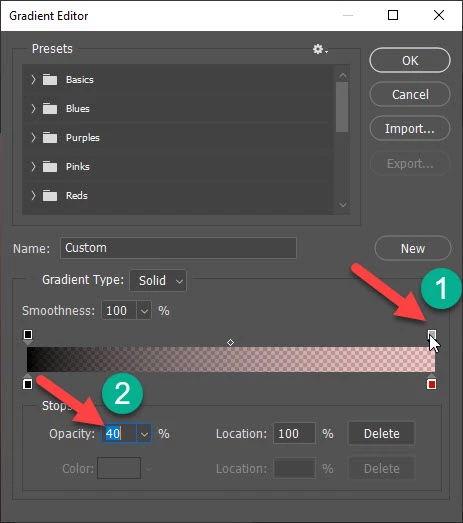
Take a look at screenshot below, click on right side Opacity Stop and set Opacity to 40%. Ensure that left side Opacity Stop is set to 100%.

Another option available to you is to use Gradient adjustment layer and to restrict gradient using layer mask.


2 replies

Bojan Živković11378569
Community Expert
Community Expert
September 24, 2020

It is possible to decrease verticaly from 100% (upper part) to 40% (bottom part) ?

Take a look at screenshot below, click on right side Opacity Stop and set Opacity to 40%. Ensure that left side Opacity Stop is set to 100%.

Another option available to you is to use Gradient adjustment layer and to restrict gradient using layer mask.


lambiloon
Community Expert
Community Expert
September 24, 2020

Hi check this simple solution video hope it helps you....regards


https://youtu.be/dlyMym997cA

Ali Sajjad / Graphic Design Trainer / Freelancer / Adobe Certified Professional
Jenna5F85Author
Participant
September 24, 2020

Thank you for reply, but in your video i did not find where i can set opacity start at 100% and end with opacity at 40%.
Use a gradient tool and drag a line to side is lottery to set opacity from 100% to 40% and every time it is different...