stevene84025796
Participant
December 26, 2023
Answered

Photoshop - I can't see any background or layer

  • December 26, 2023
  • 4 replies
  • 1034 views

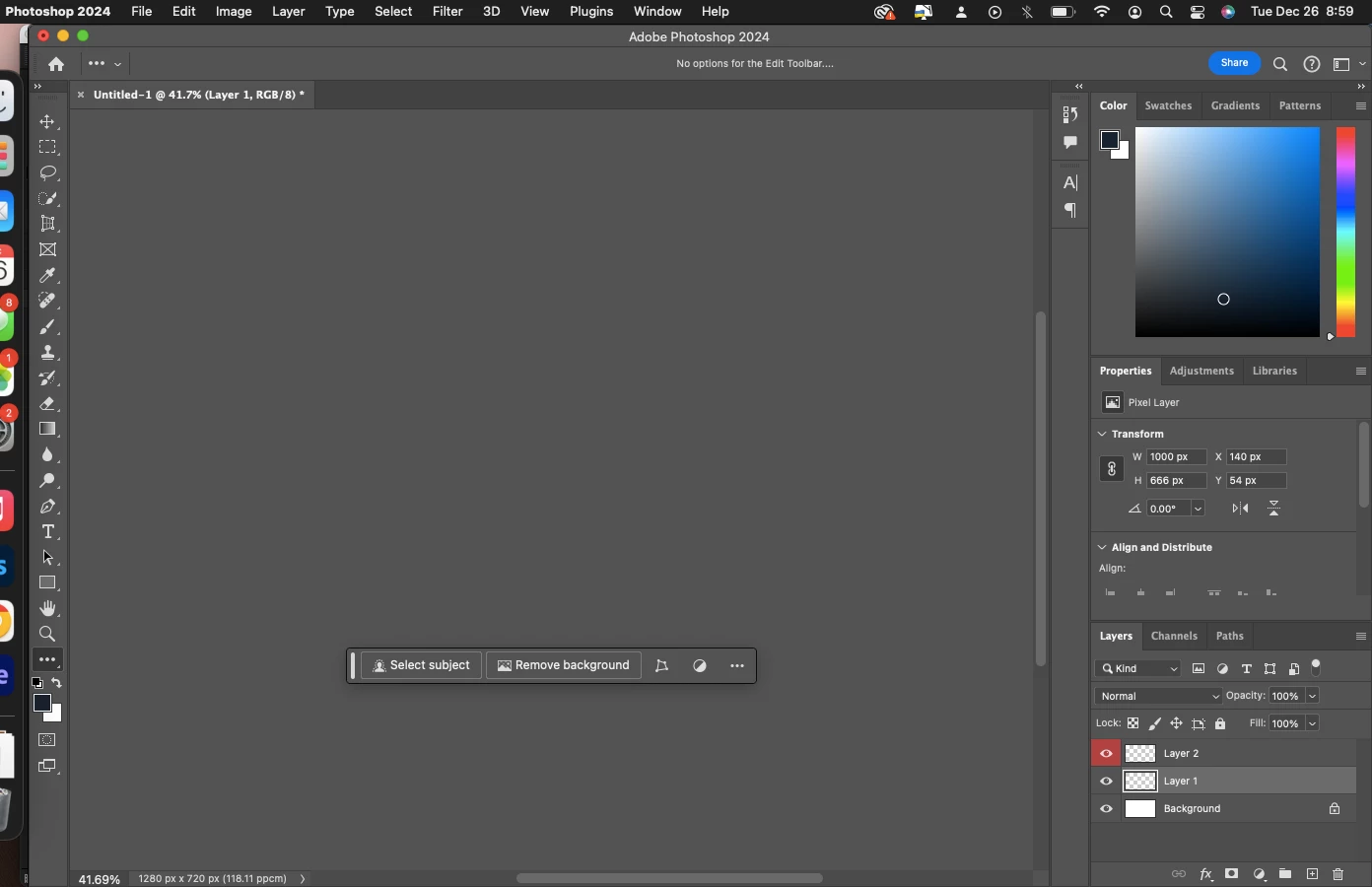
First I think it's imporant to say that I'm still somewhat new with Photoshop but I love playing around with it; I was recently trying to create a thumbnail for a YouTube video and all of a sudden I can't see any layer or even the background. I'm not sure exactly what might be causing it but I've done some reasearch and I can say that it's not the application frame issue as I do have that checked off. Does anyone know a fix for this?


Thank you for your help and advice in advance, hope you all had a great holiday season so far! 
This topic has been closed for replies.
Correct answer stevene84025796

Hello Thank you for your help with this! I just want to let everyone know that oddly enough it was my scratch disks that were full that was causing my computer to bugout lol. But I removed some stuff on my computer and now have enough space and everything is going great! Thanks again!

4 replies

jane-e
Community Expert
Community Expert
December 27, 2023

@stevene84025796 


Also notice that both your scroll bars are halfway down, so you've scrolled away from your canvas.


Your document is small and you are zoomed out. 


Someone else will have to comment on the 118.11 pixels per centimeter.


Jane

stevene84025796
Participant
December 27, 2023

Hello Jane thank you for your comment. I just tried zooming in and out all over the screen and tried photos that are much bigger than 1280px x 720px and still the same issue. Thank you for looking into this for me 🙂 

Trevor.Dennis
Community Expert
Community Expert
December 27, 2023

Have you tried closing documents and restarting Photoshop?

It's starting to look like something is broken, so maybe time to try resetting Preferences.


Trevor.Dennis
Community Expert
Community Expert
December 27, 2023

I'm actually having trouble trying to duplicate the same appearance.  The nearest I could get was to reduce image size to 1 x 1 pixel.  Having the tab showing is stopping me from dragging the window completely off screen, and that's when I have a screen ether side of my main screen.  I still get an inch left on the main screen. 


If the windows are floating they can disappear by being minimised.  I've lost open document that way in the past, and the only way I could find them again was bu consolidating all back to tabs.  But with a tab showing and active (we can tell by the solide white text), I can't make the document window hide.


I think you guys have covered it. The only thing I'll add to Ctrl 0 and turning on rulers, is to open Image Size dialog.

stevene84025796
stevene84025796AuthorCorrect answer
Participant
December 27, 2023

Hello Thank you for your help with this! I just want to let everyone know that oddly enough it was my scratch disks that were full that was causing my computer to bugout lol. But I removed some stuff on my computer and now have enough space and everything is going great! Thanks again!

Trevor.Dennis
Community Expert
Community Expert
December 27, 2023
quote

 I just want to let everyone know that oddly enough it was my scratch disks that were full that was causing my computer to bugout lol.


By @stevene84025796


Wow!  I wasn't expecting that.  Are you able to fit another drive?  i.e. is a desktop or laptop system?

didiermazier
Community Expert
Community Expert
December 26, 2023

The shape is very near th origin and you seem to show another part of the space. Ask for showing rulers or as Dereck said show Command (or Ctrl on windows) 0 to show at full screen size

Derek Cross
Community Expert
Community Expert
December 26, 2023

Press Command + 0 to see the white rectangle  (I think it's off the stage).

stevene84025796
Participant
December 27, 2023

Thank you for this suggestion, I tried that and nothing seems to happen. It centers everything but it is still all grey. Thank you for your help though