



TenTin
Known Participant
July 28, 2025
Question

Photoshop, IntelARC and Live Preview ... The Good, The Bad and The Ugly!

  • July 28, 2025
  • 2 replies
  • 1192 views

Does Photoshop have a problem with Intel ARC?

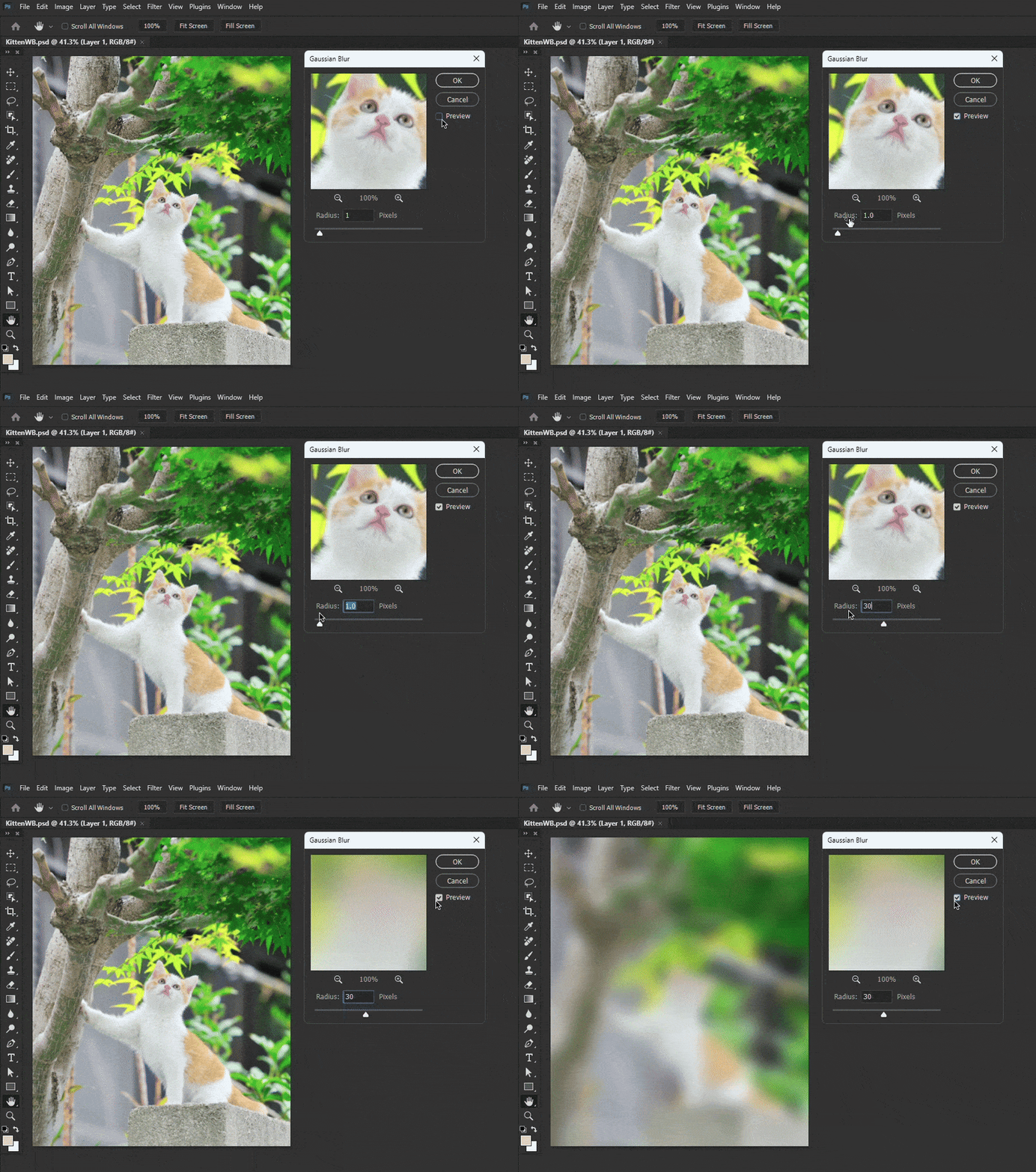
Why isn't there a live preview of effects and filters? Whenever I apply a Gaussian blur, I have to toggle the "Preview" on and off once to see the effect in the main window!
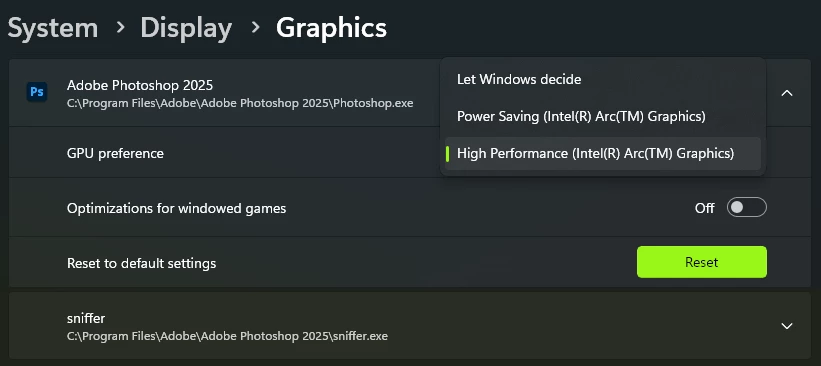
I've set the graphics settings to High Performance. Speed and performance are good.
 

I've heard the new Intel Core Ultra's ARC+NPU cooperation has great performance for such lightweight editing. Have I missed something here?


Photoshop: Latest version

Win 11 24H2: Latest update
CPU CoreUltra 7 (14th Gen) + 32 GB RAM DDR5
GPU: Intel Arc Graphics + NPU Assisted (latest driver update installed)

2 replies

TenTin
TenTinAuthor
Known Participant
September 17, 2025

I updated the Intel driver. But the problem is there, yet! Why effect preview is out of sync?

I tried to disable "GPU compositing", and it doesn't work all the time. My ARC graphic is considered as iGPU and dGPU at the same time in Windows, I set it as iGPU for Ps also as dGPU (in Windows Graphics setting), but no difference. I realized a lot of layer styles/effects preview are also out of sync (not live preview)!


IntelARC driver: Latest

Photoshop version: Latest

Windos 11 version: 24H2 Latest CU Update


Noel Orridge
Community Manager
Community Manager
September 19, 2025
Hi @9883437! Thank you for reaching out! Sorry for being late to the conversation.
 
Please share your System info so that we can determine whether there's an underlying cause for the issue. From Help > System info > Copy and paste the contents into a text file and attach it to your response.
 
In the meantime, you can try these fixes, see if they change anything.
 
1) Try turning off your GPU from Edit > Preferences > Uncheck "Use Graphics Processor" and check if the previews are back.
2) Uncheck "Multi-threaded Composting".
3) In Windows Settings, System > Display > Graphics > toggle off "Hardware-accelerated GPU scheduling".
4) Reset your preferences, but make sure they are backed up first. For steps and more info, you can check out this Helpx article: Preferences in Photoshop
 
Let us know how it goes! 
Cheers!
Noel
TenTin
TenTinAuthor
Known Participant
September 19, 2025

Option 2: Didn't work.

Option 3: I don't have such option in my Windows Graphics Settings.


I noticed that when I manually enter a value in the Gaussian Blur dialogue box, the filter preview updates in real time. However, when I adjust the value using the slider with my mouse, the preview does not update in real time.

When I disable the "Use Graphics Processor" setting, the filter and effects preview work normally and update in real time again.


Can you help me get rid of such a headache!

SysInfo is attached.


Participant
July 28, 2025

That thing where you have to toggle the Preview checkbox to actually see the effect sounds like a rendering issue—probably the GPU and Photoshop not syncing up the preview properly. Not normal behavior.

A few things you could try:

Go to Preferences  Performance and try turning off GPU compositing just to test if it makes a difference.

Try running Photoshop with your integrated graphics instead of Arc (just as a quick test) to see if the issue is GPU-specific.

Keep an eye on Intel’s driver updates, especially any that mention Photoshop, “Creator” optimizations, or NPU performance.

Let me know if this helps or if you've already tried some ofo this. 

TenTin
TenTinAuthor
Known Participant
July 28, 2025

Thanks 👍

By disabling GPU Compositing, it works real time (the preview)! Should I have to wait for an Intel driver update?


Update: I don't have this problem on another older PC (4th-gen Intel CPU with 2GB AMD GPU). AFAIK, my Intel ARC (CoreUltra Gen 14) is in Adobe's GPU list (supported GPUs). I don't have any problem in Premiere Pro (Editing with lag!).

CMass
Legend
July 28, 2025

Hey! To add to what @shallymarcabe shared, I also wanted to pass along this helpful article about GPUs and troubleshooting in Photoshop: https://adobe.ly/3U5lJIm It also helps answer a few questions you may have. : ) 
^CM