Licia229867792cm4
Participant
April 4, 2022
Answered

Photoshop - Italic T missing from Character Panel, all fonts are italicized

  • April 4, 2022
  • 3 replies
  • 2693 views

I have had this problem for several weeks. All my fonts are italicized, regardless of font style or which font is used. The issue seemed to have appeared after using a file that was created by my marketing agency that contained a font like this.


This is Open Sans Extra Bold.

 

I have tried the following without success:

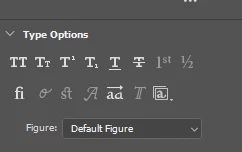
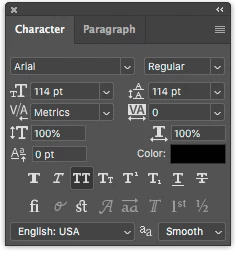
 -  De-selecting the italics T in the character panel - there isn't one.
- Resetting the tools in Preferences
- Checking to see that an italic version of the font isn't selected
- Testing multiple fonts - all fonts have the same issue


Does anyone know how to fix this?


Version of Photoshop: 2022: 23.1.1.202
This topic has been closed for replies.
Correct answer Warren Heaton

Your screenshot is of the Properties tab.


What do you see under the Character tab?  Window > Character


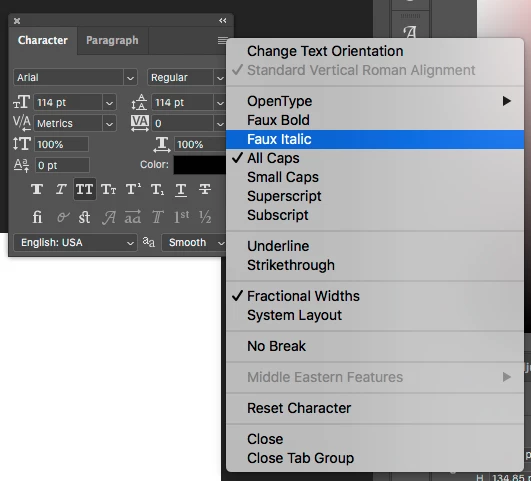
And if you view the Character pop-up menu, do you see "Faux Italic" listed?


Have you tried the Reset Character option at the bottom of this list?

3 replies

Kukurykus
Legend
April 5, 2022

You may mark correct answer, while this thread now should be moved to Discussions.

Licia229867792cm4
Participant
April 4, 2022

Oh - you got it - the italic T was selected in the Character pop-up menu. I was now able to de-select it. The font is now corrected!  The Faux Italic was not selected.  


Thank you!

Warren Heaton
Community Expert
Warren HeatonCommunity ExpertCorrect answer
Community Expert
April 4, 2022

Your screenshot is of the Properties tab.


What do you see under the Character tab?  Window > Character


And if you view the Character pop-up menu, do you see "Faux Italic" listed?


Have you tried the Reset Character option at the bottom of this list?