
Answered
Photoshop Layer Mask
I was working with two images and I wanted to hide certain areas of one image. So, when I create a layer mask then select the black brush the areas I intended to hide turn into grey spots and transparent!! Help!!
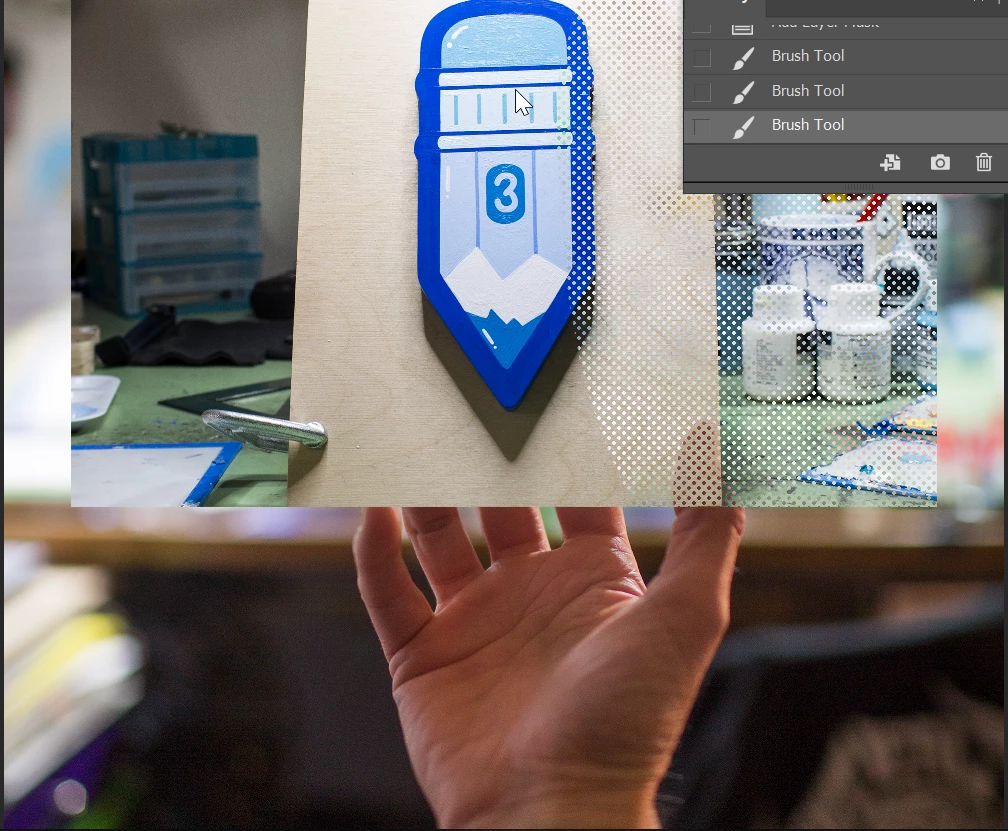
I was working with two images and I wanted to hide certain areas of one image. So, when I create a layer mask then select the black brush the areas I intended to hide turn into grey spots and transparent!! Help!!
It looks like your flow on your brush is at 41%, so it's painting a gray on your mask rather than black.
Chuck, I'd love to know how that brush works? It looks like the brush is actually laying down the halftone effect, as it looks to be showing the same pattern in the layer mask. There's obviously some guess work going on with the tiny size. I guess I have seen brush presets that will produce that effect using dual brush, but I tend to associate the look more with Krita.
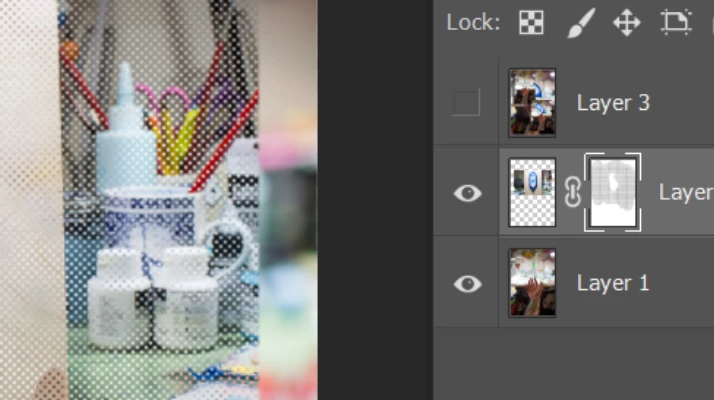
I'm going to have to go hunt down some similarly textured presets now. Chilinny can you show us the brush panel for that brush please?
Already have an account? Login
Enter your E-mail address. We'll send you an e-mail with instructions to reset your password.
 AdChoices