Participant
July 8, 2024
Question

Photoshop: Masksen Probleme

  • July 8, 2024
  • 2 replies
  • 423 views

Photoshop Version: v25.9.1.
Dateinformate: .pds, .psb oder .tiff
macOS: Sonoma 14.5

Hallo zusammen, bei diversen Photoshop-Projekten tretten immer wieder diverse Masken-Probleme auf (siehe Schreenshots). Bei diesen "Glitches" handelt es sich nicht um einen Anzeigefehler, sondern um Masken die effektiv verändert werden. Durch das verändern der Maske, bleibt mir nichts anderes übrig als die Objekte erneut freizustellen... Dieses nervige Phenomen tritt meist beim Öffnen der gespeicherten Datein auf. Ist jedoch auch schon bei der aktiven Beitung des Projektes aufgetreten. Gibt es hier eine Lösungsansatz? 

Fehler beim Öffnen der Dateim am Donnerstag:
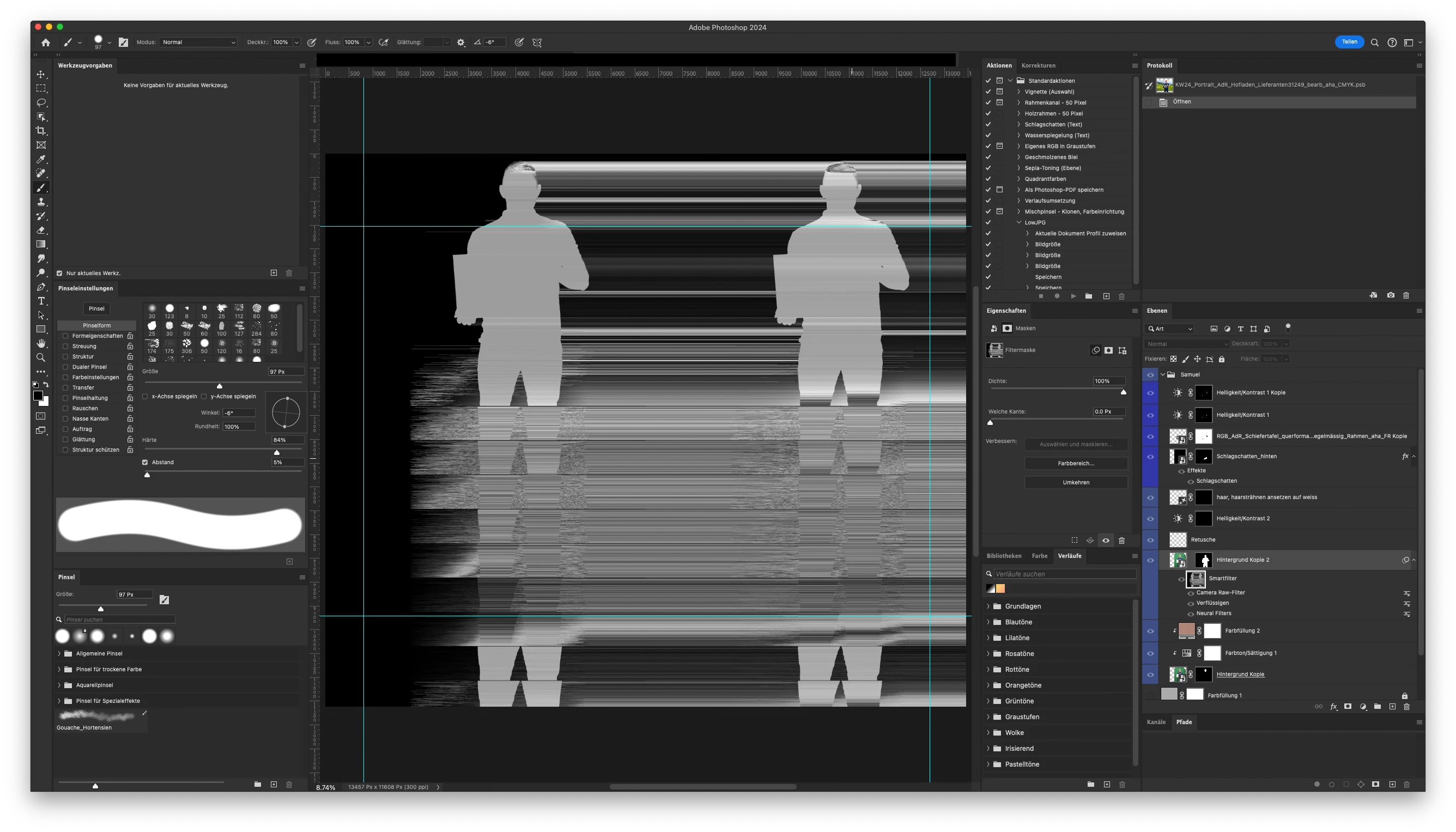

Erneutes öffnen der Datei heute (Montag), nachdem die Maske bereits korrekt erstellt wurde...
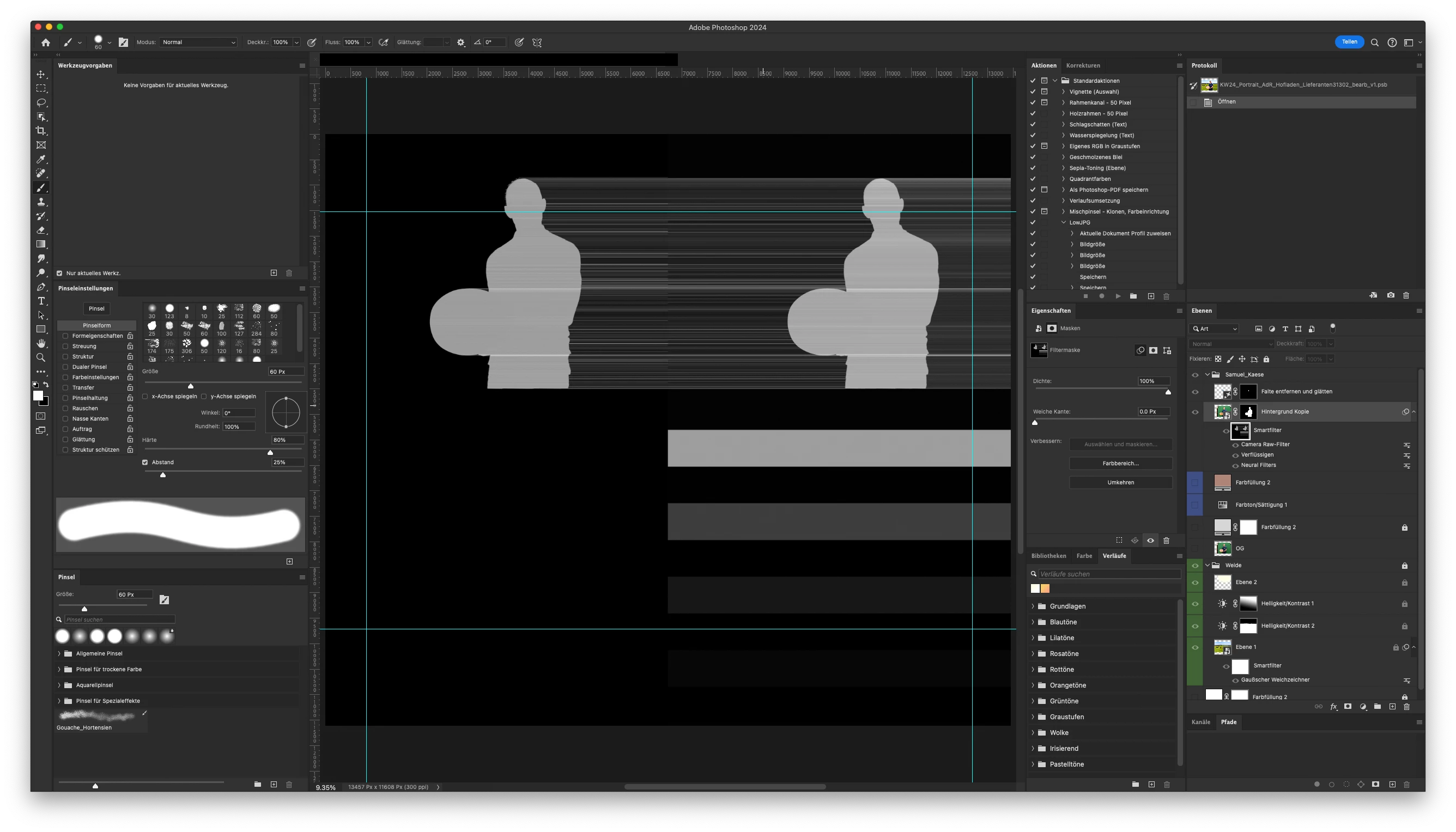
Danke und Grüsse

This topic has been closed for replies.

2 replies

c.pfaffenbichler
Community Expert
Community Expert
July 15, 2024

Does turning off »Use Graphics Processor« in the Performance Preferences (Photoshop > Preferences > Performance > Graphic Processor Settings) and restarting Photoshop have any bearing on the issue? (For new Layer Masks naturally, not ones that have already been damaged.) 

Participant
July 23, 2024

Thanks for the tip 🙂 It's helping for new and smaller projects that don't need the active graphic processor. However it's not fixing it for the files that have recurring damaged masks, even if they are reeditited.

c.pfaffenbichler
Community Expert
Community Expert
July 23, 2024

Unfortunately this is no proper solution as it invalidates GPU dependent features (like the Rotate View Tool and some Filter acceleration for example) but it indicates problems with the GPU driver or the OS. 

https://helpx.adobe.com/photoshop/kb/troubleshoot-gpu-graphics-card.html

https://helpx.adobe.com/photoshop/kb/photoshop-cc-gpu-card-faq.html

Sameer K
Community Manager
Community Manager
July 11, 2024

Hey, @Alice3155080596vk. Welcome to the Photoshop Community. I'll need more info to help you figure this out. Please share the system info from Photoshop Help > System info > Copy & paste into a text document > upload & attach here.


Before troubleshooting, ensure Photoshop has the required permissions on the macOS: https://adobe.ly/45Yqsk4

Where do you keep the document? On the internal drive, or an external drive? After you save and close Photoshop & open the file again, does the file appear like this?

This could be due to the interference or instability with where & how the local file is stored while you're working in Photoshop.


Try these steps:

Go to the location of the preference folder mentioned below and rename it to back up. (https://adobe.ly/3u7u84j)
macOS: Hold down the Option key in the Finder when using the Go menu. The library will appear below the current user's home directory.

Library > Preferences > Adobe Photoshop [version] Settings

Rename the Adobe Photoshop folder by adding a .old at the end. (Adobe Photoshop 2024 > Rename > Adobe Photoshop 2024.old)

This will give a fresh start to Photoshop as a new installation.

Let me know if it helps. Thanks!
Sameer K

(Use '@mention' to tag me when you reply)

Participant
July 15, 2024

Hi @Sameer K, thanks for the reply 🙂

Attached you find the "Photoshop System Info" as requested.
Phothoshop has all permissions on my macOS.

SInce this is my companies device I'm working direkctly on the companies network server. Due to the file size and slow network connection I've moved the files to my personal Macintosh HD. However, the issue with the masks appears regardless the location of the file.

I'll try refreshing theinstallation of my Photoshop and will let you know how it's going, since I'll be working on this project again this week.

Best regards, Alice