Participant
June 5, 2021
Answered

Photoshop on macOS Catalina: Does not detect GPU

  • June 5, 2021
  • 2 replies
  • 996 views

Hi
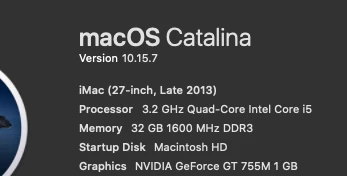
My com. is

And in preferences Photoshop tell me
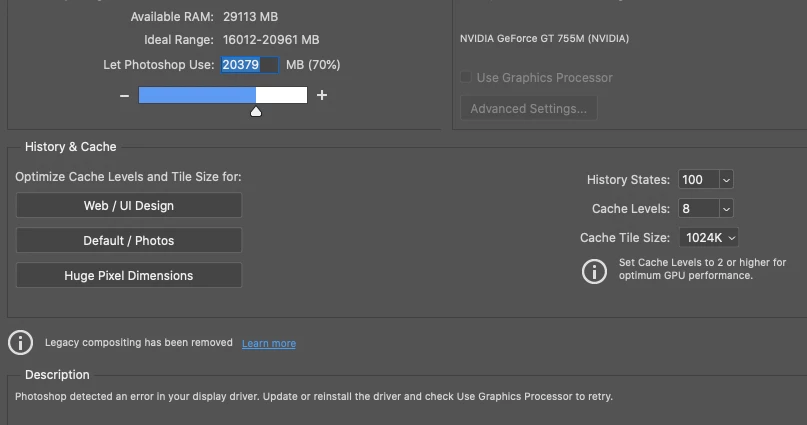
It does not allow me to tick the section for my graphics card and this does not work in Photoshop.

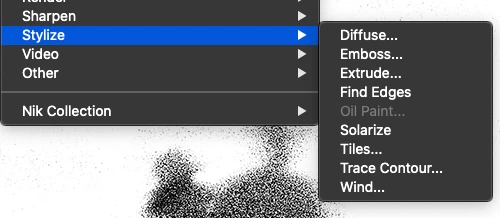
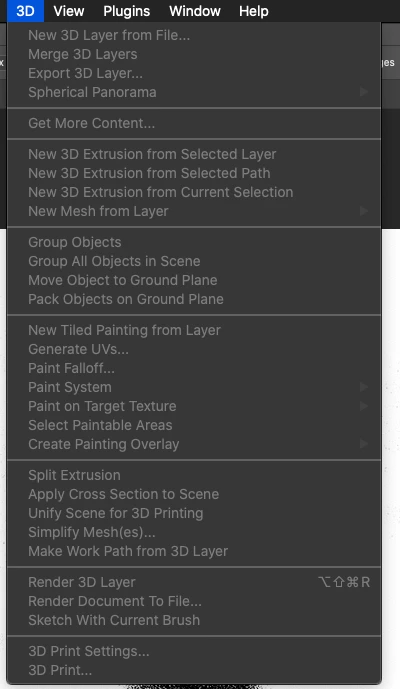
And the resultant is
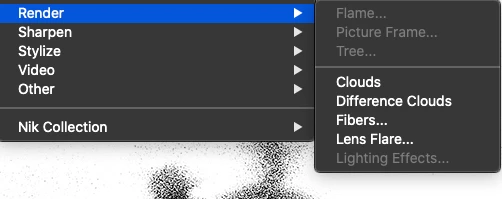
And I do not know how to reinstall the display drivers.

But I use Illustrator, Lightroom, InDesign, Bridge, and Acrobat, and every program working perfectly.

Only Photoshop. Photoshop not working properly.

Please Help me.


Best regards

Cvetanka


This topic has been closed for replies.
Correct answer gener7

This card is from a late 2013 imac.  Given that https://helpx.adobe.com/photoshop/kb/photoshop-cc-gpu-card-faq.html requires a passmark of 2000 op/sec, the 755M is at 733.


I'd suggest roll back Photoshop  to v22.3 or v22.2 if Deactivate Native Canvas does not work.

2 replies

gener7
Community Expert
gener7Community ExpertCorrect answer
Community Expert
June 7, 2021

This card is from a late 2013 imac.  Given that https://helpx.adobe.com/photoshop/kb/photoshop-cc-gpu-card-faq.html requires a passmark of 2000 op/sec, the 755M is at 733.


I'd suggest roll back Photoshop  to v22.3 or v22.2 if Deactivate Native Canvas does not work.

CvetankaAuthor
Participant
June 7, 2021

Hi gener7


Thanks for your help.

I switch on v22.2 and now everything working.
Have a good day.
Best regards
Cvetanka

Akash Sharma
Legend
June 7, 2021

Hi Cvetanka,


Sorry that Photoshop does not detect the GPU unit on your Mac running the OS Catalina.


Which exact version of Photoshop are you using?


We are aware of an issue where Photoshop 22.3.1 is not properly detecting the GPU, please ensure that you are using Photoshop version 22.4.1(latest). See: https://helpx.adobe.com/photoshop/kb/uptodate.html 


In Photoshop 22.4 or 22.4.1 (May 2021), use of 3D features (Text extrusion, Lighting Effects, Normal Map and Bump Map filters) may not update the screen properly or render the correct results.  

We recommend using the Tech Preview option for overriding Photoshop’s native canvas mode to continue to use the 3D features.


Go to Preferences > Technology Previews, and check the item Deactivate Native Canvas, then restart Photoshop. 


Let us know if that helps.


Thanks,

Akash

CvetankaAuthor
Participant
June 7, 2021

Hi Akash Sharma

Deactivate Native Canvas does not work but thanks for your help.

Have a good day.

Best regards

Cvetanka.