Photoshop Onion skins are not working and Idk why
Hi I'm going to do my best to explain this so please bear with me. I'm also very unfamiliar with photoshop terms so I apologize for any clunky language.
I'm currently using Adobe Photoshop CC 2017 to animate a short film and until recently, I haven't had any issues. However, my onion skin layers are not working. When I put onion layers on, I am unable to draw on the frame I want to draw and instead draws on the previous frame.
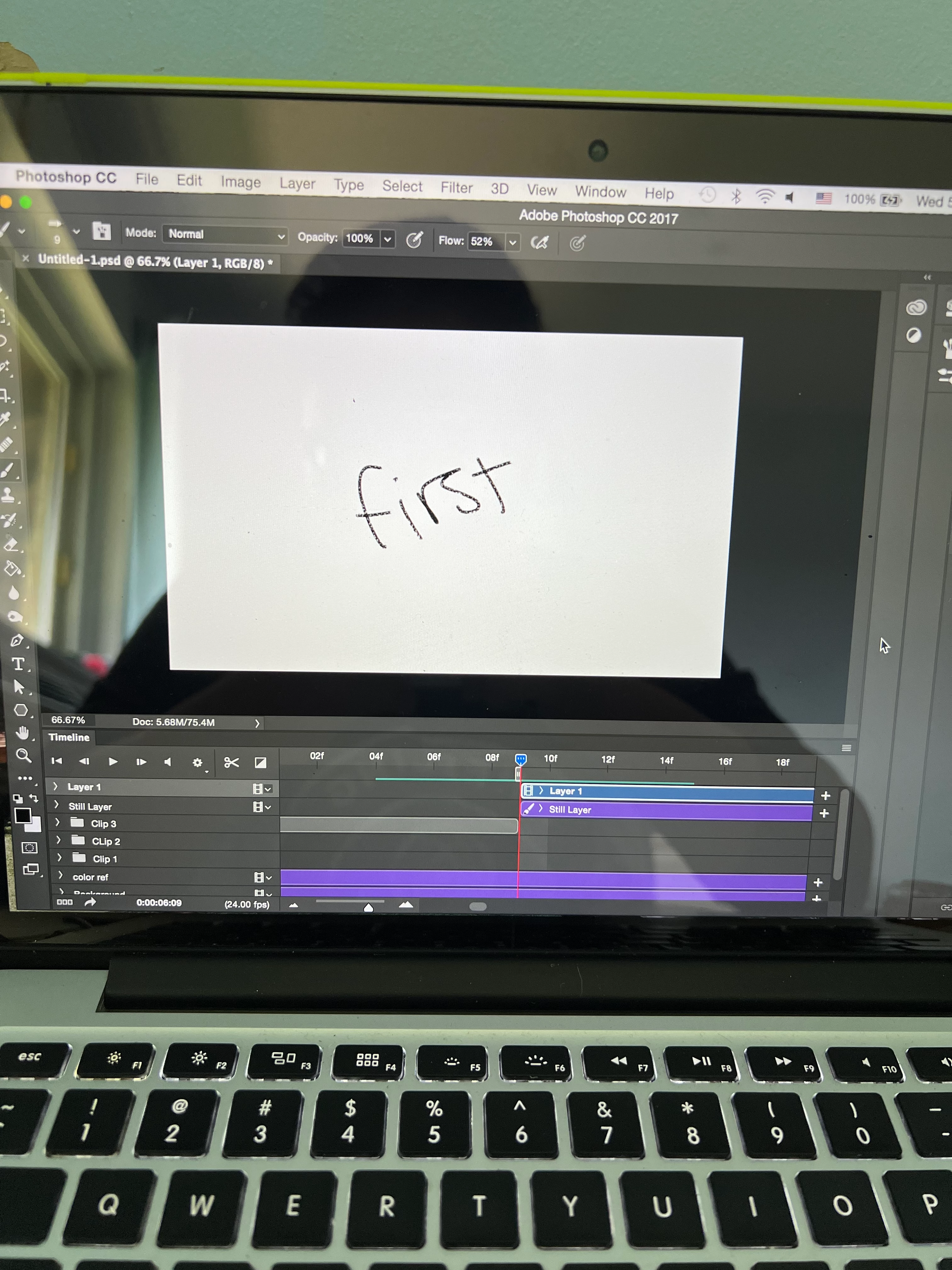
the picture below is the first frame of the video layer I'm working on (hence why the frame was the term "first". I have labeled every consequent frame with the consecutive numbers so the second frame is called "second" and so forth). This photo is with onion layers turned off.
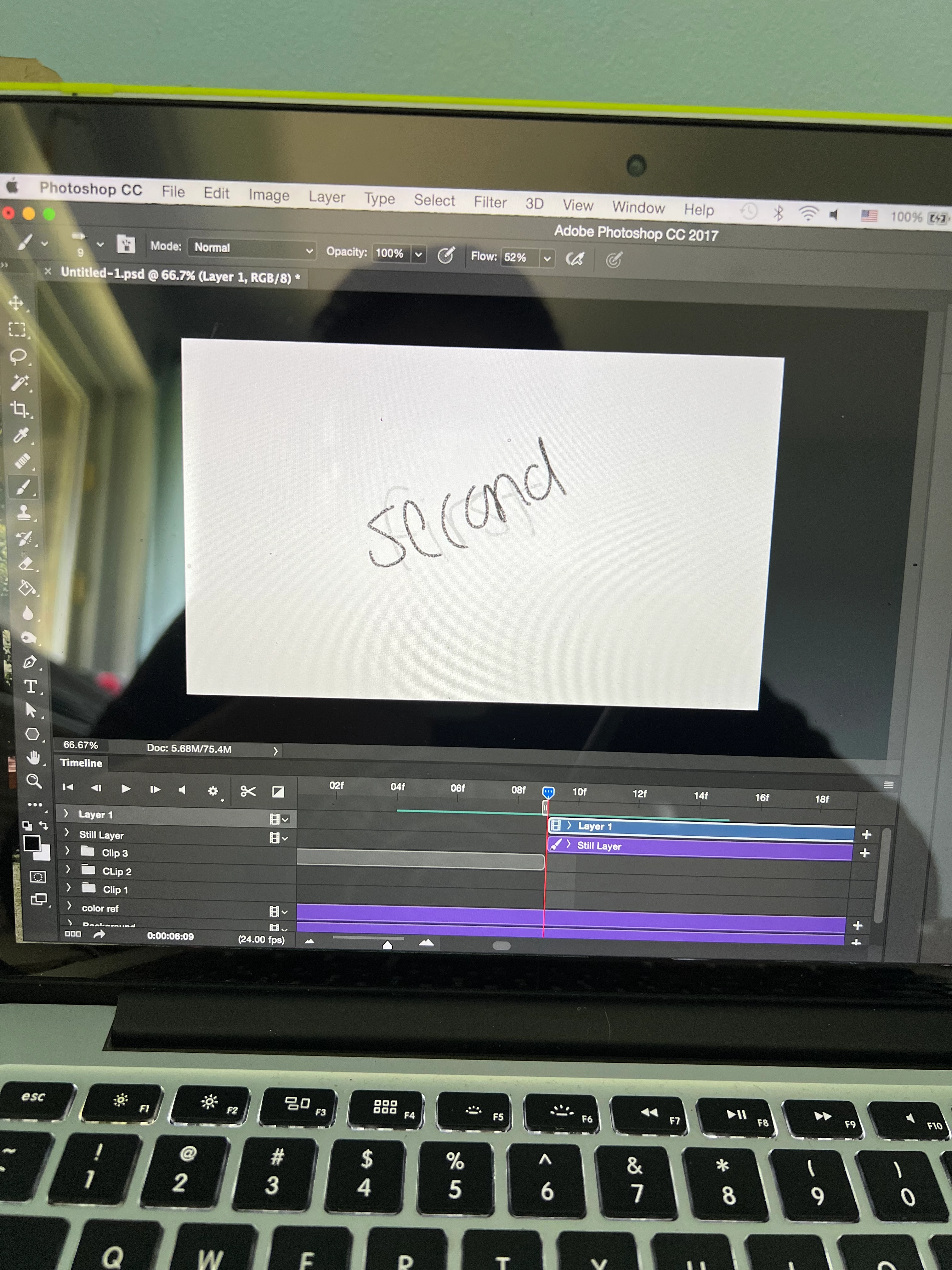
When I turn onion layers on, this is what my screen looks like. The second frame has a higher opacity than the first frame I want the first frame to have a higher opacity.
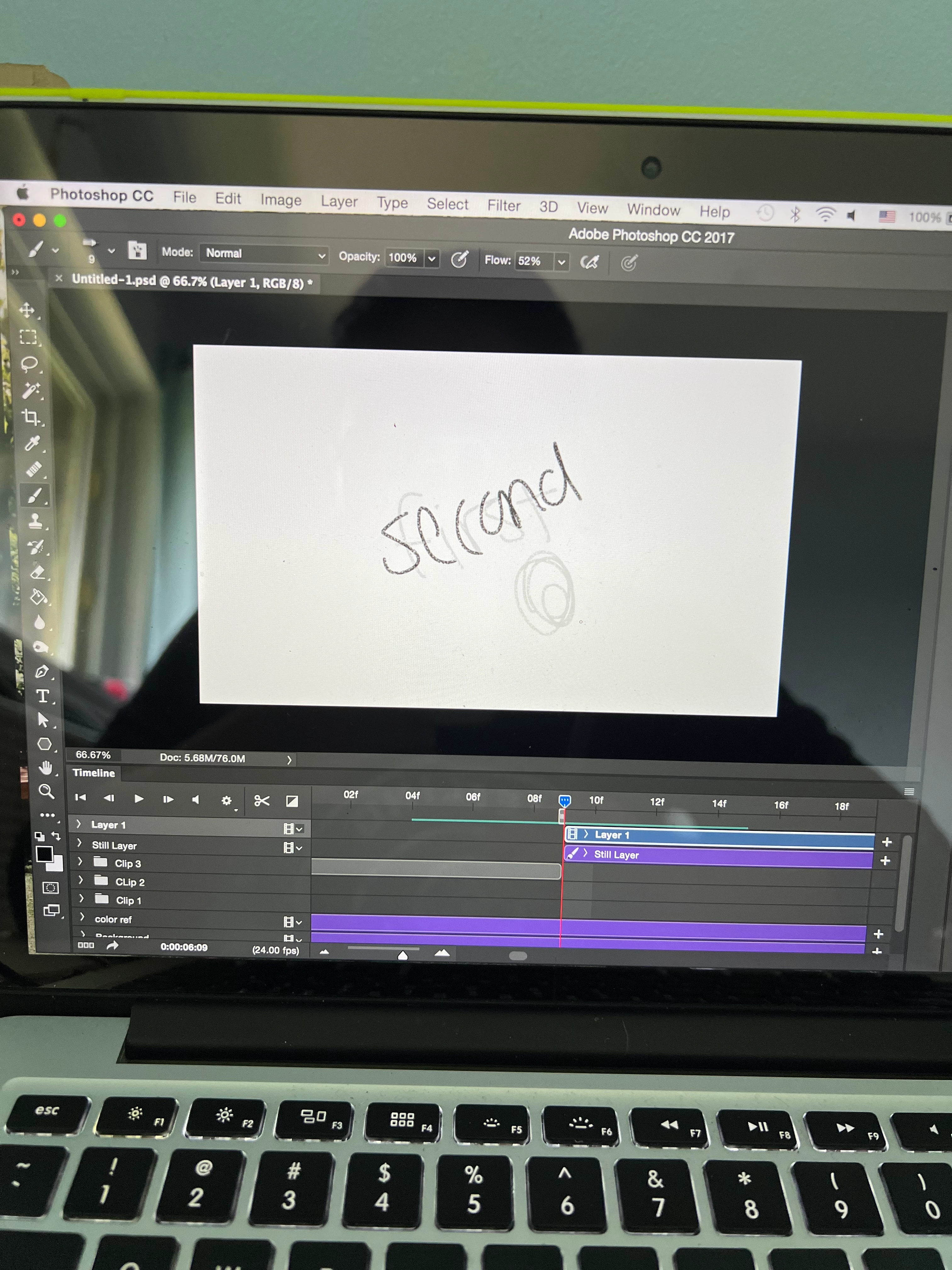
and when I draw on the frame this is what happens (I drew a little circle below "first" and it looks faint).
Im not sure if I pressed something wrong or if I turned on something in settings but I would like the onion skin settings to show the frame I'm working on in a higher opacity than the previous or consequent frame.
hopefully my dilemma made sense and if you guys could help me that would be wonderful.
xx
 AdChoices