Participant
January 4, 2013
Answered

Photoshop Scripting - Quote graphics, help!

  • January 4, 2013
  • 1 reply
  • 1970 views

Hi all!

I couldn't find an answer to this question, so I thought I would make a post


Though I'm not new to Photoshop, I am new to scripting - and I've been assigned a task which I'm having trouble with.

Task Details:

Create 300 Graphics with the supplied 300 quotes (quotes come in a simple excel document)

- AUTHOR text and QUOTE text must be different colors.

- Each quote must have a number ie. #1, #12, #123

- Save as PNG

To make things more interesting, here is another requirement

- If QUOTE length is less than 100 characters, use template Short.psd

- If QUOTE length is 101-150 characters use template Medium.psd

- if QUOTE length is 151-200 characters use template Long.psd

** Short / Medium / Long PSD files have been provided

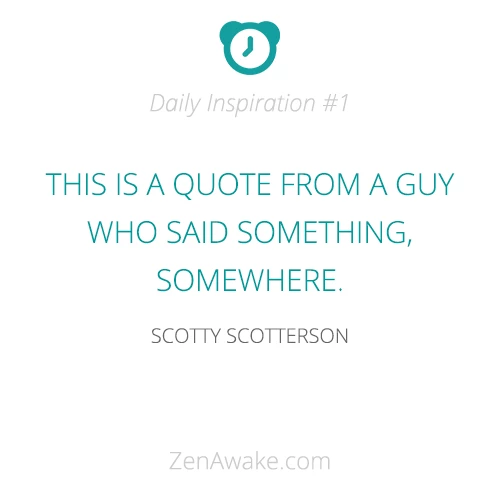
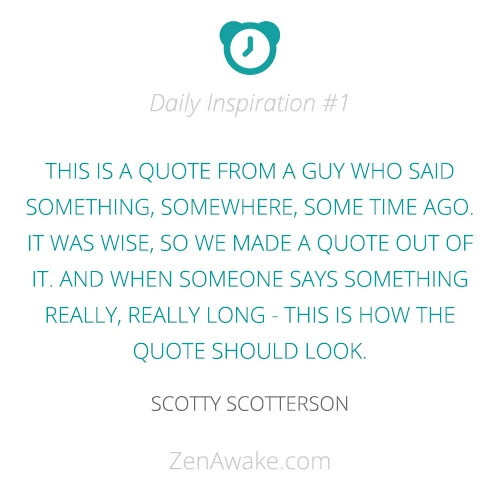
I've attached a sample graphic of what a quote less than 100 characters might look like, and one of a quote that is 200 characters in length.


If you could kindly offer some help with this task I'd greately appreciate it - I'm a bit lost really.

Cheers!

Soulfood

This topic has been closed for replies.
Correct answer Michael_L_Hale

Hey Michael,

I have uploaded the 3 PSD files, and the Quotes to - https://www.dropbox.com/sh/bi84z4c4c6apb2y/jaNmx_OxVt

Some notes before you take a look at the files:

- There may be a case in the future where we might see a quote, but NO speaker - in such an event, it would be best if the speaker field was just left empty - instead of having the script throw an error.

- There is always 40px between the top of the speaker text and the bottom of the quote text

Once again, I really appreciate you taking your time to look into this!

Cheers!
Soulfood


This should give you a place to start. Becasue the quotes contain commas you will need to save the Excel sheet as tab delimited instead of csv. You also will need to change the file paths to match your system.

function makeActiveLayerByName( lyrname ){

    var desc = new ActionDescriptor();

        var ref = new ActionReference();

        ref.putName( charIDToTypeID( "Lyr " ), lyrname );

    desc.putReference( charIDToTypeID( "null" ), ref );

    desc.putBoolean( charIDToTypeID( "MkVs" ), false );

    executeAction( charIDToTypeID( "slct" ), desc, DialogModes.NO );

};

function SaveAsPNG( saveFile ){

    pngSaveOptions = new PNGSaveOptions();

    pngSaveOptions.interlaced = true;

    activeDocument.saveAs( saveFile, pngSaveOptions, true, Extension.LOWERCASE );

};

// you will need to change the file paths

var dataFile = new File('~/desktop/ZenAwake - Quotes.txt'); // tab delimited text file

var shortTemplate = new File('~/desktop/Short Quote.psd');

var medTemplate = new File('~/desktop/Medium Quote.psd');

var longTemplate = new File('~/desktop/Long Quote.psd');

var tagline = 'Daily Inspiration #';

var lines = [];

dataFile.open('r');

while( !dataFile.eof ){

    lines.push( dataFile.readln() );

}

dataFile.close();

var numberOfQuotes = lines.length;

for( var quoteIndex = 1; quoteIndex < numberOfQuotes; quoteIndex++ ){

    var quoteArray = lines[ quoteIndex ].split( '\t' );

    var quoteNumber = quoteArray[0];

    if( quoteNumber == '' ) continue;

    var quote = quoteArray[1];

    var quoteLength = quote.length;

    var speaker = quoteArray[2];

    switch( true ){

        case ( quoteLength <= 50 ):

            app.open( shortTemplate );

            break;

        case ( quoteLength >= 151 ):

            app.open( longTemplate );

            break;

        case ( quoteLength > 50 && quoteLength <= 150 ):

            app.open( medTemplate );

            break;

    }

    makeActiveLayerByName( 'ID#' );

    app.activeDocument.activeLayer.textItem.contents = tagline + quoteNumber;

    makeActiveLayerByName( 'quote' );

    app.activeDocument.activeLayer.textItem.contents = quote;

    var quoteBottom = app.activeDocument.activeLayer.bounds[3].as('px');

    if( speaker != '' ){// speaker not blank

        makeActiveLayerByName( 'speaker' );

        app.activeDocument.activeLayer.textItem.contents = speaker;

        var speakerTop = app.activeDocument.activeLayer.bounds[1].as('px');

        if( (speakerTop - quoteBottom ) != 40 ){

            app.activeDocument.activeLayer.translate( 0, ( quoteBottom + 40 ) - speakerTop );

        }

    }else{// hide speaker layer

        makeActiveLayerByName( 'speaker' );

        app.activeDocument.activeLayer.visible = false;

    }

    // you may want to change path and naming

    var saveFile = new File('~/desktop/temp/ZenAwake - Quotes #'+quoteNumber+'.png');

    SaveAsPNG( saveFile );

    app.activeDocument.close( SaveOptions.DONOTSAVECHANGES );

}

1 reply

Inspiring
January 4, 2013

What you outlined should be easy to script. If you can save the Excel worksheet as a csv file it could be done with javascript. But I would need to know more about the structure of the Excel worksheet and the template docs before I could post a working script.

Does the Excel sheet have the quote number, author, and quote?

Does the template docs already have text layers and if so how are they identified? By layer name or layer order?

Participant
January 5, 2013

Hi Michael,

Thanks so much for your reply!

To answer your questions:

- The excel document can be organized any way it would be best. Right now its broken down into #ID / Quote / Speaker

- The photoshop file is organized by layer names #ID / Quote-Speaker (same text layer)

The issue with having 2 different text layers is that the Speaker wouldn't be spaced correctly from the Quote, because Speaker isn't always in the same place. Is their any way to get over this?

Thanks again!

Soulfood.

Inspiring
January 5, 2013

Having the quote and speaker in the same text layer will be a problem to automate this with a script. It is easy to replace all the text in a text layer via a script. You just assign the textItem.contents property with the new text. To work with both the quote and speaker in the same text layer would require using Action Manager to work with layer's text ranges. It still might be possible but it will be much harder.

Can you rework the templates so that the quote and speaker are on different layers? The script could check the position of the speaker layer and move it if needed to maintain the same spacing from the bottom of the quote and the top of the speaker text.

If you can't change the templates, could you post one. I may be able to come up with something that works with one layer if that is your only option.