


Piontek
Inspiring
October 16, 2018
Answered

Photoshop: Selection Transform doesn't work after update 20.0

  • October 16, 2018
  • 1 reply
  • 10286 views

Hello, I'm on Win10 64 Bit with Photoshop CC4.20

having trouble using the Transform-Tool when something is selected.

First of all, if I've made a selection in one of my layers, pressing CTRL+T won't work.
After right-click on the selection (with selection tool) and choose "Transform selection",
I am able to transform the selection, but the selected content of the layer doesn't follow the executed transformation.

Am I doing something wrong? Doesn't it work that way anymore? Of course there is a workaround, but that can not be.

However, My photoshop version is not in english, so I hope I described all the Tool names correctly.


Thanks in advance,
D
This topic has been closed for replies.
Correct answer

Hi

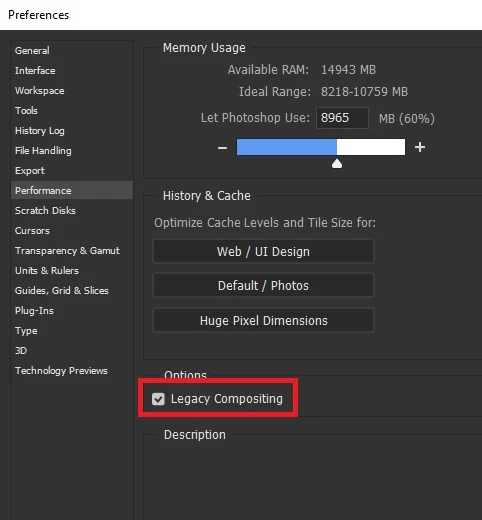
Try enabling this option in preferences and restart Photoshop

1 reply

Muqqarib Hassan
Inspiring
October 16, 2018

Hi,

They've updated the "What's New" page with instructions on how to revert to legacy functionality, under the "Transform proportionally by default" section:

Transform proportionally by default

Photoshop now transforms all layer types (such as pixel layers, type layers, shape layers, bitmaps, Placed Smart Objects) proportionally by default.

When transforming a layer, you no longer need to hold down the Shift key while dragging a corner handle to resize a selected layer to constrain its proportions. Anytime you drag a corner handle during transform and move it, the layer resizes proportionally. Holding down the Shift key now resizes non-proportionally when you drag a corner handle during transform.

To resize a layer proportionally during transform, do the following:

  1. Select the layer(s) you want to resize in the Layers panel.
  2. Press Command + T (Mac) / Control + T (Win). Alternatively, choose Edit > Free Transform.
  3. Drag a corner handle on the bounding box to resize the layer.
  4. Commit the changes.

New and enhanced features | Latest release of Photoshop CC

Piontek
PiontekAuthor
Inspiring
October 16, 2018

Hello, thanks for your answer, but this was not my question. I already know about the "proportionally transform" section.

My issue is, that it does not transform my selection AT ALL (not proportionally or unproportionally, it does not transform).

If I'm selecting something with the selection tool and then want to transform it, it doesn't work at all.

Correct answer
October 16, 2018

Hi

Try enabling this option in preferences and restart Photoshop