
Known Participant
October 30, 2018
Question

Pink blocks saved on .jpgs in Photoshop and created in Bridge thumbnails

  • October 30, 2018
  • 7 replies
  • 3158 views

I am part of a team of 8 in a photographic lab that are experiencing saving errors when using .jpgs.

We are using Adobe Bridge CC 2019 and the thumbnails that it creates and shows on screen are often displaying pink shapes on the images. This was easily fixed by purging the cache for the selection in the context menu from within Bridge. (Shown below)
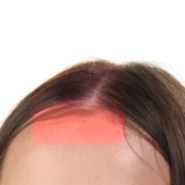
We didn't realise until later that many of our images that we are batch processing through Photoshop CC 2019 are also being SAVED with these pink shapes. We are only working in .jpg and never convert to or from any other file types. Our other processes require us to work in .jpg so no conversion can take place.

We are not dealing with particularly large files, approximately 6MP.

We are dealing with high quantities of images, approximately 100,000 images pass though our lab a week.

We are all running 64bit Windows 7

We all have up to date Creative Cloud

We all have up to date Photoshop CC 2019

We all have up to date Bridge CC 2019

We all have up to date Lightroom CC 2019

We have users with different subscription levels.

I can rule out hardware as they are using different spec machines.

I can also rule out enabling/disabling GPU, this has no effect.

I can also rule out Legacy_Compositing, from Photoshop as this too had no effect.

I can also rule out a camera issue, as these images do not show this issue from the camera.

I find it hard to believe we are the only ones having this issue, particularly as we have so many different users and machines all experiencing it.

This topic has been closed for replies.

7 replies

Participating Frequently
November 12, 2018

This seems to be a caching issue so try the following, right click the affected thumbnail(s) or even folder(s)  then select Purge Cache for Selection. You might want to let it run for a bit (recaching) and even restart Bridge. It should be ok after this, at least it was in my case with many purple thumbs.

Hope that helps guys!

Inspiring
November 5, 2018

Is there a current bug report / feature request link for Photoshop? The only one I found was through Photoshop Family, but is that an Adobe site?

Legend
November 5, 2018

The feedback site is the official by reporting platform. The eng team is working on this issue.

ewas71317476
Participant
November 3, 2018

i got the same issue
just uninstall all adobe software and get back to previous version with manually installed ACR 10.5 - and it's ok
it's just software issue, dont need to worry about hardware.

Legacy Compositing didn't worked for me

Known Participant
November 13, 2018

The caching only applies to the thumbnails shown in bridge, it doesn't impact the saving of the blocks to the actual images.

Most of the time when bridge creates a new set of thumbnails it will create a load of new coloured blocks over the images.

The best short term solution was mentioned above:

ewas71317476  wrote

i got the same issue
just uninstall all adobe software and get back to previous version with manually installed ACR 10.5 - and it's ok
it's just software issue, dont need to worry about hardware.

Legacy Compositing didn't worked for me

What I did:

Uninstall everything, (I ran the Adobe CC Cleaner too)

Install Adobe Camera Raw 10.5

Install the Abobe software you require (CC 2018 versions)

Installed Adobe Camera Raw 10.5 again (I wanted to make sure the other installations didn't update this themselves)

     -Bridge was behaving, so was camera raw and the batch processing.

     -Export in Lightroom was NOT working

Upgraded Photoshop and Bridge to CC 2019

     -Bridge is still behaving, so is camera raw and the batch processing.

     -Lightroom is STILL producing the blocks.

This will get us by as a work around but its not a solution by any stretch!

Participating Frequently
November 13, 2018

I do not experience this anymore and if artifacts do show up on thumbs in Bridge recaching seems to fix them.

I have to mention though I went back to Photoshop v2018 mainly because of crashing with Lighting Effects plugin and overall slow performance but I did keep all other apps at v2019 so ACR should still be at the latest version.

Legend
November 2, 2018

1) In Photoshop, open Preferences > Performance.... and check "Legacy Compositing"

2) Restart Photoshop

3) open one the affected PSD files in Photoshop and re-save it.

4) Run Image Processor on that one re-saved PSD

Are you still getting the bad blending?

Known Participant
November 5, 2018

We are experiencing the problems with .jpgs, we do not use .PSD files.

We have already tried using Legacy Compositing and the problem remains.

The Pixelian
Participating Frequently
November 2, 2018

You are not alone - This thread has other users experiences. Initially looked like it was an iMac Pro issue.

Weird Color blocks bug.

I have not checked yet (I'm not reinstalling photoshop 2019 because of other issues) Maybe it is a camera RAW update issue!

Known Participant
November 2, 2018

It could be, we often use camera Raw to apply corrections to large groups of images too, although none would have smart objects.

So far the above instructions are the only 'solution' we have found.

At least this gets us working again.

I'm glad this is a wider issue, hopefully Adobe will be able to publish a fix for this soon!

JJMack
Community Expert
Community Expert
October 30, 2018

Are the latest device drivers available for all display adapters used install on all the window 7 machines.  There will be issues with some features on  Windows 7 like  Adobe UI scaling requires  Windows 10 build 1803 or newer.  Do not use high PPI resolution displays.  Block like you are seeing are often device driver problems.  I do not know if the blocks are confined to GPU support or open GL or Open CL. You may be seeing multiple problems as you are using different hardware configurations.

I am sure other beside you are having problems there are also many that do not  have your  problems.  All CC 2019 have the same CC 2019 bugs and chanes some changes can be reverted to photoshop's old operation.

I hope you have old version of Photoshop still installed.  If not you can re-installed removed version of  Photoshop. You cam hane many version of Phtoshop installed one you machines.  I have CS6, CC 2014, CC 2018 and CC 2019. All have some bugs.

JJMack
Known Participant
October 30, 2018

The latest display drivers are all installed, of the 4 machines that I have checked this afternoon, 2 are using NVIDIA Quadro K2000's and two are using INTEL HD Graphics 530's.

Some of the machines have dual monitors and some are have just one. All the machines' main display runs at 1680x1050 and those with second monitors are all different res, shapes and sizes.

We have kept CC 2018 on all the machines when CC was installed, however since the update we are now seeing this happen in CC 2018 too. I have even tried installing CC 2017 on a machine and that too does the same thing.

I feel I should highlight again though that before the CC 2019 installation we had never seen this issue.

I was going to update my first message but can't yet see how, as we have discovered that it is not restricted the just pink, we have seem both green and blue blocking as well.

JJMack
Community Expert
Community Expert
October 30, 2018

Has Microsoft made any Windows 7 updated layely?

Photoshop versions are separate installs.  However, they do share some common code like ACR.  An easy test you can make on one of the failing machine  is to uninstall all versions of Photoshop the run Adobe CC cleaner to make sure the machine is clean. Then Install cc 2018 19.1.6 see if it works then. Noting from CC 2019 should be on the machine that could contaminate CC 2018

JJMack