
goosezilla
Participant
March 27, 2019
Question

PNG exports break RGB channels

  • March 27, 2019
  • 7 replies
  • 3992 views

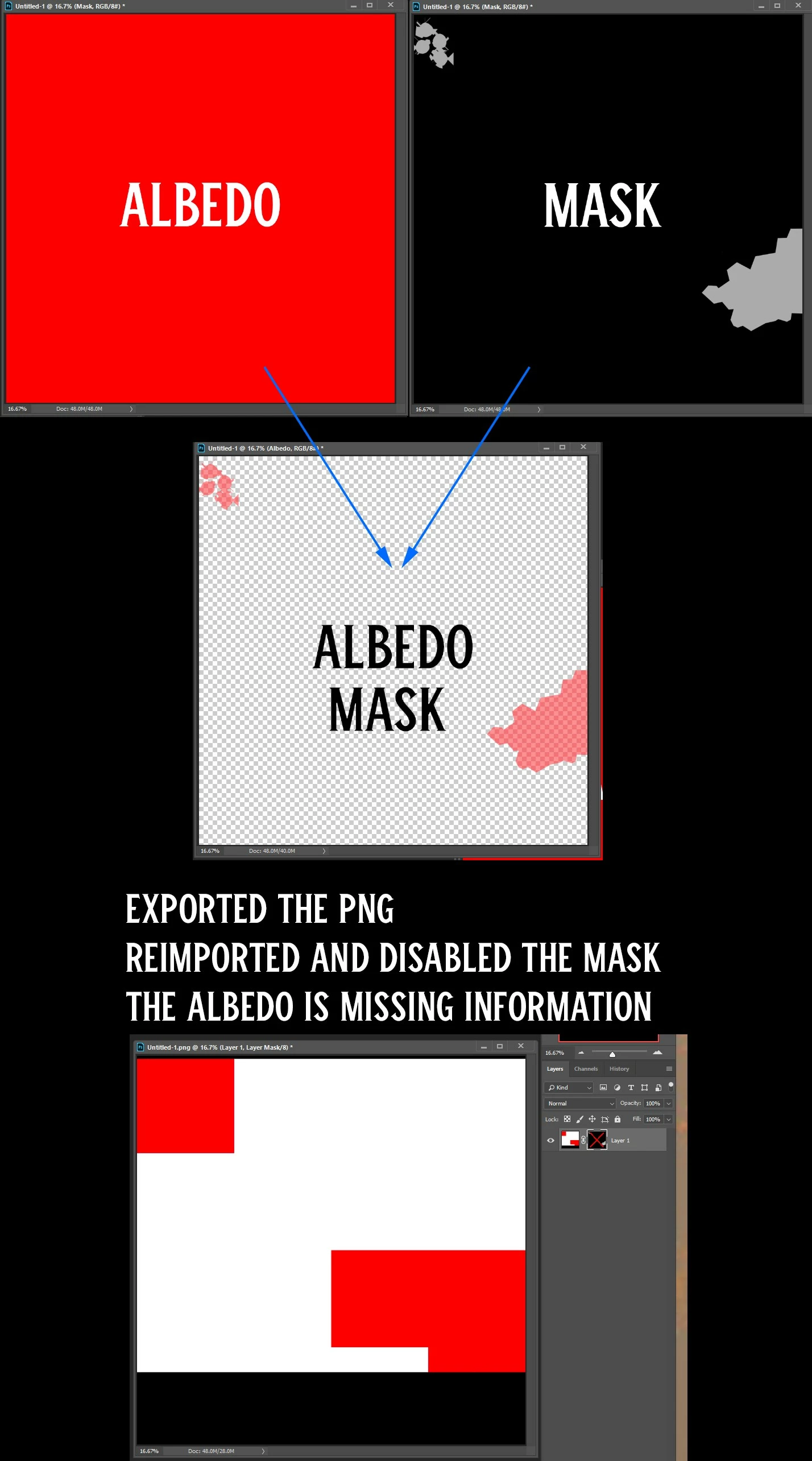
When I export or save as a PNG from a PSD the RGB channels are missing color information. It comes in with large areas of black and white which should all be red.

Layer>Layer Mask>From Transparency is how I am separating the rgb from the alpha in the png to see the error.
    This topic has been closed for replies.

    7 replies

    Participant
    May 2, 2023

    2023 any news on this issue? i'm trying out superPNG on the latest version but it's not working for me

    Jeff Arola
    Community Expert
    Community Expert
    May 2, 2023

    Ramiro,


    What operating system are you using?


    Super PNG is not working how?

    Participant
    July 15, 2023

    Hi, I'm also trying SuperPNG on the 2023 version. I can import a png using SuperPNG, but while exporting, I can only use Photoshop's standard Quick export as PNG (which breaks my results) and Export as... which doesn't allow me to choose SuperPNG export options as well. Is there a workaround?

    Jeff Arola
    Community Expert
    Community Expert
    February 7, 2020

    In SuperPNG does it make any difference if you check Clean Transparent when saving?


    MattSmall
    Participating Frequently
    February 7, 2020

    No, in that case it fills all the transparent pixels with black.

    Jeff Arola
    Community Expert
    Community Expert
    February 7, 2020

    I know i said there was a bug having to do with this, but you shouldn't get the results your seeing just by opening your saved png, at least i can't replicate this unless i run Layer>Layer Mask>From Transparency after opening the saved png.

    MattSmall
    Participating Frequently
    February 7, 2020

    The bug isn't introduced by opening, it's introduced when the PNG file is saved out directly from a masked layer.  When I bake that saved PNG in our engine, I see the white pixels introduced around the perimeter of the RGB.  


    The only way I've found to save the PNG with the RGB intact is to use SuperPNG with an opaque RGB and a separately defined Alpha channel (not a layer mask).  In that case, SuperPNG allows you to stipulate the Alpha channel for the transparency source, and it saves without changing the RGB data.

    Jeff Arola
    Community Expert
    Community Expert
    February 7, 2020

    What version of photoshop and operating system are you using?


    MattSmall
    Participating Frequently
    February 7, 2020

    System Info:

    Adobe Photoshop Version: 21.0.3 20200115.r.91 2020/01/15: 21f283574f6 x64
    Operating System: Windows 10 64-bit
    Version: 10 or greater 10.0.18362.329

    Jeff Arola
    Community Expert
    Community Expert
    February 7, 2020

    It's a bug in photoshop that's been around for more than twenty years and has been reported umpteen times, but maybe if you report it, adobe will finally listen and fix it. I can replicate it in photoshop 3.0.5 from 1995, the first photoshop version with layers.


    https://feedback.photoshop.com/photoshop_family

    MattSmall
    Participating Frequently
    February 7, 2020

    Well...that's not very encouraging.  I guess I won't hold my breath. 😛

    davescm
    Community Expert
    Community Expert
    March 28, 2019

    Hi

    To open a PNG with solid layer and mask, search for and install the SuperPNG plug in. Then Open As "Superpng" and hold shift when opening. This will give you a dialogue asking whether to use transparency or to load the transparency mask as an alpha file - which will appear in channels and can be used as a layer mask.

    Dave

    MattSmall
    Participating Frequently
    February 7, 2020

    Dave, your answer is great for identifying the problem, but it doesn't offer a solution to the actual problem.  I'm having a similar issue as goosezilla, and although Superpng does offer a workaround, it would be SO MUCH BETTER if Photoshop just did the right thing from the start.


    Here's an example:  I start with a simple shield icon with well defined RGB layer data and a layer mask for transparency:

    As you can see all the RGB data is solid purple.


    After saving as a PNG and reopening I get this:

    Photoshop has filled in the RGB data around the edges with garbage data, in this case white.  This is what it looks like with the alpha mask overlayed on the new RGB data.

    This happens whether I use Save As or Export, and it also happens with Superpng IF I try to save it out directly from a masked layer.  (Superpng does do the right thing if you have an opaque layer and put the mask in an Alpha Channel, which is OK but it adds more steps to my workflow).


    I'm a game artist and we often need to maintain precise control over all for channels, RGBA.  I can't just have Photoshop randomly changing "transparent" RGB data on me.


    I would LOVE it if Adobe would fix this and make PNG saving preserve RGB data.  (I don't really see any good reason why it doesn't?)  Alternately, if someone can point me to a PNG plugin that preserves RGB data when saving from a masked layer, that would be great too.


    Thanks,

    Matt

    Jeff Arola
    Community Expert
    Community Expert
    March 28, 2019

    Did you check your psd file as well using Layer>Layer Mask>From Transparency?