Participant
March 9, 2023
Answered

PNG transparency issue - it is partially visible in a webbrowser

  • March 9, 2023
  • 2 replies
  • 1940 views

I experienced some issue with exported PNG transparent files. I took some product pictures, cut it out of a background and save as PNG transparent file. Then I used this file in an InDesign product catalog project. Catalog was exported to PDF file and professionally printed in a printing company. Everything seemd to be ok. I did all that many times before. PNG file looks correct, placed in a project looks correct in InDesign, in PDF file also good. Even in printing no problems.

Looks fine as a seprate file
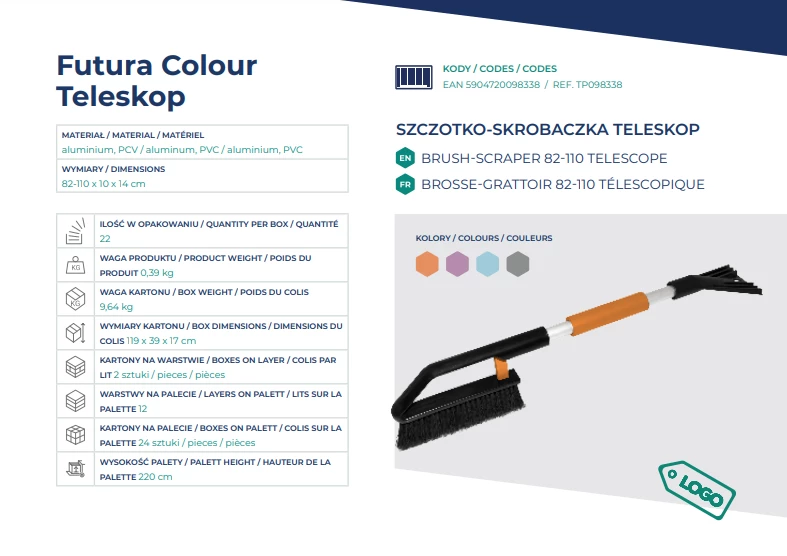
 

Looks fine placed in a PDF catalog


PDF file was placed on a website. Even here everything looks good. Website and a PDF was indexed by Google. When we use Google browser to search products issue appears - there are a background partially visible on a product images. And this is background of an oryginal photograph, not a PDF file background. No idea why. Where is that comes from?


Here is a problem. It concerns a few of images. 
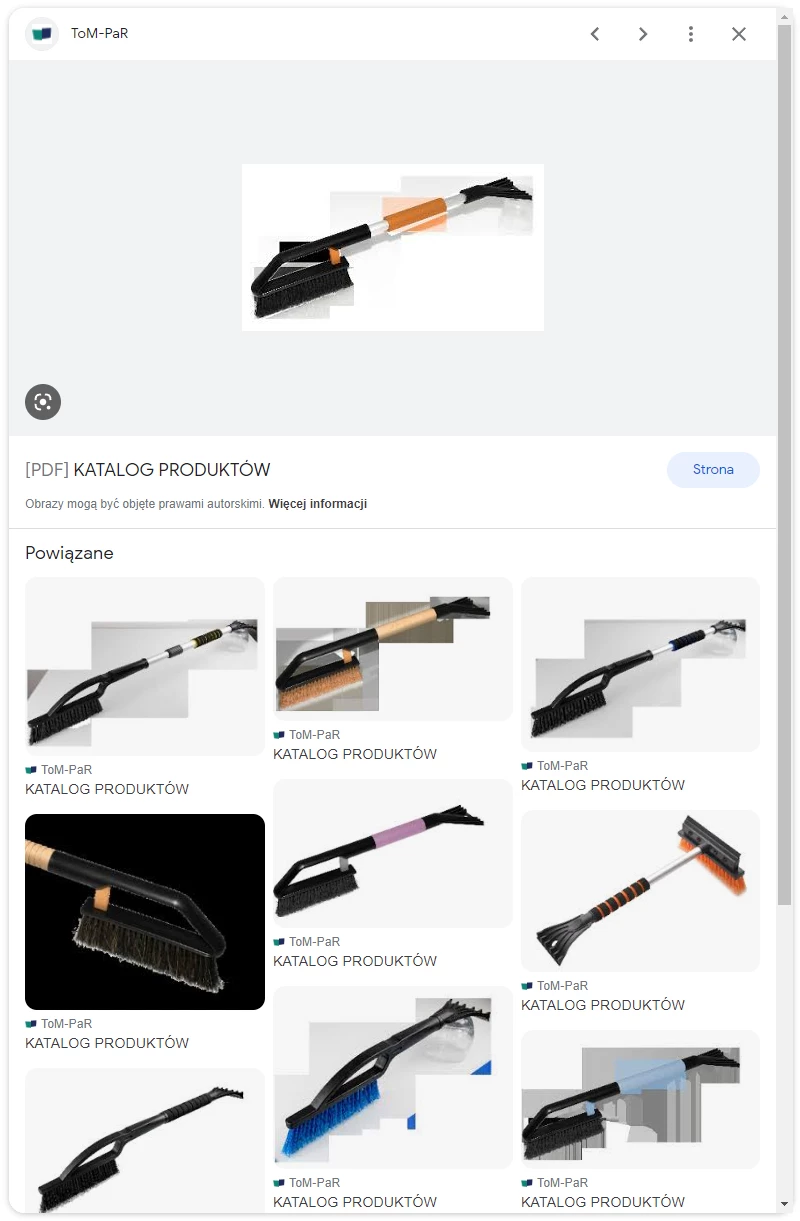


Have you ever experienced that kind of issue? What is the reason? Any solution? I would appreciate your help.
 

This topic has been closed for replies.
Correct answer Jeff Arola

Photoshop makes this kind of thing more of a chore that it needs to be, since unlike some other photo editors

Adobe chose to hide the Transparency Channel from users.


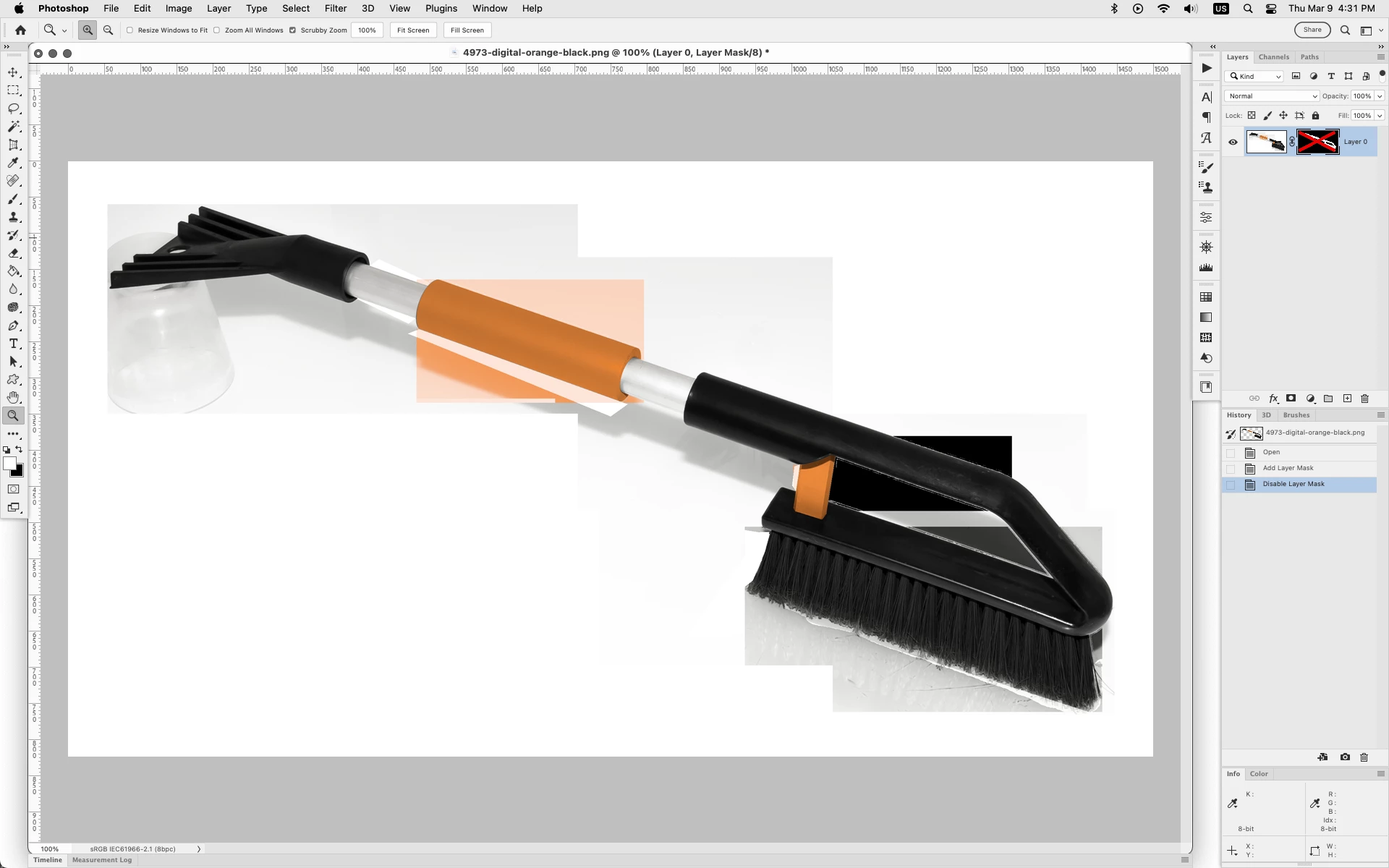
If in photoshop you go to Layer>Layer Mask>From Transparency then Shift click the layer mask you'll

see the "Hidden Data"


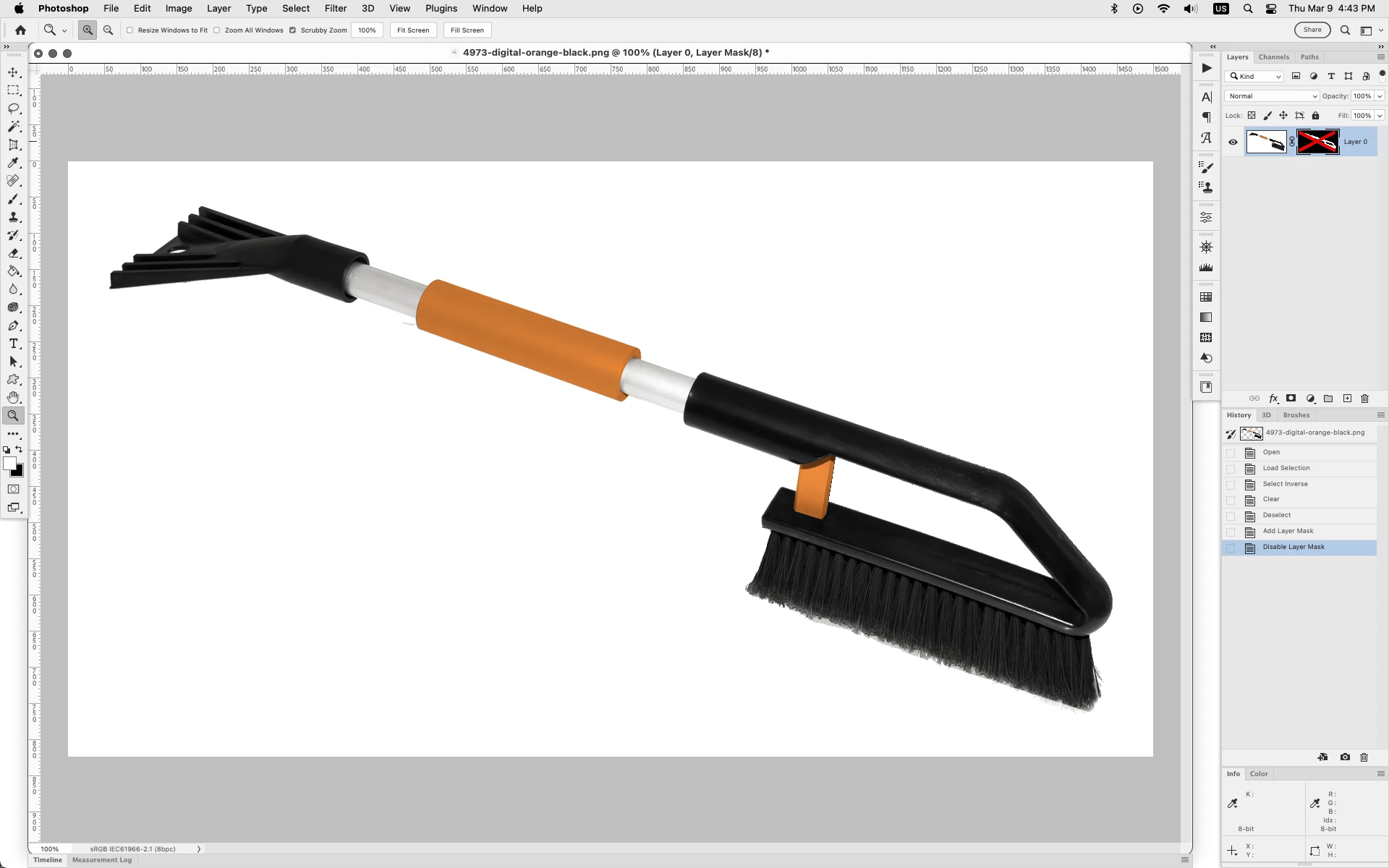
I would suggest anytime your saving a transparent png you make sure there is no data outside the area you

want opaque by Cmd or Ctrl clicking on the layer to load a selection of the object, go to

Select>Inverse, Edit>Clear, then Select>Deselect.

That should get rid of any stray data outside of your selected object.


You can recheck your image by going to Layer>Layer Mask>From Transparency then Shift click the layer mask


2 replies

Jeff Arola
Community Expert
Jeff ArolaCommunity ExpertCorrect answer
Community Expert
March 9, 2023

Photoshop makes this kind of thing more of a chore that it needs to be, since unlike some other photo editors

Adobe chose to hide the Transparency Channel from users.


If in photoshop you go to Layer>Layer Mask>From Transparency then Shift click the layer mask you'll

see the "Hidden Data"


I would suggest anytime your saving a transparent png you make sure there is no data outside the area you

want opaque by Cmd or Ctrl clicking on the layer to load a selection of the object, go to

Select>Inverse, Edit>Clear, then Select>Deselect.

That should get rid of any stray data outside of your selected object.


You can recheck your image by going to Layer>Layer Mask>From Transparency then Shift click the layer mask


Stephen Marsh
Community Expert
Community Expert
March 9, 2023

@Jeff Arola – Nice one! I’ll mark this as the correct answer.

Lukasz_KAuthor
Participant
March 10, 2023

Now al is clear. Thank you @Jeff Arola and @Stephen Marsh for helping me with this one. Appreciate it.

Stephen Marsh
Community Expert
Community Expert
March 9, 2023

Not all PDF readers are created equal. Can you provide the PDF page as an attachment, or provide a link to the PDF online?

Lukasz_KAuthor
Participant
March 9, 2023
Stephen Marsh
Community Expert
Community Expert
March 9, 2023

Like you, I have no idea what or how Google is doing what it is doing! :]


It all appears to work as expected in Adobe software.


But as @Jeff Arola shows, outside of Adobe software, it may not be that easy!