Participating Frequently
January 6, 2020
Answered

Posterized image not exporting correctly.

  • January 6, 2020
  • 6 replies
  • 3231 views

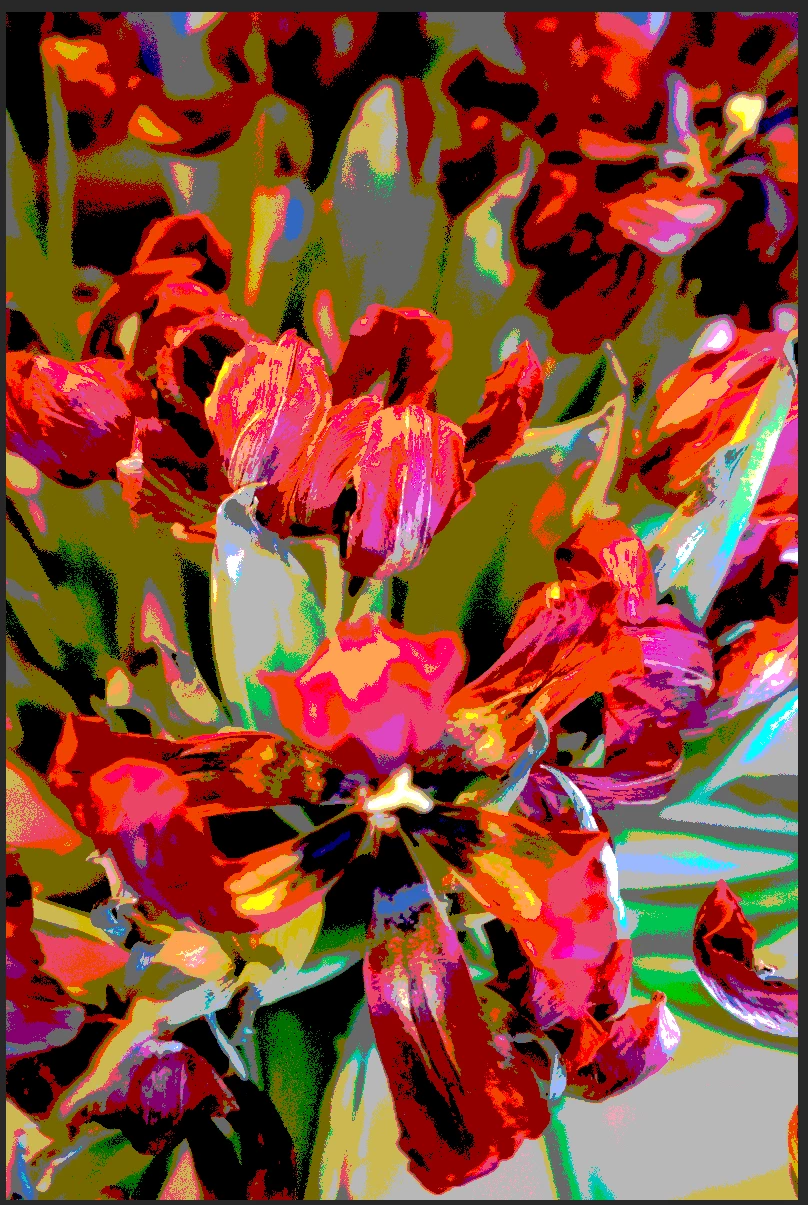
I have an image of flowers which I have posterized (with an adjustment layer) in Photoshop. What I see on screen looks exactly as I want. When I export a jpg (or any file format) the posterization seems to have gone or is far less pronounced than it appears in Photoshop. Any ideas what is going wrong?

The first image is a screen grab from Photoshop. The second, the exported jpg.:
Correct answer Jeff Arola

Make sure you view the image at 100% (actual pixels) view before saving.

At other view percents, photoshop does not necessarily show a true representation of the image since views other than 100% use interpolation.

6 replies

Participating Frequently
February 20, 2022

If anyone else doesn't get this to work. (No, I do not understand the explanations)  - do what I do: get what you want on screen and take a screen grab (I am fortunate in that I have very high resolution monitors)

davescm
Community Expert
Community Expert
February 20, 2022

Sorry but that is poor advice to others. Adjust and get the effect you want at 100% zoom and it will export correctly.

Dave

Participating Frequently
February 25, 2022

No need to be sorry, you should be pleased that I have a method that is reliable, consistent and produces the effect that I want. I am a great fan of WYSIWYG. I realise this is a problem of my own making; viewing a 60mp file at 100% is like trying to view the interior of St. Pauls through the keyhole in the front door.... and applyling a 'posterise' adjustment to this seems to be very difficult - the slider goes down to "2" (far too strong) and anything over "3" has (apparently) little effect.  My post is to illustrate my solution to my problem - it is not necessarily a recommendation to others.

MP

davescm
Community Expert
Community Expert
January 7, 2020

To keep it simple - when you view zoomed out your are seeing an approximation of the composite. For 99% of the time that approximation is so close the difference is not noticable but on some images and adjustments the difference is very visible indeed.

So always check your adjustments at 100% zoom and if there is a difference - adjust to make the 100% view version look right. That is the one that will appear in the final export.

davescm
Community Expert
Community Expert
January 7, 2020

Your comments about using a smaller file point back to Jeff's answer which is to view at 100% zoom.

When you zoom out, the layers and adjustments are made using 8 bit interpolated previews at the zoomed size (even when the full image is 16 bits /channel). This is done for speed. Unfortunately in a small number of images the difference between that preview and the full image data can be significant.

Previewing at 100% zoom uses the full image data and uses no interpolation (1 image pixel fits 1 screen pixel) and will be accurate compared to the export. In short - there is no need to use smaller files - but there is a need to view the adjustments at 100% zoom.

That also assumes that you are not downsizing in your export.

Dave

Participating Frequently
January 7, 2020

Thank you for taking the time to reply/comment. I have tried this, although much of what you explain is 'way above my pay-grade' as the Americans would say. When I view the image at 100% it seems that I cannot get the posterization effect I want (see my first image above). I suspect there is a problem between the chair and the keyboard.

Participating Frequently
January 7, 2020

I think I have found the problem - not fixed it - but identifying it is halfway to a solution.

The original image is from a Sony A7Rm4 camera - a 60mp (ARW) raw file (9506 x 6336px).

Exporting from Lightroom to (a much smaller) .jpg first; or using smaller files (dimensions and resolutions) before opening in Photoshop seems to do the trick....... The Photoshop posterization seems to 'stick' on export.

I'm getting a consistent failure on any of my Sony (60mp) ARW files.........but consistent success with this workaround.

Jeff Arola
Community Expert
Jeff ArolaCommunity ExpertCorrect answer
Community Expert
January 7, 2020

Make sure you view the image at 100% (actual pixels) view before saving.

At other view percents, photoshop does not necessarily show a true representation of the image since views other than 100% use interpolation.

Alex Affonso
Inspiring
January 6, 2020

Hi Michael, I just made a simple test here using Photoshop 2020 and everything seems to work like it should. I just opened one image, appliad the Posterize adjustment layer and then saved it as JPEG using the Save As command. What version of Photoshop are you using? And how are you saving the JPEG file? Have you tried to flatten the image prior to save it to see if the problem persists?

Participating Frequently
January 6, 2020

Good evening Alex. I am using Photoshop 21.0.2 on a mac pro.

I have tried 'save as' and 'export' to all file formats...... all with the same results.

I have repeated this with a flattened image..... all with the same results.

Any further ideas greatly appreciated.

Alex Affonso
Inspiring
January 6, 2020

That's weird actually. If you flatten the image and it is ok inside Photoshop it should remain the same upon export. By your images it looks like you're loosing the Posterize adjusment. Haven't you noticed any difference after flattening the image prior to export/save?