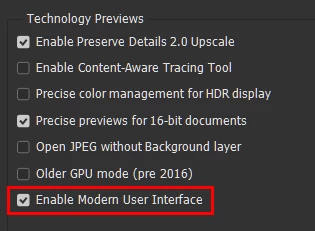
1. I notice the changes, but I would appreciate it if the change log mentioned which panels or UI sections are affected by enabling this option.
By @TenTin
I think one reason specfic UI items aren't listed is it's changing all the time. It seems like with each release they finish converting a few more dialog boxes to their updated UI.
The reason it is listed under Technology Previews is that they don’t consider it finished. In fact there are a few bugs that have been submitted regarding Modern UI, so if you run into one, you can disable it.
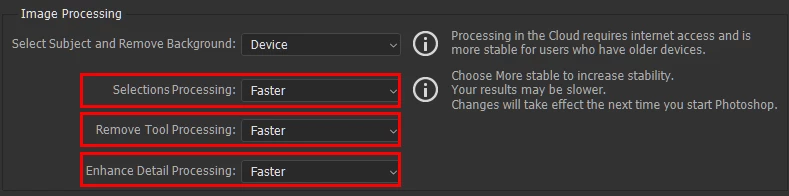
2. I'm aware of the description, but it doesn't clarify what happens exactly! From my understanding, "Faster" refers to the GPU process, while "More Stable" refers to the CPU process. Am I correct?
By @TenTin
That might be right but I’m not sure if it’s that clear cut. What we know for sure is: Leave it on Faster as long as there is no problem. If you notice artifacts, crashes, or other bugs, switch it to More Stable. In other words, if you think it’s stable, there is no reason to slow it down by switching to More Stable.
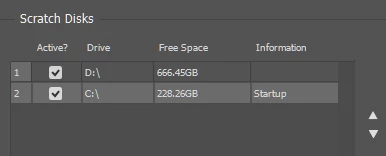
3. I am using a fairly high-speed SSD. Is there any significant performance difference if I select the OS installation drive as the first scratch disk?
By @TenTin
The primary scratch disk should ideally be both the fastest and with the most free space. In most computers the boot volume is on a very fast internal SSD so in terms of speed that’s ideal, but a lot of boot volumes don’t have enough free space. If you assign another volume as a scratch disk, assuming it’s got plenty of free space, the more similar the speed is to the internal SSD the less you’ll notice any performance difference.
For example, if your computer’s boot volume is an internal SSD with around 7000MB/sec throughput (typical today), but it’s running low on space, you could assign the first scratch disk to:
- An NVMe SSD in another internal 7000MB/sec slot. You shouldn’t notice any difference.
- A SATA SSD, internal or external. Those tend to top out around 500MB/sec, so you might notice that it’s a slower scratch disk.
- An external NVMe SSD connected using Thunderbolt 5, which can achieve over 6000MB/sec, close enough to internal speed that you probably won’t notice the difference.
- An external NVMe SSD connected using Thunderbolt 3 or 4, or USB 4, at 40Gb/sec. Those can achieve over 3000MB/sec, so you could notice a performance difference, but it might be fast enough.
- An external NVMe SSD connected using USB 3 at 10Gb/sec or less, for up to around 1000MB/sec. Obviously, the math shows that from this standard on down, there might be a noticeable difference in scratch disk performance.
Also, your screen shot shows about 228GB free on the C drive. That’s enough for modest editing, it’s about as much as I have free on my laptop and works OK for me most of the time. But if you open high-megapixel files with lots of layers, those can require a lot more scratch space than is free on your C drive. When that happens, I plug in an empty external SSD as a scratch disk.





 AdChoices