
Trevor.Dennis
Community Expert
Community Expert
June 18, 2023
Question

Preset Syncing Locking up Photoshop (for ever!)

  • June 18, 2023
  • 5 replies
  • 422 views

I've suddenly started having a problem with Preset Syncing.  This with the latest version of both the full release and beta versions.  When I try to shut down II get a message saying Photoshop will close when presets are synced.  (I can't sho you a screen shot right now because Photoshop is locked up).  I OK the warning dialog, and wait and wait but Photoshop does not close.  I eventually used Task Manager to close Photoshop.


I uninstalled Photoshop choosing to remove settings — I have brushes, workspaces, skies etc. backed up — but it was still happening after the reinstall. 

I have turned off preset sync in Preferences. [EDIT] but this was not actioned because Photoshop does not shut down properly.

I looked though System Info and found some 32bit plugins that 'did not load' so I deleted them.


Right now I have left Photoshop locked up for a good 30 minutes now, but it is still using a bunch of CPU cycles, and this is an i9-13900K

 

OK, I just closed Photoshop via the Task Manager and restarted holding down the Shift key to force third party plugins to not be loaded.  The problem persists, but I have now realised that my Preferences changes, and particularly Preset Syncing did not stick because Photoshop did not shut down correctly.  I could try a manual reset by deleting the preferences file, but it will recreate them with Preset Saving turned on when it starts. 


I tried it anyway, closed with Task Manager, restarted, and turned off preset syncing again, this time choosing to leave the cloud settings thinking it would not try to communicate so might not lock up.  


Note.  Same problem.
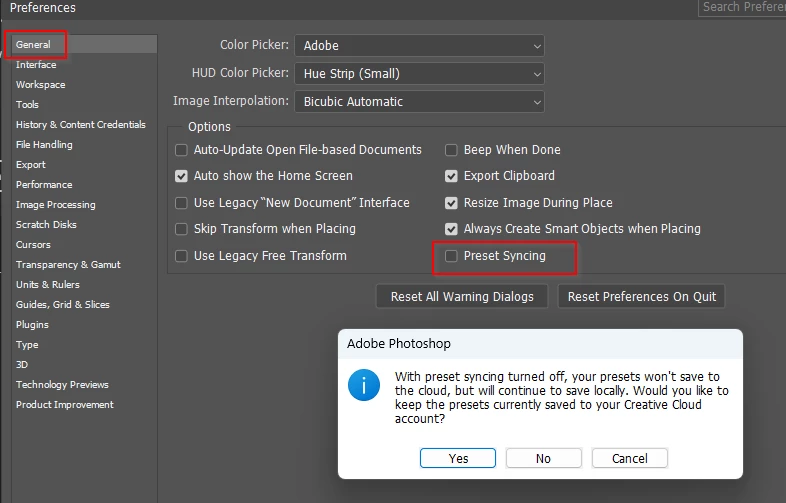
 

Task Manager shows Photoshop to be using 0.3% CPU untill I click on either Yes or No which locks up Photoshop again and CPU use goes up to 7.0%.  Cancelling lets me carry on using Photoshop.


I have a lot of third party plugins and they are all fully legit, but the Shift key trick stops them loading, so it seems unlikely that is the issue.
 

I feel stuck now, so I am going to leave it trying to sync while I take the dog out, and see if it is still hung up when I get back, but any ideas would be welcomed.

This topic has been closed for replies.

5 replies

davescm
Community Expert
Community Expert
June 19, 2023

I don't use it Trevor (unchecked in Preferences)  - but I'll turn it on later today and see what happens


Dave

Trevor.Dennis
Community Expert
Community Expert
June 18, 2023

I have reached a stage now that, so long as I don't try to do anything with preset syncing, I can change all other Preference settings to my liking; load my collection of workspaces and custom toolbars and shortcuts (which must save with custom workspaces), and close Photoshop ,— sometimes with a short delay — and those changes have stuck when I reopen Photoshop.  This is a huge relief as from my searches looking for answers, several people had the same problem and didn't fix it at least one of them after hours online with Adobe chat.  If I'd been unable to save my Preference settings, Photoshop would be close to unusable for me because of the tiny UIO font size if nothing else.


So I'll make a proper backup of the full settings folder as per the help page, just in case, but I would still welcome input if  anyone has any thoughts?


https://helpx.adobe.com/nz/photoshop/using/preferences.html#BackupPhotoshoppreferences

Trevor.Dennis
Community Expert
Community Expert
June 18, 2023

Fixed...Not fixed

After following a heap of Googled links and trying several things, this page held the answer


https://helpx.adobe.com/in/download-install/kb/adobe-license-issues-keychain-credential-mgr.html


I had to open Windows Certificate Manager, and remove a bunch of Adobe certificates, and Windows Credentual Manager and delete _dozens_ of Adobe certificates that started with Adobe App and Adobe User.  

Photoshop was working perfectly, but after opening and closing it twice, the certificates have all reappeared, and the issue returned.  Hmmm...  Yep. Photoshop is locked up and doing nothing.  


Trevor.Dennis
Community Expert
Community Expert
June 18, 2023

I found that the Creative Cloud app would not open properly, but was unable to uninstall it without first uninstalling all of the CC apps associated with it.  When it finished uninstalling the dialog box said uninstalled with errors.


After reinstalling the CC app and Photoshop, the latter app told me this when opening.  I also saw a pop up from the Windows 11 task bar when installing the CC app saying Unable to contact the Adobe server.

So it was no surprise to find the issue was still there and Photoshop locks up if a) I turn off Preset Syncing in Preferences and click on OK, or if I try to shut Photoshop down.

Trevor.Dennis
Community Expert
Community Expert
June 18, 2023

Two hours later, it was still locked up and 8% CPU.  I can still use Photoshop, so I'll wait and see if I get any ideas on this thread, and then uninstall both the full release and beta versions, and run the cleaner tool.  


The main issue with trying different steps is that they don't work untill restarting, and with Photoshop not shutting down, that never happens.