
martinm81036548
Participant
July 26, 2018
Answered

Prevent drop shadow from effecting different layers in Photoshop CC

  • July 26, 2018
  • 3 replies
  • 3072 views

In the image below, my drop shadow is applied to layer 7, yet it is impacting layer 8. I don't want the drop shadow to appear on the right edge of the layer. I only want the circle to have a drop shadow. I've turned off global light.
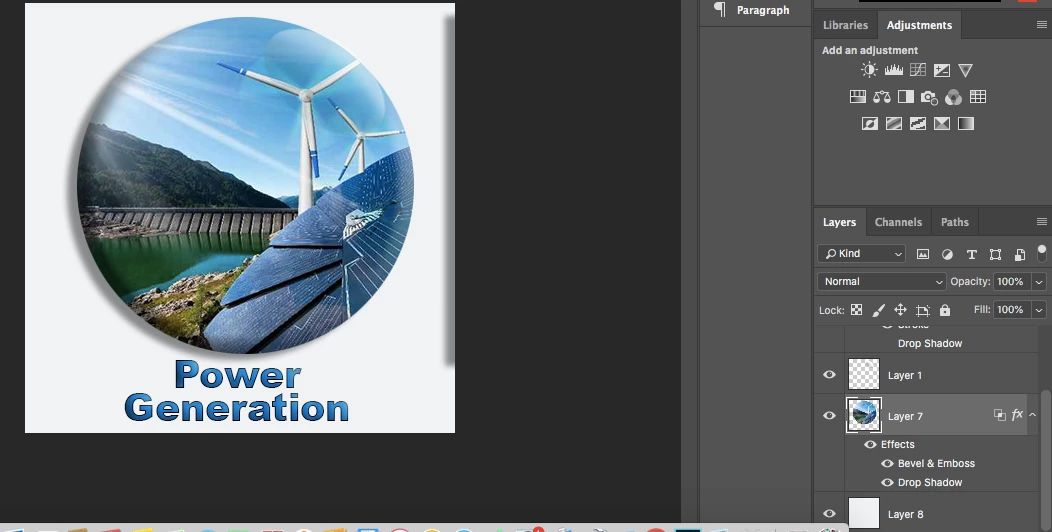
Thanks!

This topic has been closed for replies.
Correct answer c.pfaffenbichler

There appears to be off-canvas content.

You could

• Select > Select All

• Image > Crop

3 replies

Participant
November 9, 2020

How do I turn off global light

davescm
Community Expert
Community Expert
July 26, 2018

Hi

A question that I cant answer just by looking at your screenshot.  Are you sure the right edge pixels of layer 7 are completely transparent. Even a single line of 1% opacity will generate a shadow. To check just run the eraser tool down the edge of layer 7 and see if the shadow disappears.

Dave

c.pfaffenbichler
Community Expert
Community Expert
July 26, 2018

Another way to check for something like this is hitting cmd-T – is the bounding box as expected or does it include space that should be empty?

c.pfaffenbichler
Community Expert
c.pfaffenbichlerCommunity ExpertCorrect answer
Community Expert
July 26, 2018

There appears to be off-canvas content.

You could

• Select > Select All

• Image > Crop

martinm81036548
Participant
July 26, 2018

That was exactly the issue.  Thanks so much.  How do I accept the answer?