jdartcore
Participant
February 14, 2017
Answered

Prevent pen tool from auto-connecting?

  • February 14, 2017
  • 2 replies
  • 15648 views

Is there a way to prevent the pen tool from auto-connecting the two open ends of the path without selecting "path" mode in the pen tool bar?

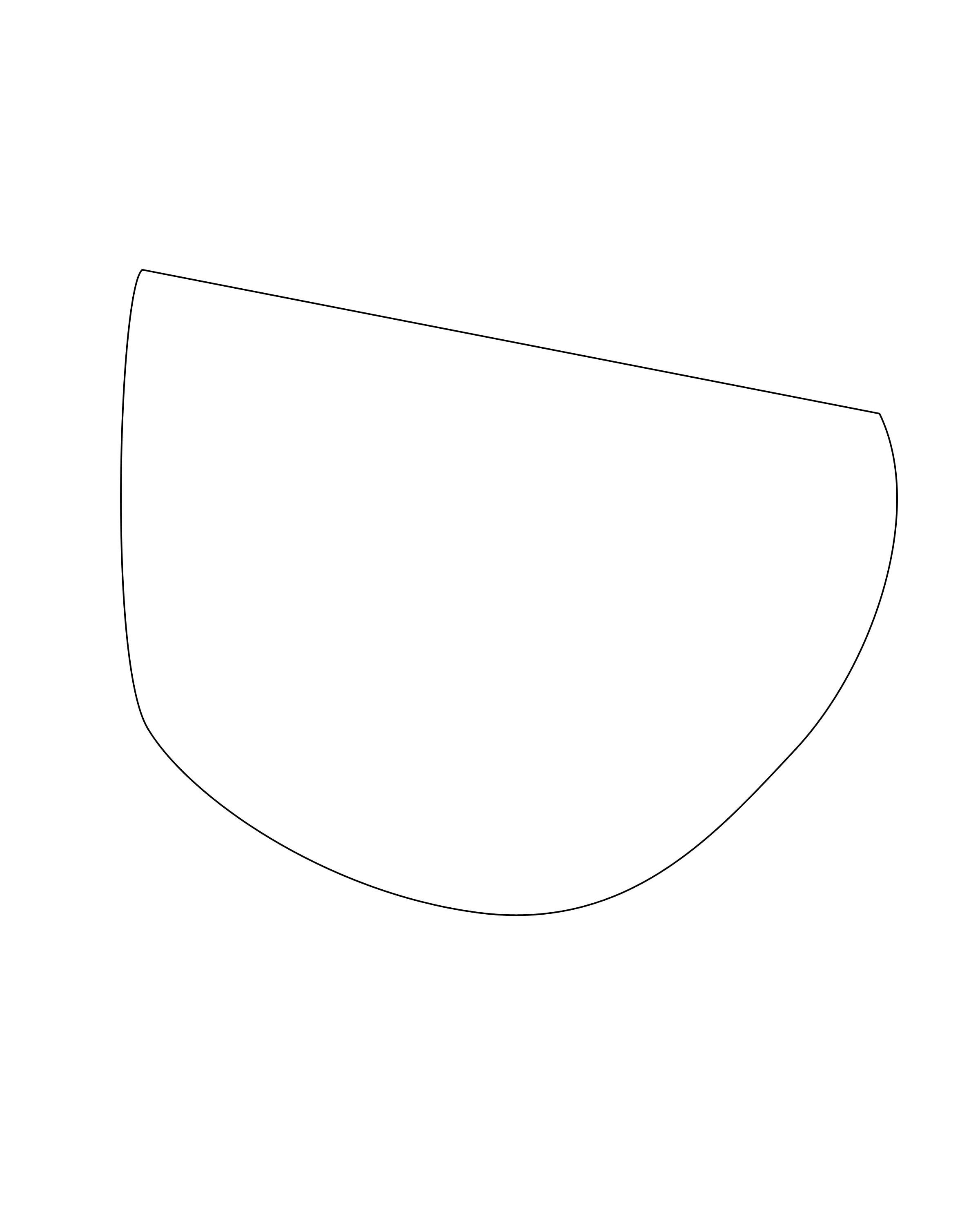
I attached an image of exactly what im referring to. In the pic, the straight line is NOT wanted. PS automatically connects the two open ends.

I dont want to use the paths setting because then I have to stroke the path and if I want to edit the curve later that becomes a HUGE headache.

Also, Im still in CS5. Hopefully I cant still get an answer here?

Thanks for the time
    This topic has been closed for replies.
    Correct answer c.pfaffenbichler

    According to

    Adobe Photoshop version history - Wikipedia

    CS6 introduced the pertinent features, quote:

    • Overhauled vector tools including stroking of vector paths, dotted or dashed

    So I guess you can either use Stroke Path, use a proper vector application (like Illustrator) or switch to the current version of Photoshop (but there are still limitations).

    2 replies

    Barb Binder
    Community Expert
    Community Expert
    February 15, 2017

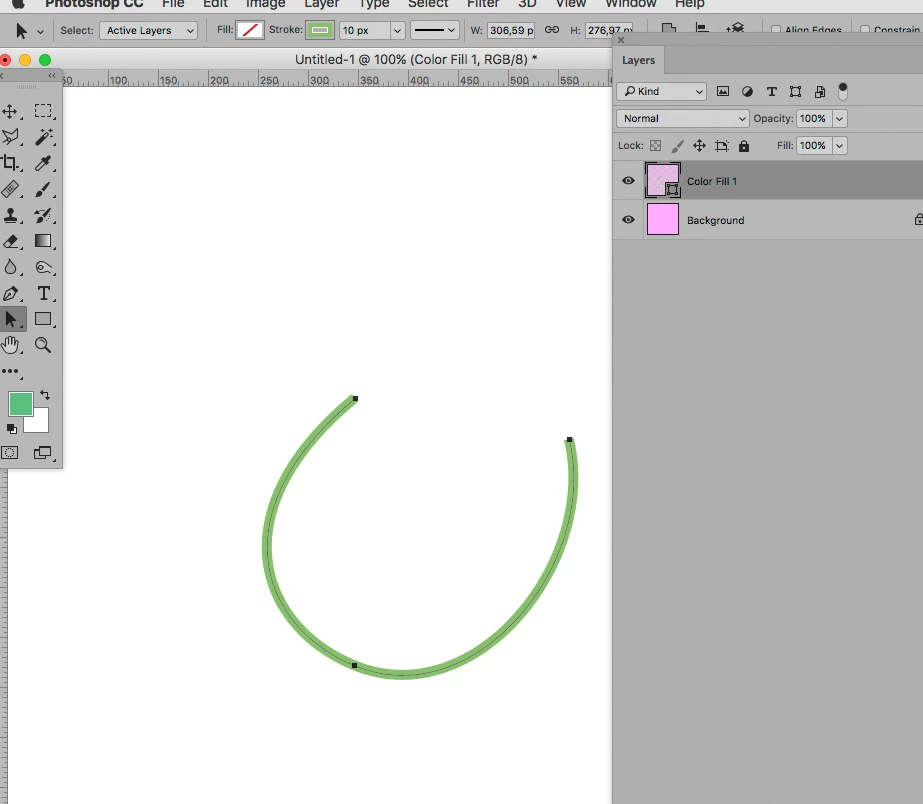
    Like c.pfaffenbichler​, I can only test as far back as CS6. But in CS6, you can select the Pen tool, select Shape from the Options bar and draw a open path to create a Shape layer. (Control/Command click on an empty part of the page to indicate that you are done drawing when you want an open path.) Then you can set the Fill/Stroke from the Options bar. Is that option in CS5? If not, a screen shot would be helpful to help us remember what we would have done.

    ~Barb at Rocky Mountain Training
    c.pfaffenbichler
    Community Expert
    Community Expert
    February 15, 2017

    Are you talking about Shape Layers with Stroke?

    If so then the Paths are closed if the Vector Mask contains more than one subPathItem, but with only one subPathItem it should not automatically close.

    jdartcore
    jdartcoreAuthor
    Participant
    February 15, 2017

    When I have "shapes layers " selected it is doing this. If I have "paths" selected it doesn't but I have to choose the option for "stroke the subpath".

    I'm sorry I don't know enough about photoshop to know if I am creating a vector mask with more than one sub path. How would I know that? Please talk to me like I am 6 it will be difficult for me to follow technical explanations

    Thank you very much for your time.

    c.pfaffenbichler
    Community Expert
    Community Expert
    February 15, 2017

    I have no way of testing for Photoshop CS5 anymore, but did that even have proper Stroke or are you using the Layer Style Stroke? 

    Please post a screenshot that includes the pertinent Panels (Layers, Paths) and the Options Bar.