Answered
Printable Grid in Photoshop - Pleeeese
Can I please have someone show me how I can have a printable grid in Photoshop? There are ALOT of people wanted this.

Can I please have someone show me how I can have a printable grid in Photoshop? There are ALOT of people wanted this.
With a pattern.
Turn on the grid (Ctrl ') and use the Pen tool to create a path like below (bottom and right side of square).
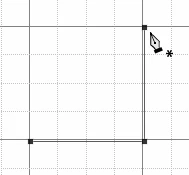
With black as the foreground colour, select a 1 pixel fully hard brush, and stroke the path on a new layer. (I have turned off the grid for the sake of clarity.

Turn off the background layer, and go Image > Trim choosing Transparency
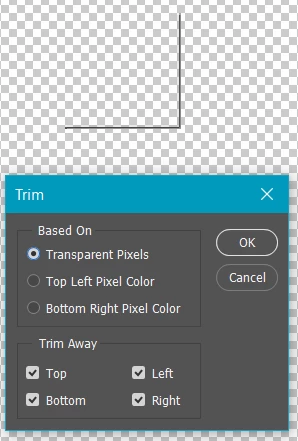
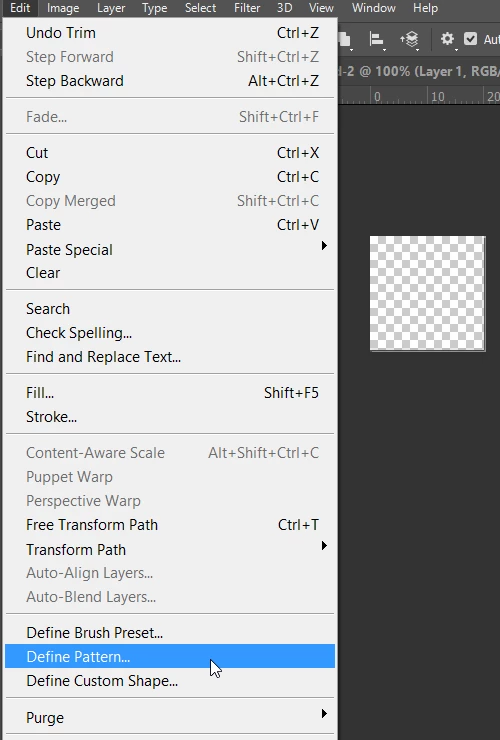
Now go Edit > Define Pattern and call it Grid.
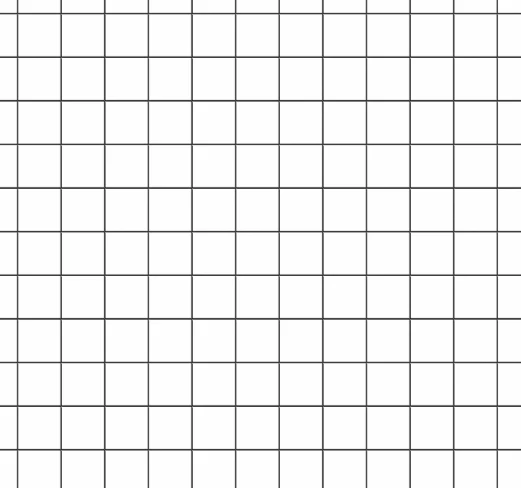
You are now good to go. SDelect the Paint Bucket tool and set it to Pattern in the Options bar. Choose you Grid pattern, and stamp it down in a new layer.
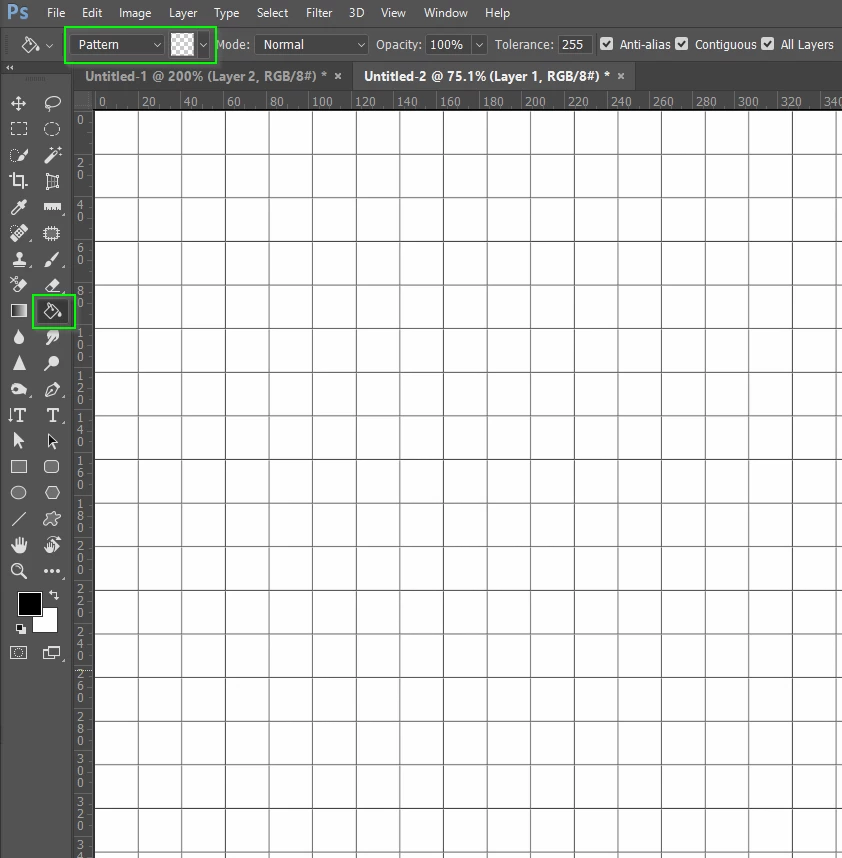
If you want it heavier, copy the layer, and move one pixel right, and one pixel down... and so on.
Already have an account? Login
Enter your E-mail address. We'll send you an e-mail with instructions to reset your password.
 AdChoices