

Answered
Printing from Photoshop on Inkjet Printer
Hi, I've just installed a new printer (Epson xp-900) and have been trying to print images from photoshop.
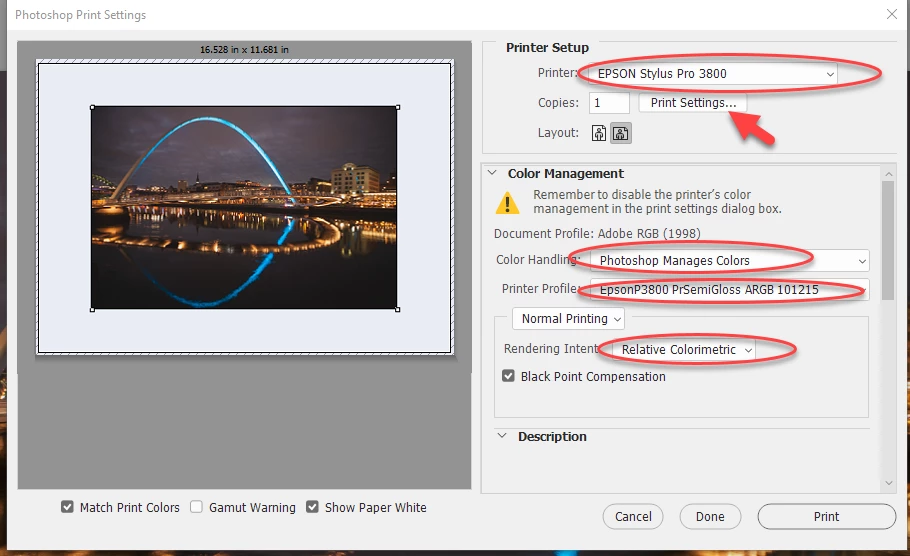
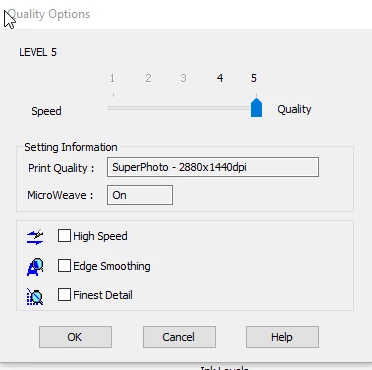
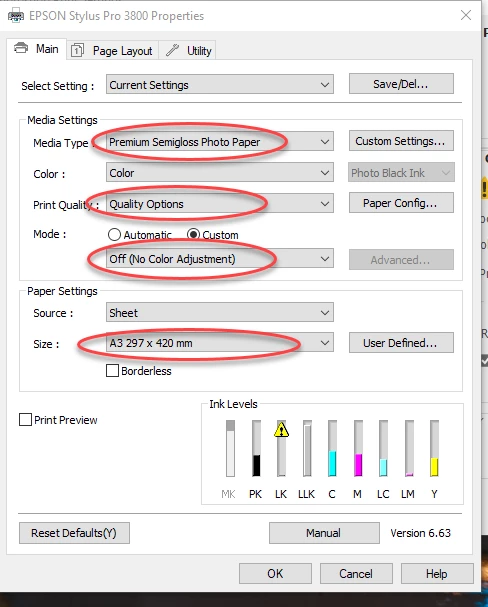
Some of the prints have came out brighter and some darker. Some prints have horizontal lines through them (the brighter, better quality images, which i think came from selecting the 'printer manages colour' option), which is annoying because these images are generally the better ones.
I need some advice because all my print tests seem so different and i can't tell whether it's due to a rubbish printer or my lack of knowledge for printing.
 AdChoices