Participating Frequently
February 2, 2019
Answered

Printing size way too large in Photoshop

  • February 2, 2019
  • 4 replies
  • 5992 views

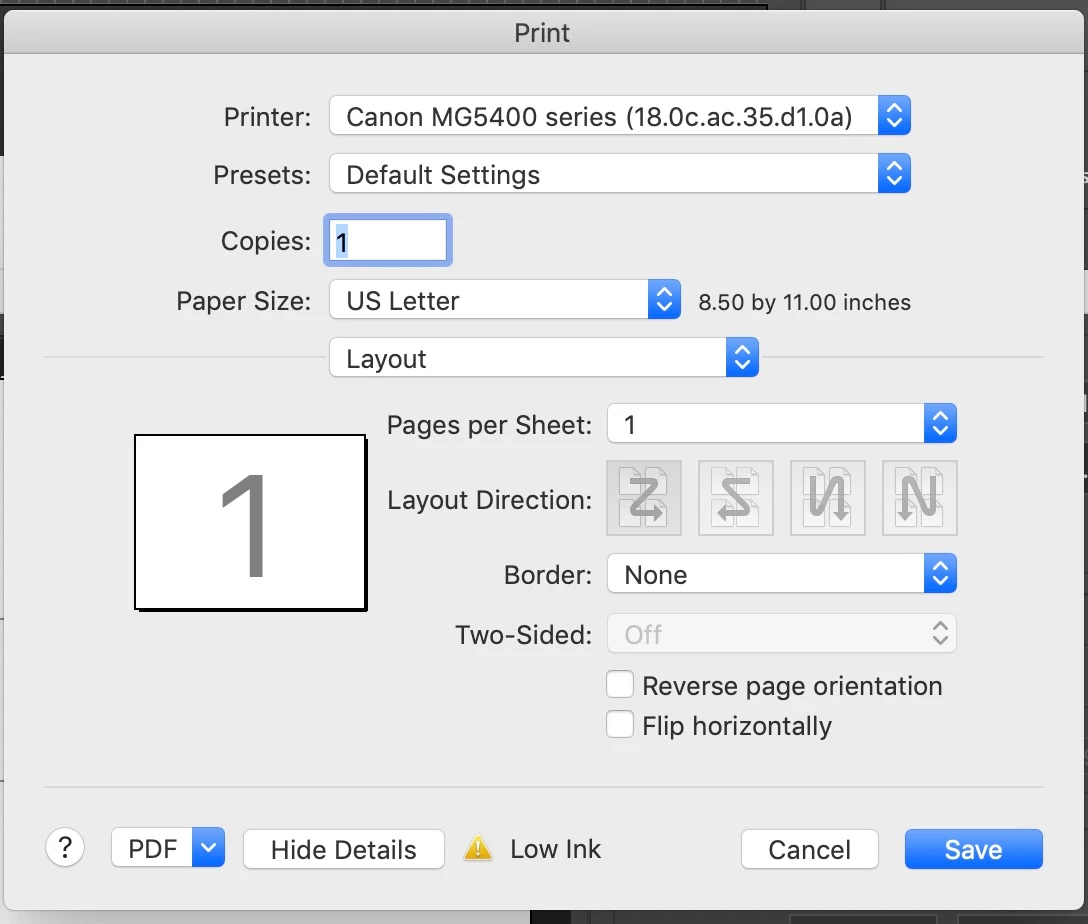
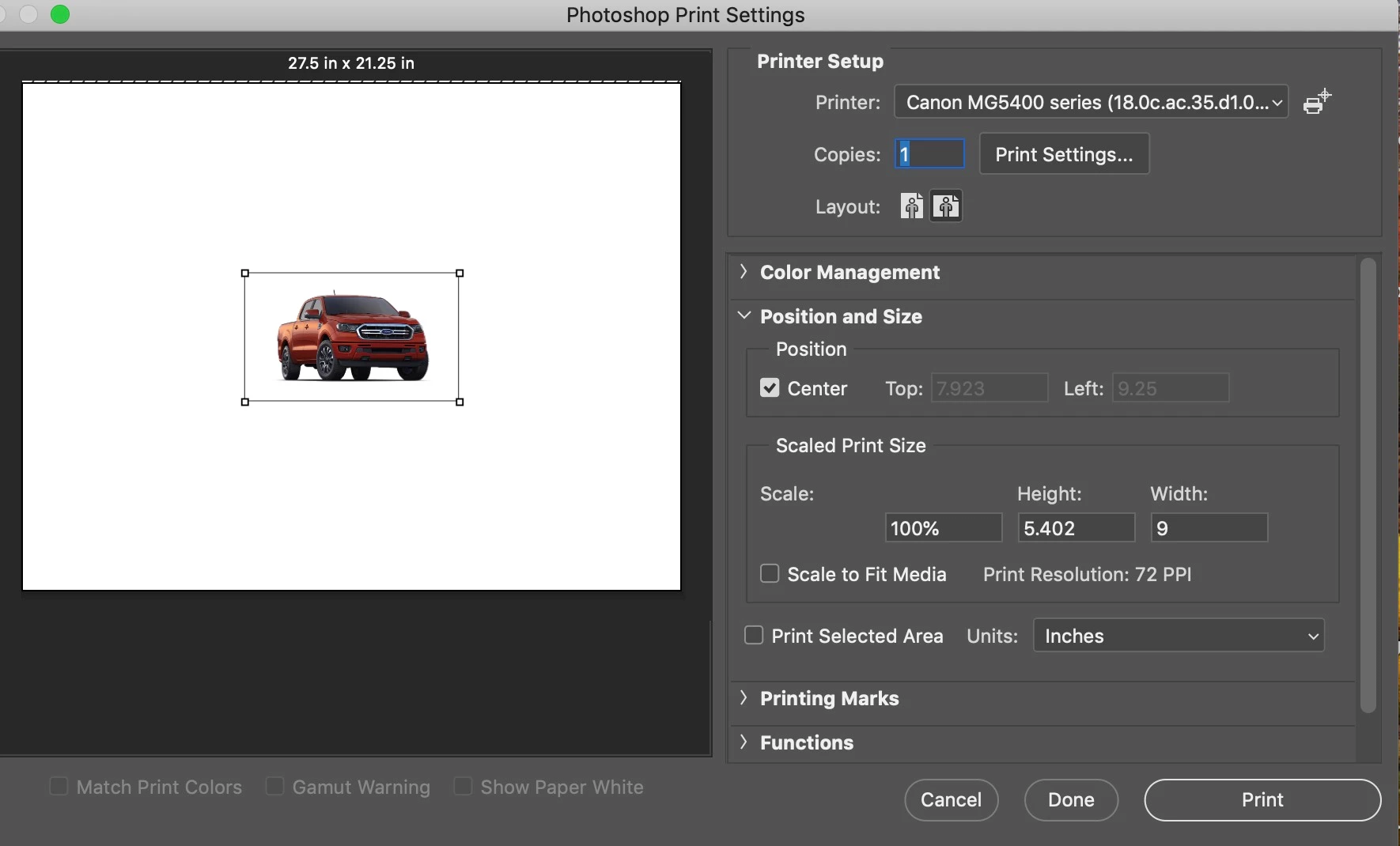
When I try to print in photoshop, the print size is stuck at 27.486 x 21.236 inches.

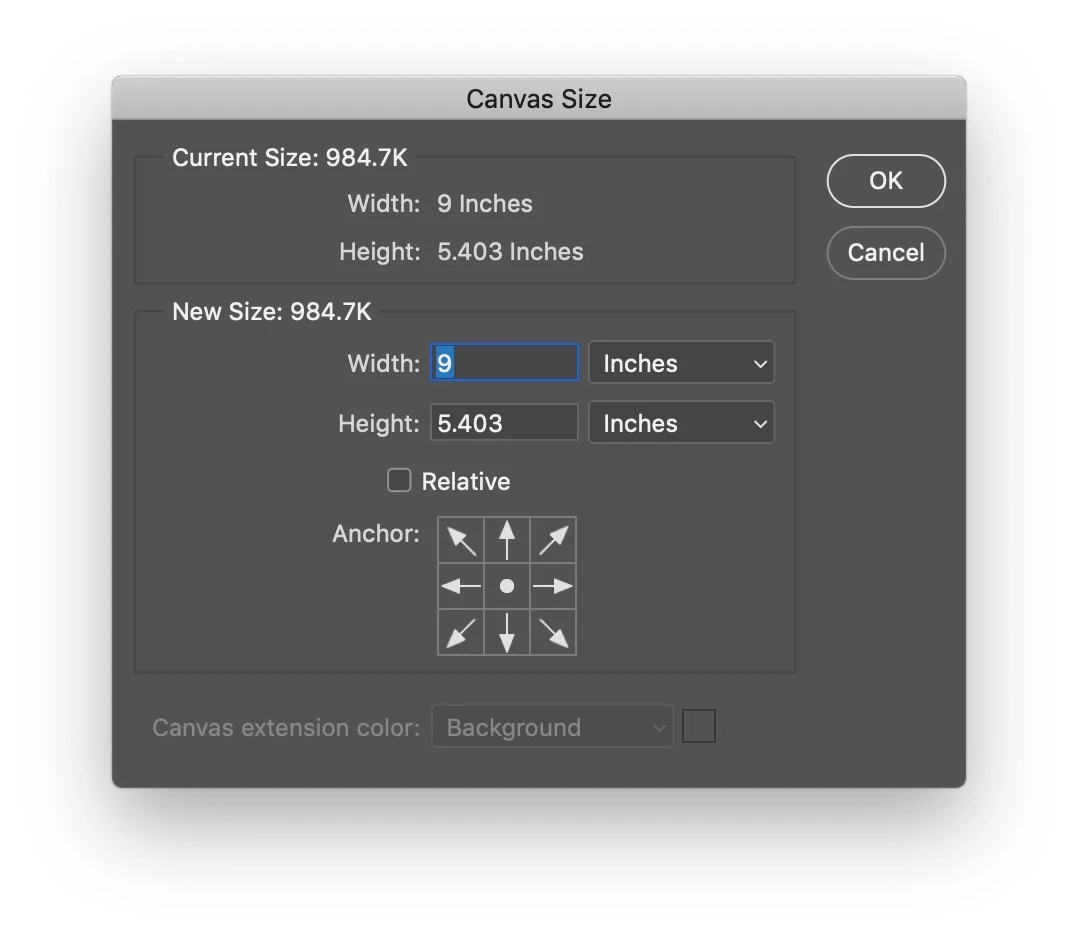
I've checked my image size, canvas size and print dialog. I've updated my print drivers.

Any ideas? Probably something simple I'm missing?

Photoshop CC.

Mac OS 10.14.2 (Mojave)

Canon MG5422 Printer.

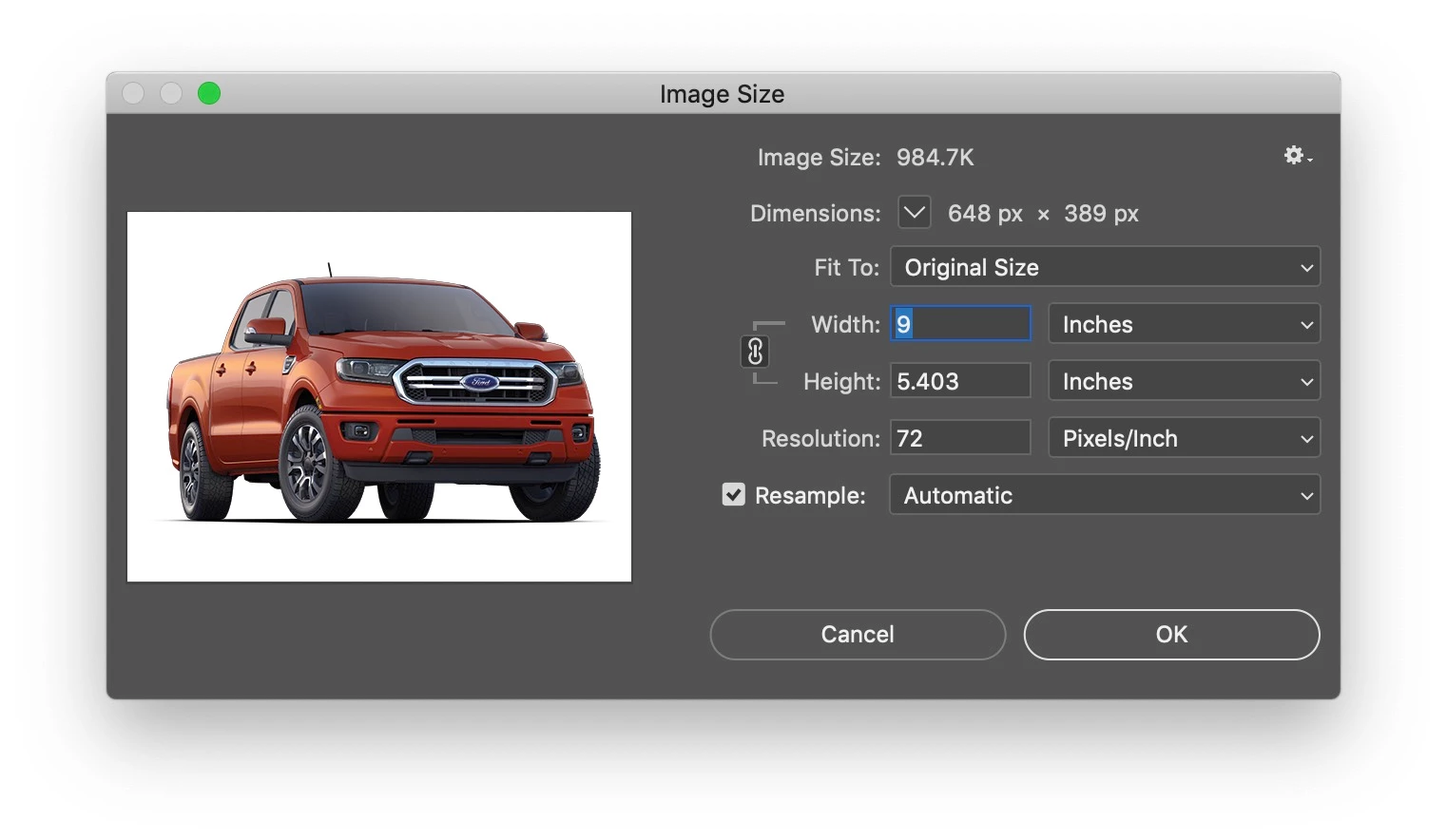
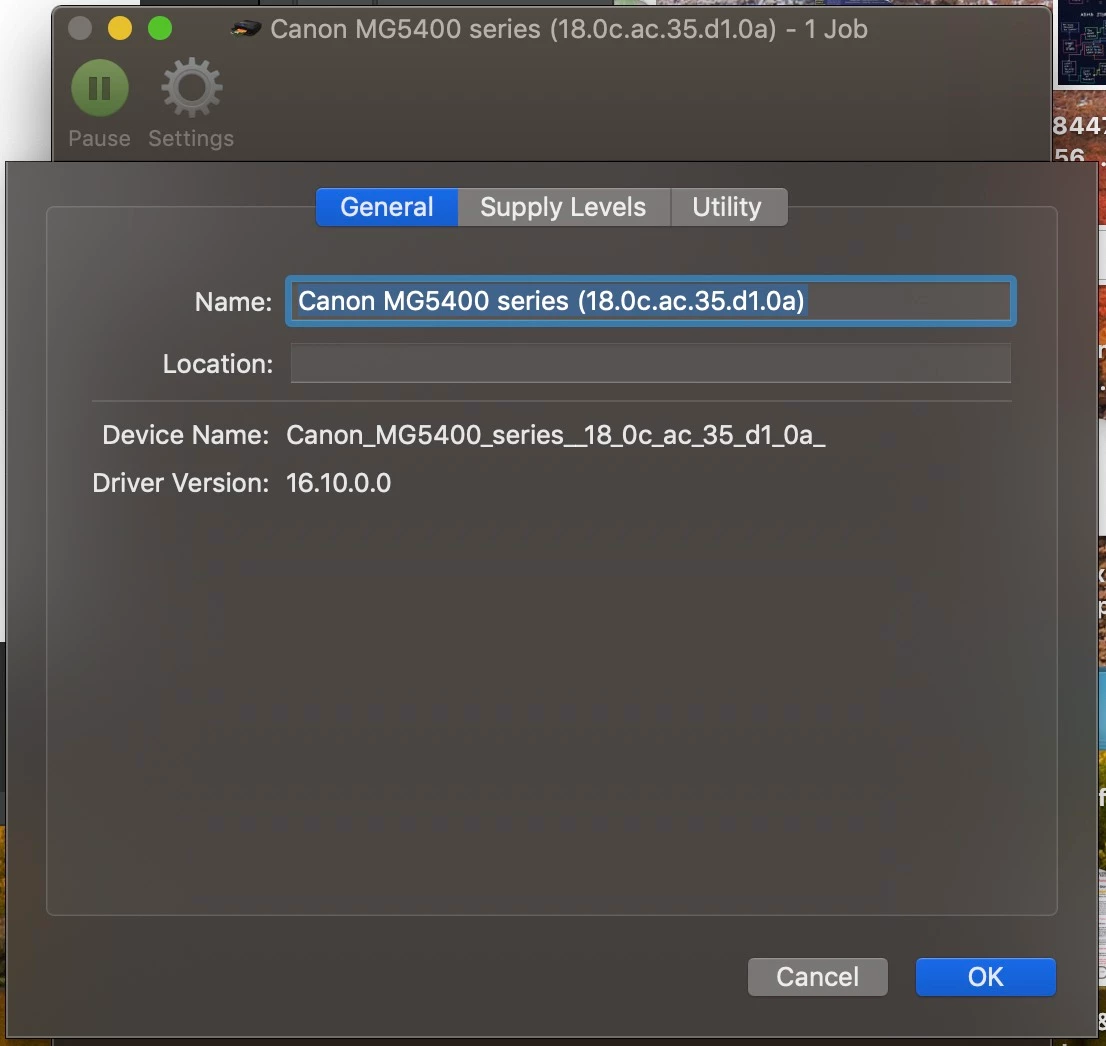
In the screen shots below, I'm printing a roughly 9 inch by 5 inch image.

    This topic has been closed for replies.
    Correct answer gener7

    It's tough to pinpoint when it started, I rarely print out of photoshop. It popped up a week or so ago, but I was on a deadline and had to just work around it. It had probably been a couple of months since I'd printed from photoshop before that.

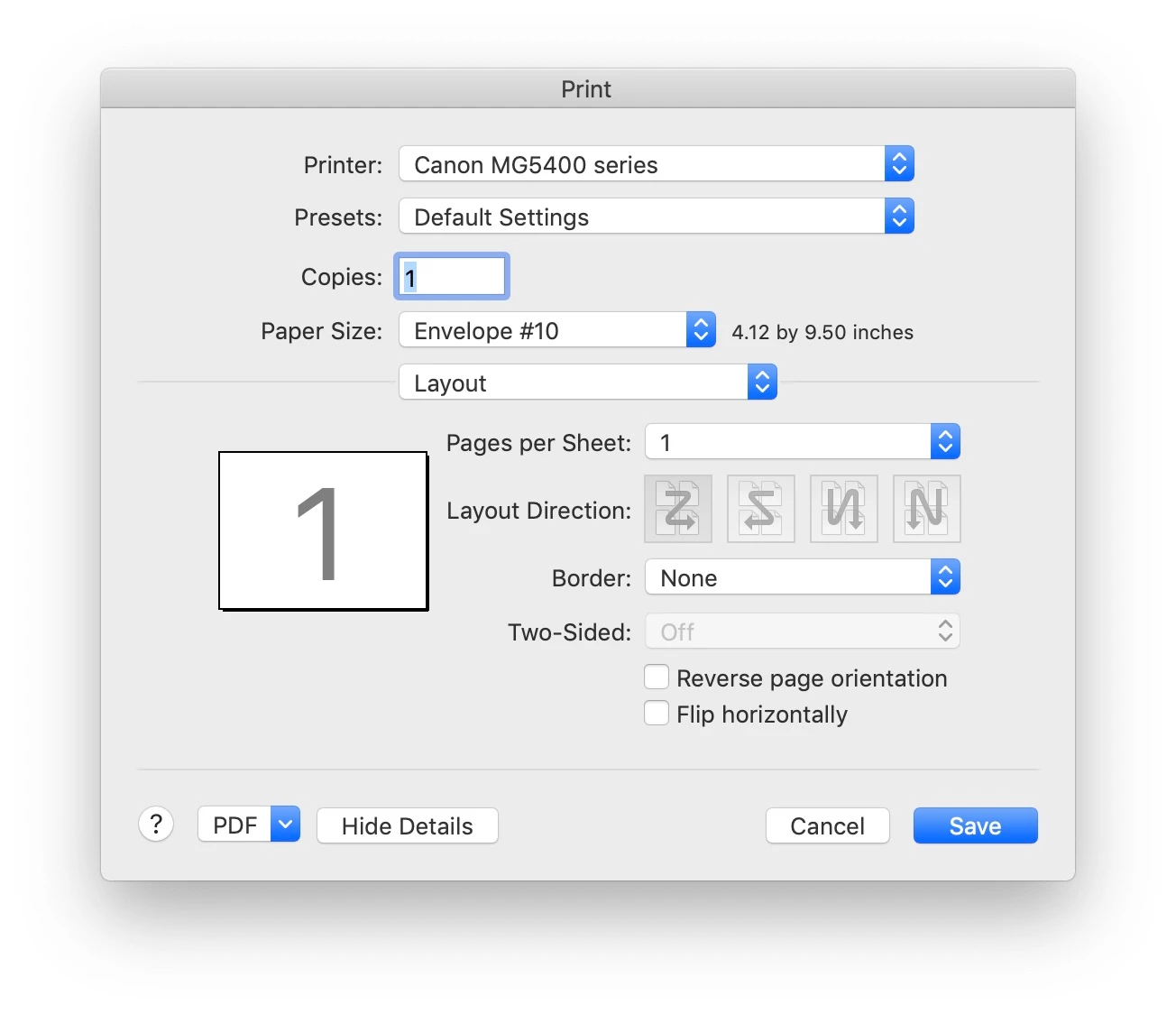
    Custom paper sizes don't seem to help. In fact, whatever size I change it to, the oversized print area changes in proportion! I've attached screenshots that show changing the size to a #10 envelope (4.12 x 9.5 in) - and the print area changes to 23.736 x 10.292.
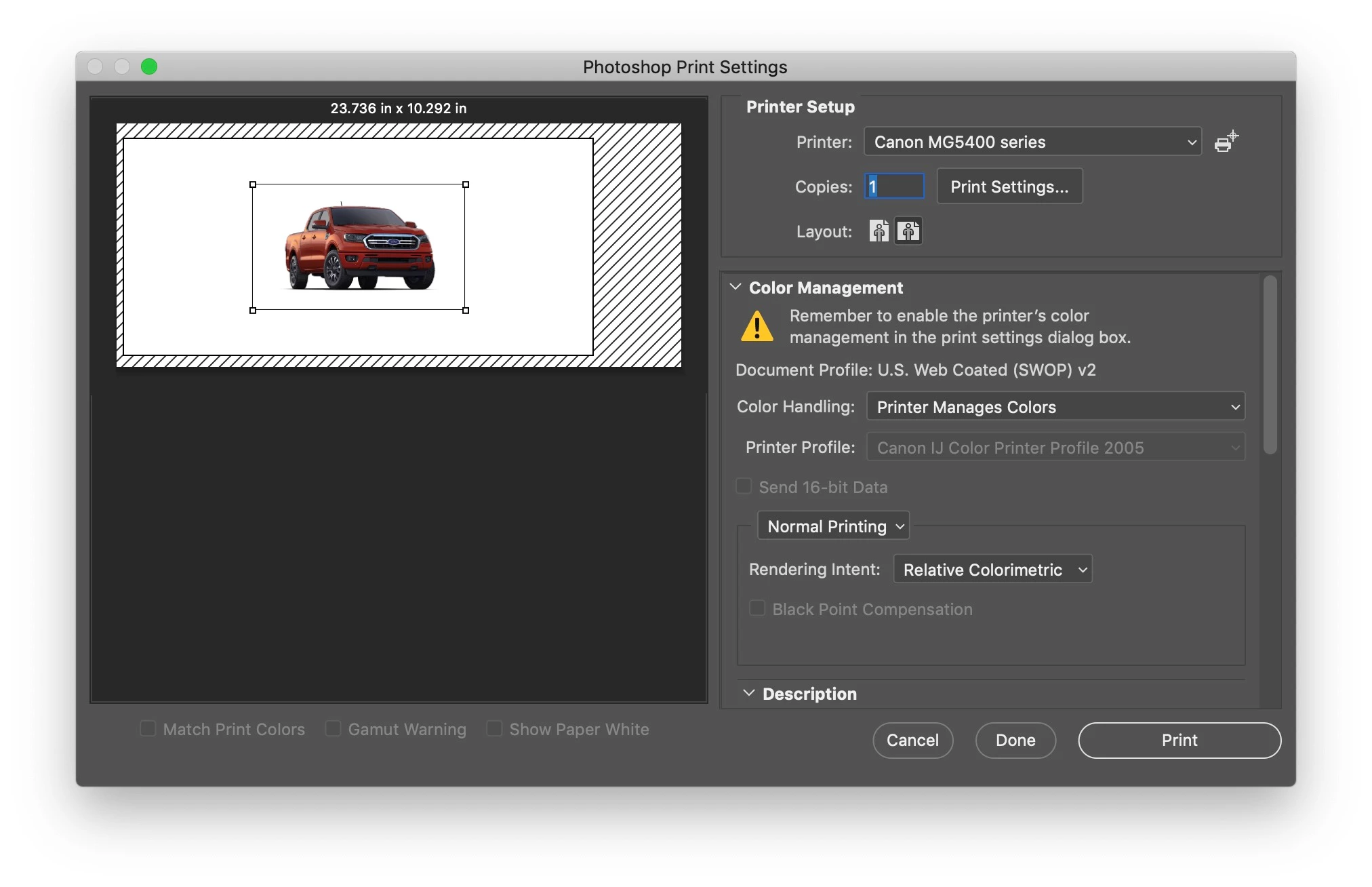
    I've never seen anything like this. Does signing into another user account and using Photoshop there give the same results?

    With your CC account, you may also download and use an earlier version of Photoshop, CC 2018 19.1.7 as an example, and see if the same problem is there. (Also a good idea when CC 2019 glitches hold you up.)
    4 replies

    Participating Frequently
    February 3, 2019

    Here's what I find fascinating. It's only happening with photoshop. Which would lead me to think it's application specific. But I uninstalled and reinstalled, so that's not exactly it. I have the same issue when I select the printer (Canon MG5422) or when I select the "print to pdf" printer option so I don't think it's the driver. I reset the mac's printing prefs so that shouldn't be it either. I'm thinking it has to be some sort of incompatibility with photoshop? Maybe another process is interfering? I've closed all other apps, so it's not an open application. The only plug in I have is camera raw. Again, that plug in predates the issue.

    Participating Frequently
    February 3, 2019

    Following Gener7's advice I've progressed through the following steps:

    I don't have another physical printer, but I do have a PDFwriter printer setting, which "prints" a pdf as an alternative to using the save as to create a pdf. When I print to PDWwriter, the resulting document is built to 8.5 x 11, but the image is way to small on the page.

    What's more, I think this eliminates the driver as the culprit, as the issue is present as soon as I bring up the print dialog box, no matter which printer is selected.

    I reset the printer preferences.

    I recreated the instance of the printer.

    I reset photoshop's preferences.

    I reset the Mac's printing system.

    I switched over to measuring in pixels, and altered the image to 2700px by 1621px at 300dpi. - No change

    Finally, I unistalled photoshop making sure to remove preferences and then re-installed. - No change.

    I'm not having the issue in any other application and I've never had the same issue is photoshop before (I've been using PS since 1995).

    This is Adobe Photoshop CC. This happens with any document I open in photoshop (JPG, PSD, TIF, EPS, etc.).

    I am stumped.

    gener7
    Community Expert
    Community Expert
    February 3, 2019

    One other idea: When you bring up the Print dialog, press Alt/Option on your keyboard. "Cancel" button will change to "Reset". See if clicking on Reset does anything.

    Participating Frequently
    February 3, 2019

    I tried the Alt/Option reset in the print dialog box. No change.

    gener7
    Community Expert
    Community Expert
    February 3, 2019

    Thanks for the screenshots. It look like your driver is reporting 27 x 21 in paper when it is set to 8.5 x 11. Your image looks normal.

    Do you see this problem with other images? Can you try another printer?

    If not, press the Spacebar on your keyboard before you click File > Print. This process resets printer preferences that have been written into the image.

    gener7
    Community Expert
    Community Expert
    February 3, 2019

    Next if that does not work,

    re-create the instance of the printer:

    Go to Print & Scan in the System Preferences.

    Select the printer, and click the Minus button.

    Click the Plus button.

    Select a printer or enter the printer's IP address and click Add.

    gener7
    Community Expert
    Community Expert
    February 3, 2019

    Reset Photoshop's Preferences is another step:

    D Fosse
    Community Expert
    Community Expert
    February 2, 2019

    Photoshop doesn't work with inches. It works with pixels. That's the native and basic unit.

    The print size is determined by the pixels per inch number. This decides how big each pixel square is printed on paper, in other words how many of them per inch.

    The number of pixels in the file decides how big it can be printed at any given ppi. Just open the Image size dialog and see for yourself. You can change ppi at any time, as long as you make sure to keep the "resample image" box unchecked. This is important!

    I suggest you stop and consider the term pixels per inch. It's the key to the whole thing. Read it literally, it means exactly what the three words say.

    Participating Frequently
    February 3, 2019

    D Fosse, I've never come across this problem before so I'm not sure how to apply your comment as a solution. No matter the units, the print area does not match the paper size I'm using to print. Somewhere between the actual file (measured in pixels) and selecting the print area (measured in inches) things are getting weird. What am I missing?