
Prints not close to Monitor(yes my monitor is calibrated)
The issue is that my prints are all coming out way darker/muted/desaturated with less contrast as to compared to how they look while editing them in Adobe Photoshop(CC 2018). I have read a good deal about printer settings, color management, soft proofing and tried many different settings and nothing has corrected the issue. I used to use an Epson Ink Jet photo printer on this same iMac and I did not have these issues.
Here is relevant info as well as some inserted screen shots.
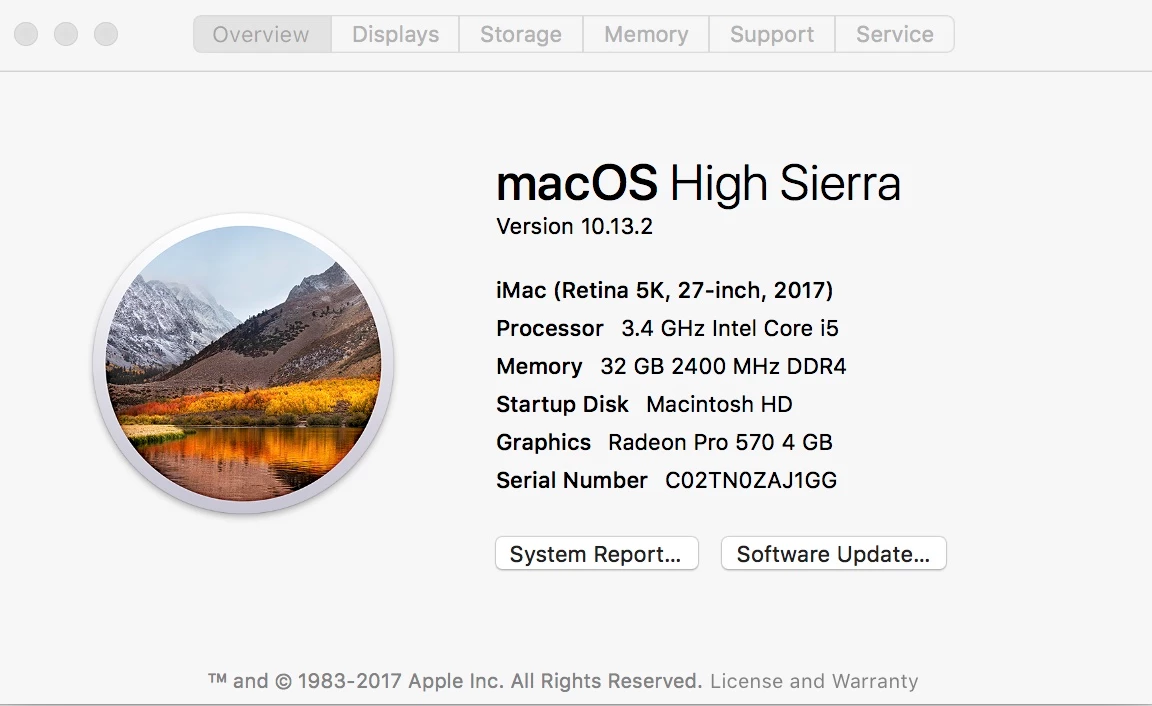
* Computer/OS iMac/macOS High Sierra 10.13.2
* Printer: Canon Pixma Pro 100(with the latest drivers installed for the printer and connected via a USB cable).
* I am running my printing tests using Canon Pro Luster paper.(LU 101)
* My monitor has been calibrated using the spyder elite 5 system.
* My working color space in photoshop cc 2018 is Adobe RGB(1998)
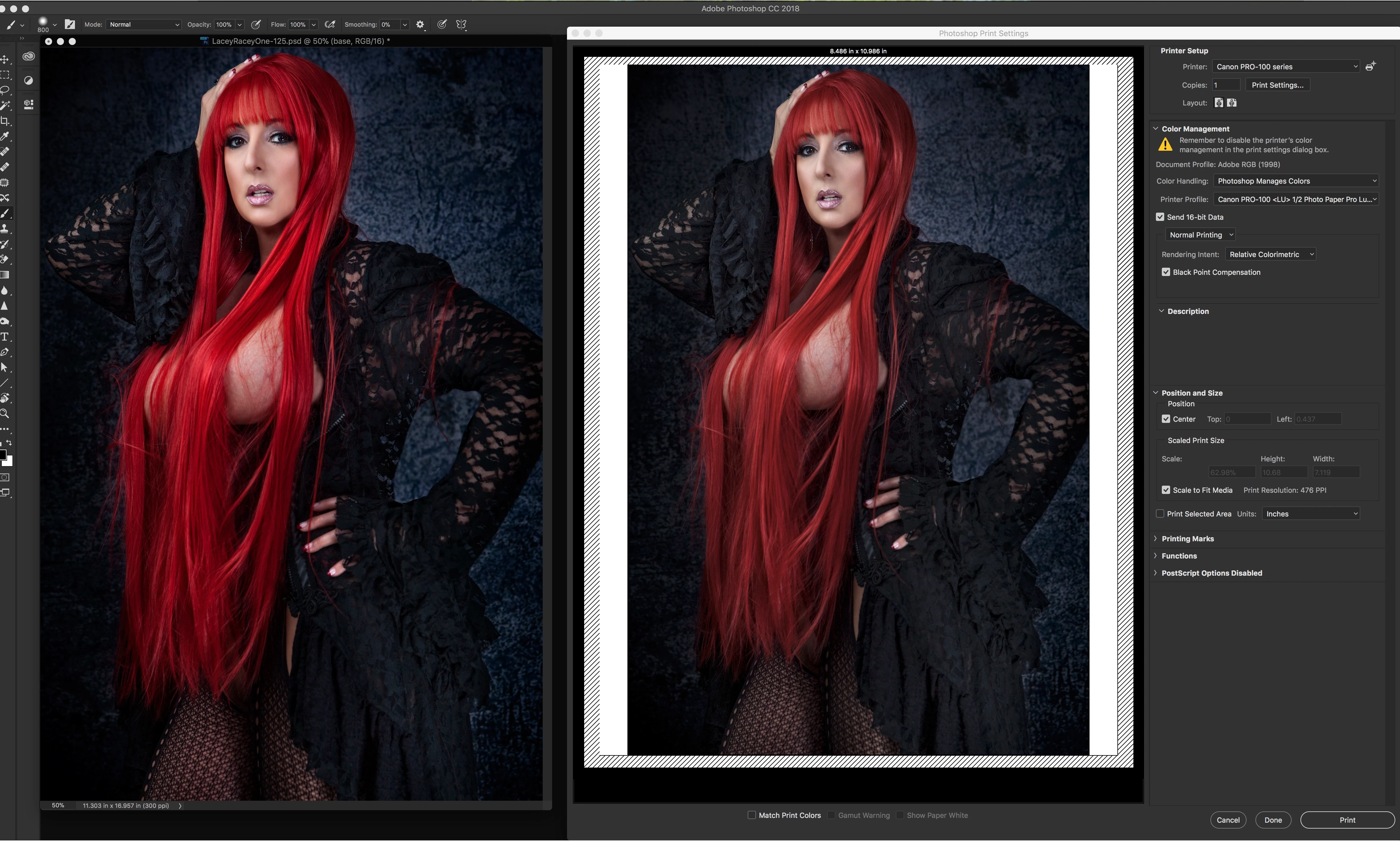
My relevant PS CC 2018 Print Dialog Settings are...
Let Photoshop Manage Colors/ Printer Profile : Canon Pro-100 <LU> Photo Paper Pro Luster
* My Canon Pro-100 printer settings are:
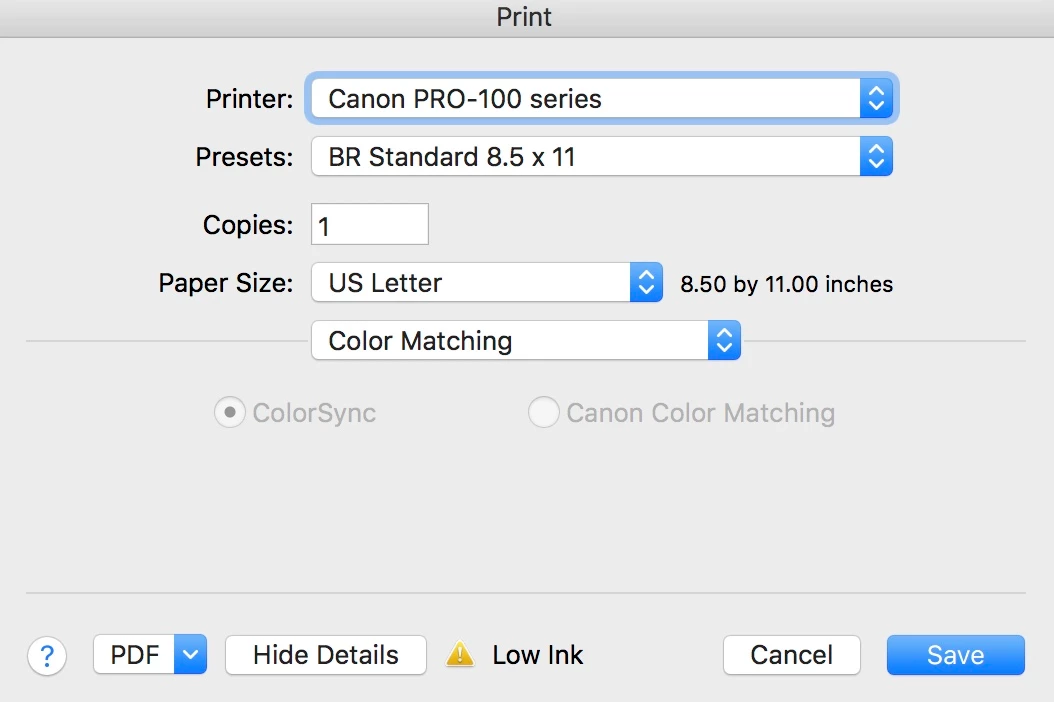
* Color Matching...
The ColorSync radio button is selected by disabled.
The Canon Color Matching radio button is not selected and also disabled
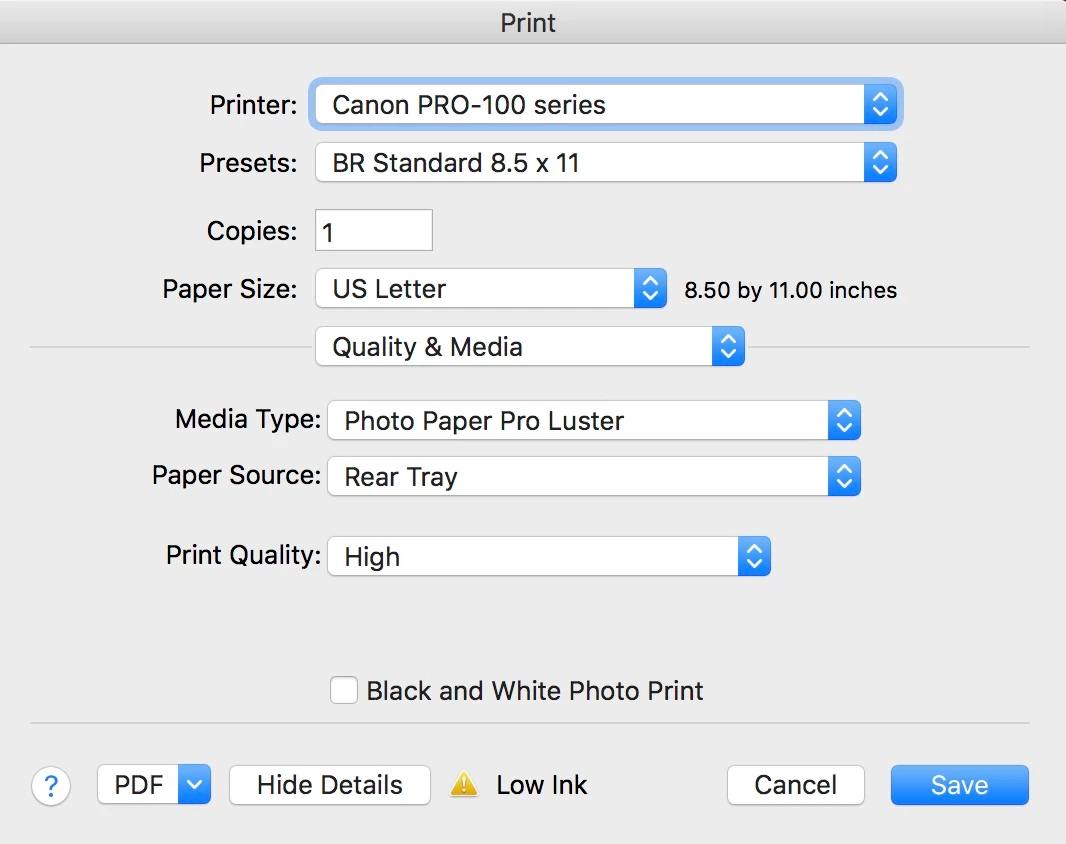
* Quality and Media...
Media Type: Photo Paper Pro Luster
Print Quality: High
System/Color/Printer Settings Screen Shots
Computer System….
Photoshop CC 2018 Color Settings…
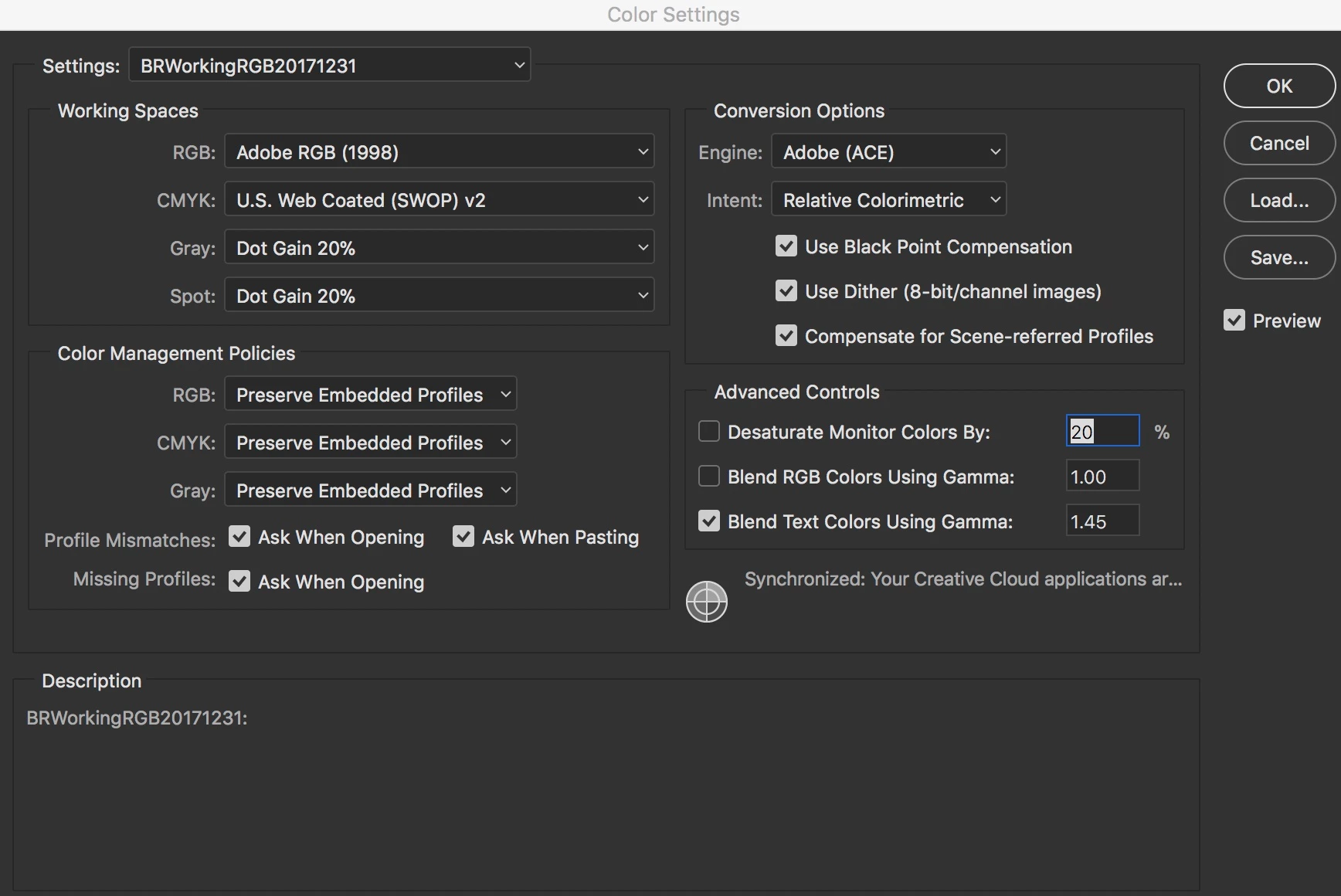
Image in Photoshop CC vs Photoshop CC Print Dialog…
Print Settings – Color Matching…
Print Settings – Quality and Media…
 AdChoices