Participant
December 2, 2012
Answered

Problem saving animated gif

  • December 2, 2012
  • 2 replies
  • 51810 views

Hello!

Just for fun i was planning to edit a animated football tackle gif. I was planning to remove the player who tackle in each and every frame of the animated gif. So it would take some time to finish.

I have successfully opened the gif in CS6 via import Video Frames to Layers.

It consists of 72 layers and i have tried to fix 10 of them just to see how it roughly would look like.

My problem comes when I try to save and render the GIF (via save for WEB).

The 10 first frames of my gif only shows one freezing frame, and then it shows the rest from 11-72 without any problems.

What am i doing wrong, since my edited layers don't show up in the final GIF?

http://i.imgur.com/IeNX8.jpg

Correct answer mjarrott

Right on! Easy solution.

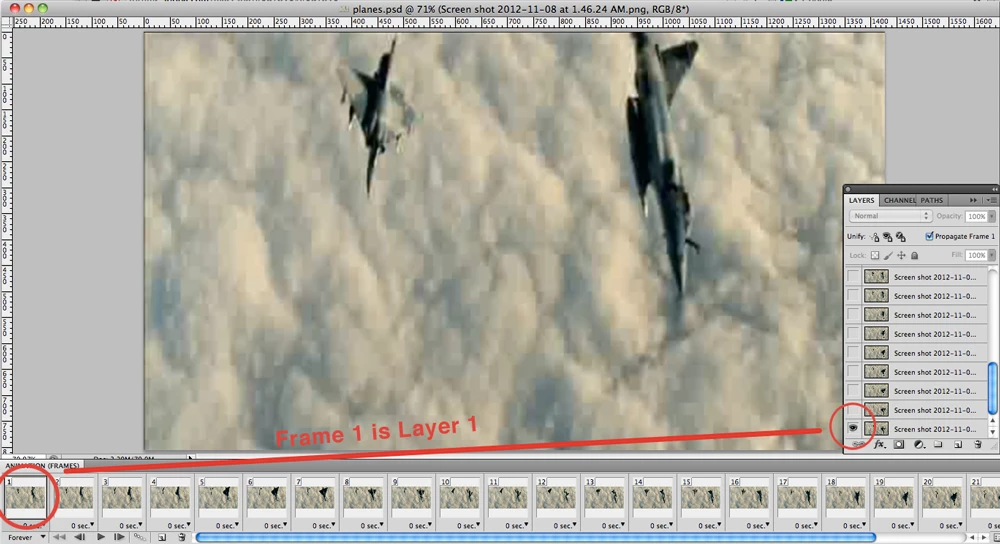
First, the reason your first 10 frames are not changing is because each of those frames shows the same layer (Layer 1).

  • In your layers panel, you have Layer 1 set to visible and all the other layers are invisible. That's good for Frame 1, but for frame 2 you'll want to make Layer 2 the visible one.
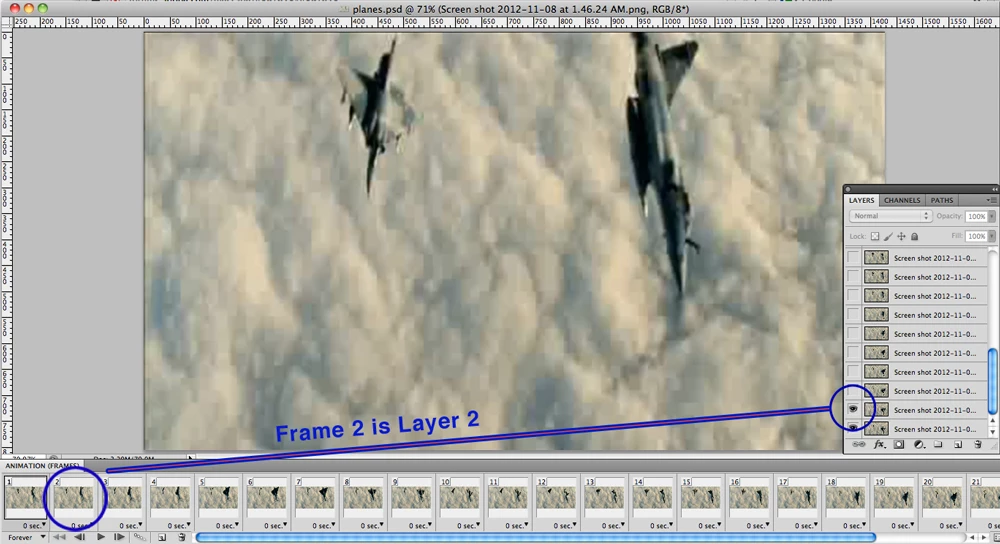
  • Click on Frame 2 in your Timeline panel and then check the eyeball icon to make Layer 2 visible! Do the same for Frame 3/Layer 3, Frame 4/Layer 4, etc. until you get to the end of the animation!

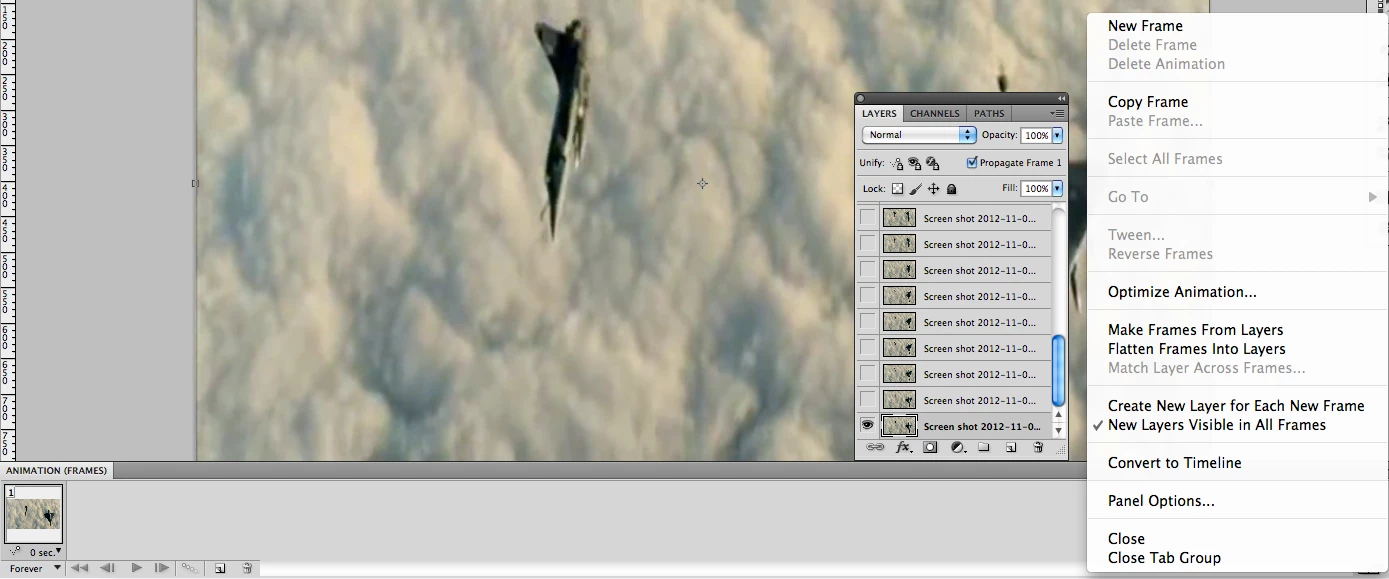
To address the second problem, the option for Make Frames from Layers is greyed out because you already have frames in your timeline.

  • Go to your Timeline panel and select all the frames and delete them.
  • Then select all your layers in the Layer panel, right-click and choose Make Frames from Layers... you should be able to click on it once your Timeline is cleared. It will automatically create frames that go from Layer 1 to your last layer (so, you wouldn't have to do it manually like above ^).

Either way should take care of your problem! Please let me know if this works for you!!

Cheers,

Michael

2 replies

Participant
January 18, 2019

Hello! How did you export your GIF? every time I try it exports the GIF with frame by frame images. Thank you!

Community Expert
January 18, 2019

I use Save for Web - what did you use to export?

mjarrott
Adobe Employee
Adobe Employee
December 3, 2012

Hi,

In your photoshop document, could we take a look at your Timeline panel. I have a screenshot from a .gif that I created recently (using CS5). Each frame in the timeline panel is a different image. Your problem may not be during the save but with the frames in your Timeline. (maybe)

If I understand correctly, you already have each of the video frames as a separate layer. From there, you've edited each frame (removing a player).

When you finish all of your edits, open the flyout menu in your Timeline panel. There should be an option for Make Frames from Layers. This will automatically create the animation frames out of your 72 layers. Forgive me if everythink you've done is correct up until this point.

I also notice that Layers 1 through 9 are linked in your layers panel. I would select all of those layers, right-click and choose Unlink Layers. That could be your problem right there.

It may help to see a screenshot of your Timeline panel!

Michael

Participant
December 3, 2012

Hello Michael and thank you very much for answer.

I have opened the gif with each frame as a separate layer. I tried also to unlink the frames, but i still got the same result. I also tried to make a whole new project from scratch.
Somehow the Make Frames from Layers option is grayed out. I have tried to google it for a solution, but i did not find anything. Maybe you know what might be wrong? I have added a screenshot from my timeline panel:

http://i.imgur.com/yUGwN.png

mjarrott
Adobe Employee
mjarrottCorrect answer
Adobe Employee
December 3, 2012

Right on! Easy solution.

First, the reason your first 10 frames are not changing is because each of those frames shows the same layer (Layer 1).

  • In your layers panel, you have Layer 1 set to visible and all the other layers are invisible. That's good for Frame 1, but for frame 2 you'll want to make Layer 2 the visible one.
  • Click on Frame 2 in your Timeline panel and then check the eyeball icon to make Layer 2 visible! Do the same for Frame 3/Layer 3, Frame 4/Layer 4, etc. until you get to the end of the animation!

To address the second problem, the option for Make Frames from Layers is greyed out because you already have frames in your timeline.

  • Go to your Timeline panel and select all the frames and delete them.
  • Then select all your layers in the Layer panel, right-click and choose Make Frames from Layers... you should be able to click on it once your Timeline is cleared. It will automatically create frames that go from Layer 1 to your last layer (so, you wouldn't have to do it manually like above ^).

Either way should take care of your problem! Please let me know if this works for you!!

Cheers,

Michael