
bens48043133
Participating Frequently
June 10, 2020
Answered

Professionally scanned TIFFs coming in compressed horizontal and full of dots

  • June 10, 2020
  • 6 replies
  • 2534 views

Hi All,

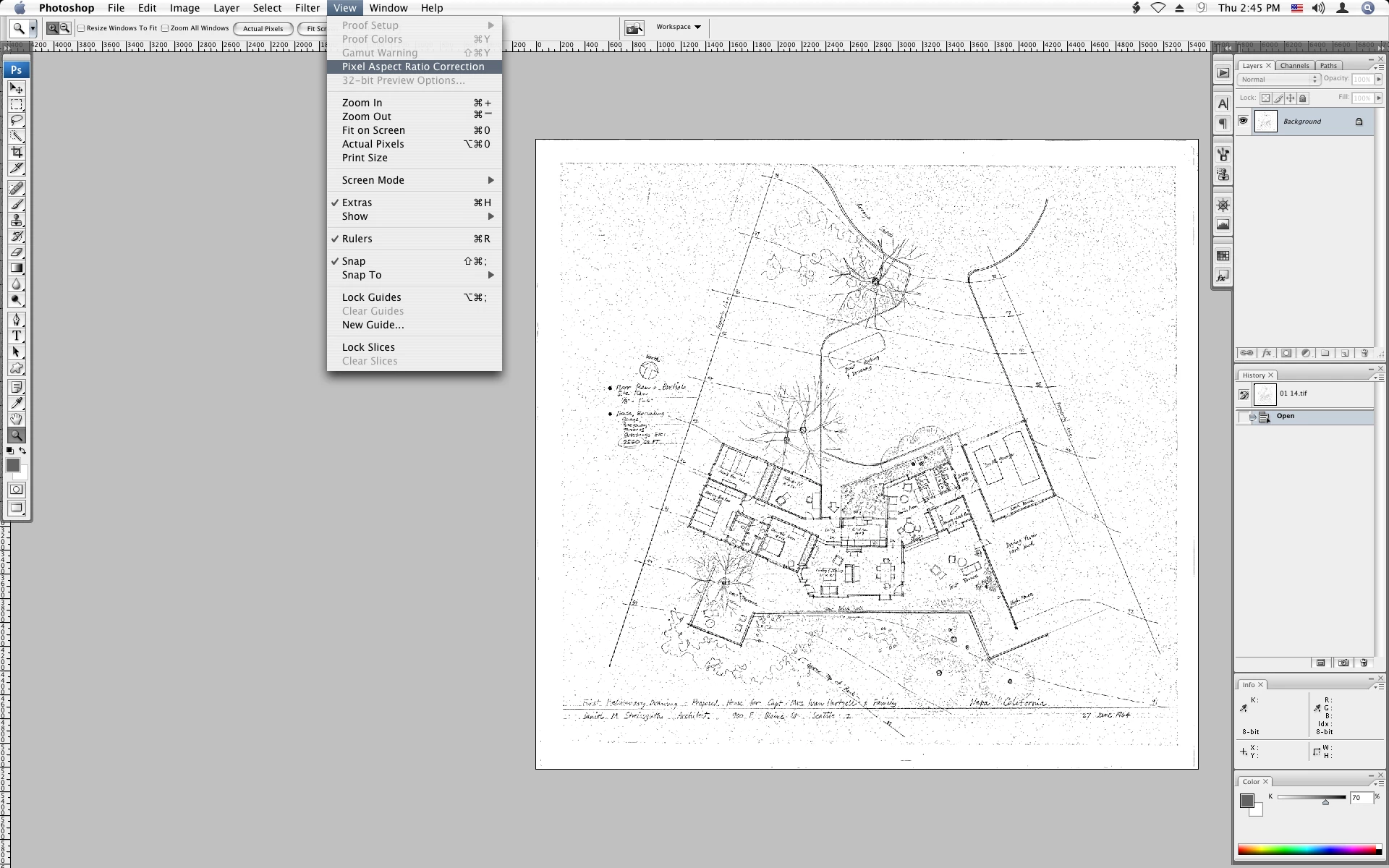
I just received several hundred professionally scanned TIFFs (from two different and unrelated sources).  When I open them in my ancient copy of PS the images are compressed horizontally and are full of small dark dots.  In the title bar they show up as (Bitmap) (scaled), and my only two options under Image>Mode are Bitmap (checked) and Grayscale.  I've tried all 16 sizing options for greyscale but can't seem to get anything better.  If I look at the file properties on my Windows 10 machine it says the compression is CCITT T.6 and the resolution unit is 2.  I've been able to view the some of the images in other programs so I'm pretty sure it's a user issue in PS.


I'm hoping that with the proper conversion I'll be able to see the images at the correct scale and without all the noise.  I can live with the noise if I have to.    My ultimate goal it to be able to save them in some form of TIFF that will compatible with web browsers and most other software.
Correct answer Jeff Arola

The "Scaled" means Pixel Aspect Ratio Correction is turned on


With the scan open go View and uncheck Pixel Aspect Ratio Correction

(newer photoshop versions like cc 2020 don't have the correction on so i'm not sure why cs3 does)


6 replies

bens48043133
Participating Frequently
June 12, 2020

Hi All,

Thanks for all the great info - I've learned a ton and have this solved as best I'm able. Turns out it was acutally two issues that were combined.  The aspect ratio is easily fixed.  I'll play around with the tiff's that I can't easily get rescanned, but will probably just bite the bullet and have the others rescanned.  Thankfully the cost isn't too great. This time, I'll be working with the scanning company to assure I get either a greyscale or color image that meets my expectations.

Conrad_C
Community Expert
Community Expert
June 12, 2020

Even with the last sample you posted, because it has not already been reduced to 1bpc Bitmap, just a minute or two with a single Curves layer (see animation below) shows how much flexibility you have in getting the tone and color to look the way you want. And that isn’t even lit very well. If it was scanned or photographed with an evenly distributed light source angled to remove shadows and paper wrinkles, you could get an even cleaner result than in this animation that’s based on that tabletop photo.


Your photo of the entire drawing shows that the background stipple is an actual printed texture that might have come from reproducing a blueprint on white paper. If the scans are given to you as grayscale or color, you will get to decide how much to preserve, emphasize, or suppress that background ink texture.


And if you work out a combination of Photoshop adjustment layers that works great on a few scans, if you put those layers in a layer group (folder), you will be able to drag the layer group to other scans to instantly apply those adjustments to them. Then all you have to do with the other scans is tweak the layer group adjustments as needed, instead of starting from scratch each time.

bens48043133
Participating Frequently
June 14, 2020

Hi Conrad,

Thanks so much for the followup.  I have so many physical drawings, photos of the drawing (JPEG), and scans (TIFF) that I hadn't made the connection between the brown lines stipping begin gthe background I was picking up.  I'll have to go back and pull the brown lines and see if they are exclusively the ones with the noise (which I now suspect).  I'll also have to read up on curves and layer groups to better understand them - theres always so much cool stuff to learn in PS.  I think I could handle adusting just the scanns of the brown lines.  I do have a couple of color scans of the some brownlines so I'll mess around with them as well.


Do you have a recommended method for converting these scans to a more universallly readable TIFF?  I'd really like to be able to upload them to a Wordpress website.  I've tried converting them to grayscale (with values of 1, 2, and 16).  Then resaving it as a tiff - with and without both LZW compression, and ICC Profile: Dot Grain 20% (which is what it wants to default to).


So far, all I can tell is that the Dot Grain seems to be what is causing the image to be extra narrow when opened in PS.  None of my attempts seem to be able to generate a thumbnail when I upload them to WordPress.


On an side note: a "true" blueprint is actually a process where the background is a solid blue, and the lines are white. There's another group of coping techniques that I think is called diazoor that produce black, brown, or blue lines with specaled background.  I think the colors are based on some photo reactive chemical in the paper.

Conrad_C
Community Expert
Community Expert
June 11, 2020

The “noise” is probably a side effect of the scanner operator saving these in Bitmap mode. This is sort of understandable; the scanner operator probably looked at the original, saw it was black ink on white paper, and said “No colors, no grays, I’ll just scan it as Bitmap.” Because Bitmap means 1 bit per pixel: Either fully black, or fully white. On the surface, that seems reasonable…


…but the problem is that if all you have is full black or full white, the resulting scan can’t handle any gray tones, not even light paper texture. Any mark that is not white, will be black. If it’s light gray, it has to be dithered using the available fully black pixels. This can look like the noise you see.


Many of us in this forum would probably scan that type of original in grayscale, 8 bits or more. That would allow us to use Levels or Curves in Photoshop to adjust the tones to suppress light gray noise or paper texture by forcing it to white, and tune the weight of the scanned hand-drawn lines, all to optimize the contrast of the scan so that it looks great. But the scanner operator simply threw it in the scanner, set it to 1-bit Bitmap, and now it cannot be easily adjusted.


And it’s very odd how they sent it to you with a strange Pixel Aspect Ratio that was not square, causing the image to be squeezed. Pixel Aspect Ratio is most commonly used for older video editing formats, or when using an odd old computer display that had non-square pixels (like from the 1980s). All together, what happened to your scans raises some questions about what the scanner operator was doing.


In short, I doubt the problem has anything to do with your version of Photoshop being old. It might have opened the same way on the latest version.

bens48043133
Participating Frequently
June 12, 2020

ThanksConrad for all the great info.  Yes it does sound like both companies decited to scan these drawings as B/W drawings.  The noise could easy be from the paper, though there are at least two paper types aand each type has two background colors.  For some reason it must be cheaper for them to scan as b/w so that's what they default to.  I'll definately discuss having them scanned with greyscale or even color.

Jeff Arola
Community Expert
Jeff ArolaCommunity ExpertCorrect answer
Community Expert
June 11, 2020

The "Scaled" means Pixel Aspect Ratio Correction is turned on


With the scan open go View and uncheck Pixel Aspect Ratio Correction

(newer photoshop versions like cc 2020 don't have the correction on so i'm not sure why cs3 does)


bens48043133
Participating Frequently
June 12, 2020

Thanks Jeff - so happy it was something so easy in regards to getting the aspect ration worke out.

NB, colourmanagement
Community Expert
Community Expert
June 11, 2020

Hi,

I would suggest you report this to the scanner operator and ask how they recommend you open the files.

Can they open the scans in Photoshop and, if so, how do they do that.

Unless you upload an image where we can download it to try opening we are stuck, so they are your best source of help.


I hope this helps

if so, please "like" my reply

thanks

neil barstow, colourmanagement.net :: adobe forum volunteer

[please do not use the reply button on a message within the thread, only use the blue reply button at the top of the page, this maintains chronological order]


Jeff Arola
Community Expert
Community Expert
June 11, 2020

It would really help if you could post a link to one of the scans so a user with knowledge in this area can give the best advice possible.

bens48043133
Participating Frequently
June 11, 2020

Google Drive Link 


Here;s a screen shot of how it looks


Here's what happens when I save it as a JPEG for the web.

jane-e
Community Expert
Community Expert
June 11, 2020

"my ancient copy of PS"


Photoshop is thirty years old. How ancient? Go to Help > System Info and paste here.

bens48043133
Participating Frequently
June 11, 2020

*embarased look* PS3 (version 10).  I only use it a couple of times a year.

jane-e
Community Expert
Community Expert
June 11, 2020

Hi Ben,

PS3 (version 3) was released in 1994. You have PS CS3. 😊 Adobe has taken down the activation servers, btw, so don't uninstall it or upgrade your OS until you are ready to move to Creative Cloud.


I played with both levels and curves on your image, and could get the specks mostly out, but unfortunately, it takes out all the finer lines, such as in the trees. What was on the original drawings that would create the specks?


~ Jane