scrltrider
Participant
January 15, 2019
Question

Proof Setup / Proof Colors Questions

  • January 15, 2019
  • 2 replies
  • 1372 views

I have no idea what I'm supposed to have checked here.   I must have changed something because all of a sudden images I download  & place from Adobe Stock are all coming in overly saturated and with a red tint.
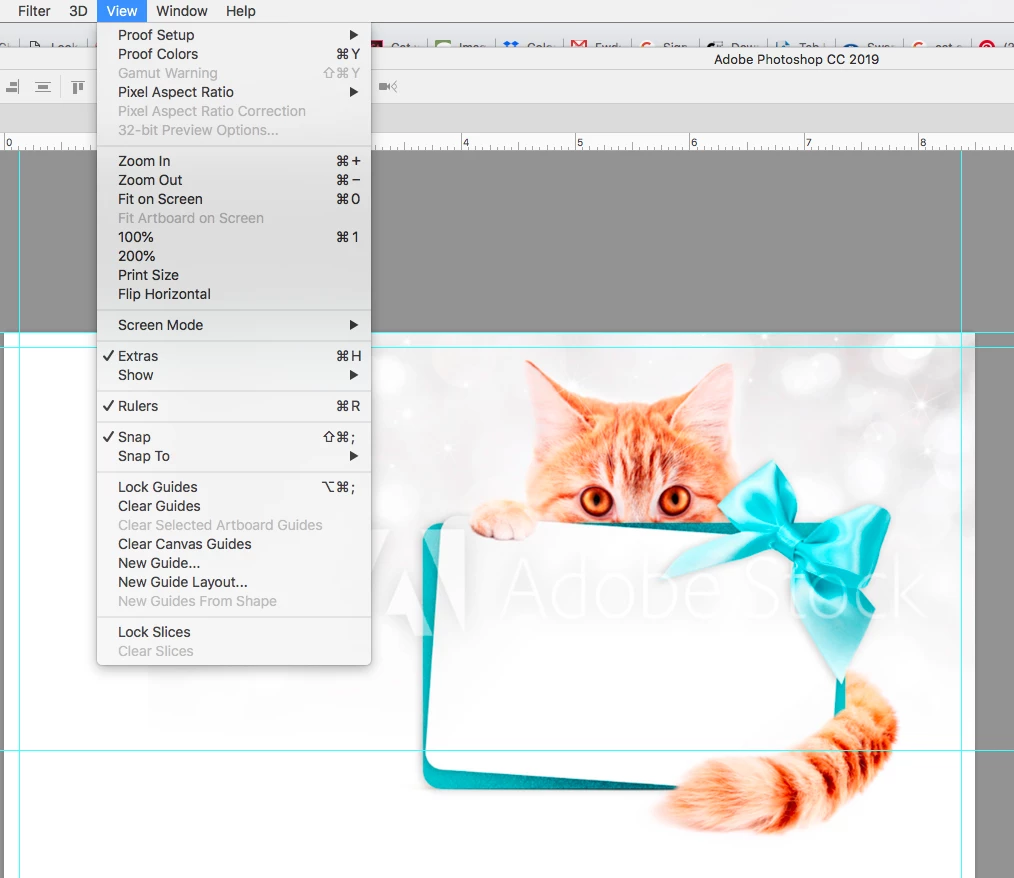
I have guessed it has something to do with the Proof Setup & Proof Colors.  I'm not sure what the correct setting should be.  I am creating images that will be used on the web and printed flyers.  Here's a couple of different settings I've tried:
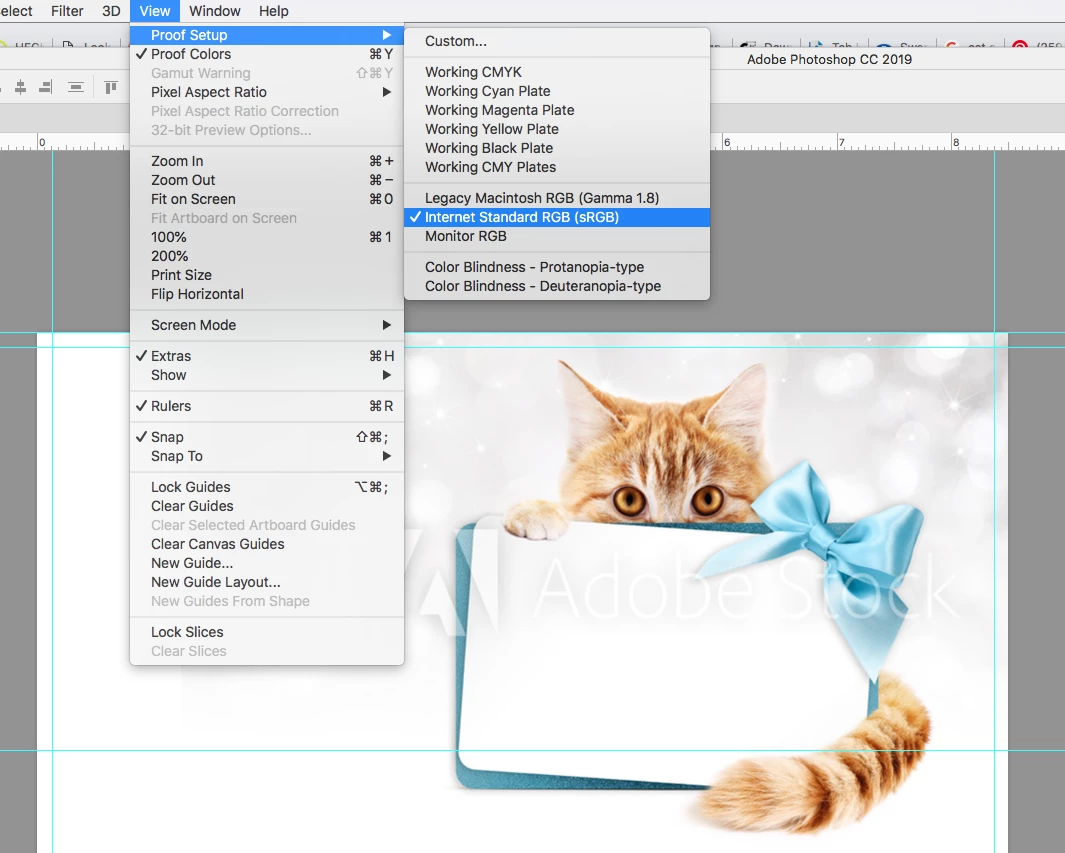
And:
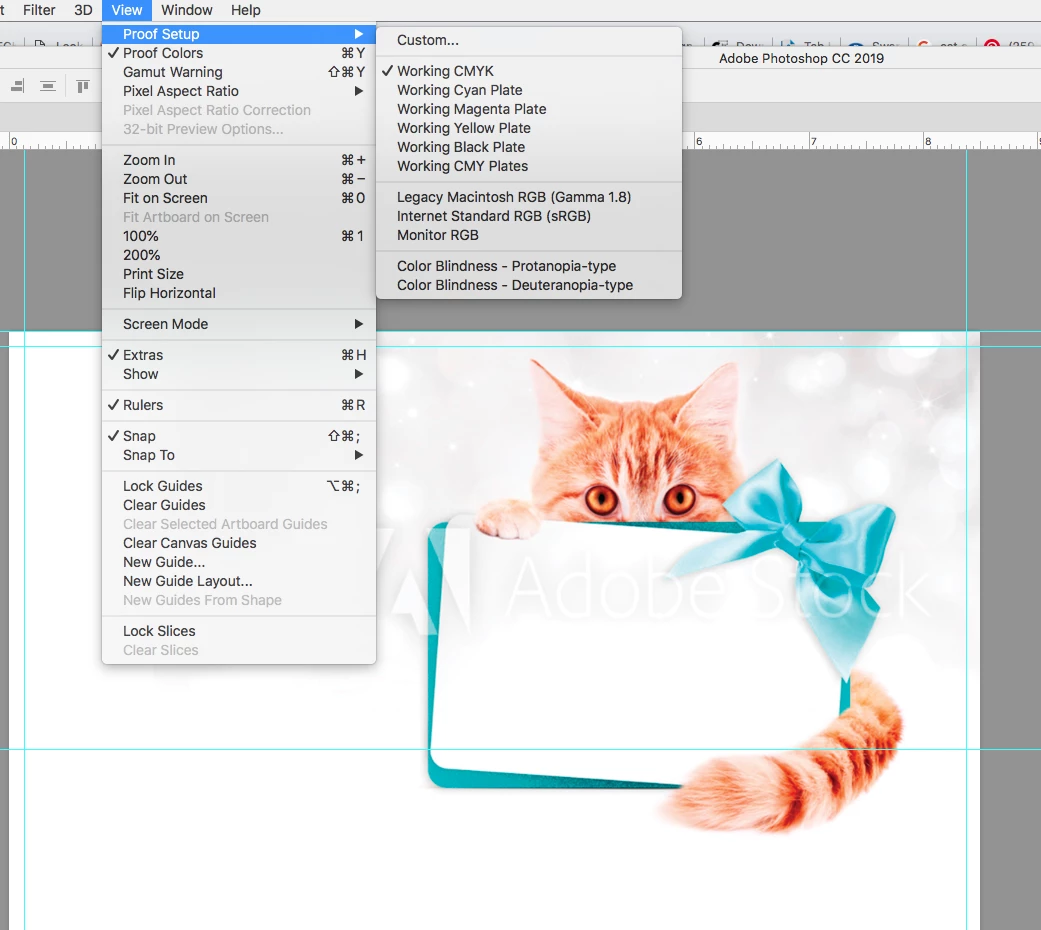
Any help/advice would be GREATLY appreciated!

This topic has been closed for replies.

2 replies

davescm
Community Expert
Community Expert
January 16, 2019

Hi

Uncheck proof colours , it has nothing to do with that.

Now go to Edit > Color settings - and set colour management policies to "Preserve Embedded Profiles"

With that set as shown - Photoshop will use the colour profile of the image you download. If you download an image from the web and get a message saying it has no profile - try applying sRGB at that stage and it will be correct 9 times out of 10.

Dave

scrltrider
Participant
January 16, 2019

Thank you Dave, that has certainly seemed to help! 

Stephen Marsh
Community Expert
Community Expert
January 15, 2019

Unfortunately critical info has been cropped off the screenshots… Forgetting proof setup for now, what profile is assigned to the images? If no profile is assigned, what is your RGB working space in colour settings (I’m guessing Pro Photo).

scrltrider
Participant
January 16, 2019

My working space is Pro Photo. You'll have to forgive me as I'm not sure how to determine what profile would have been assigned?  I don't get any warnings of profile mismatch when I download it from my library to my document.

Stephen Marsh
Community Expert
Community Expert
January 16, 2019

You can use the status bar footer on the lower left setup as below:

Or you could use the Edit > Assign Profile command to view the current profile assigned.