Participant
April 22, 2025
Question

PS 2025 font selection behaviour

  • April 22, 2025
  • 1 reply
  • 225 views

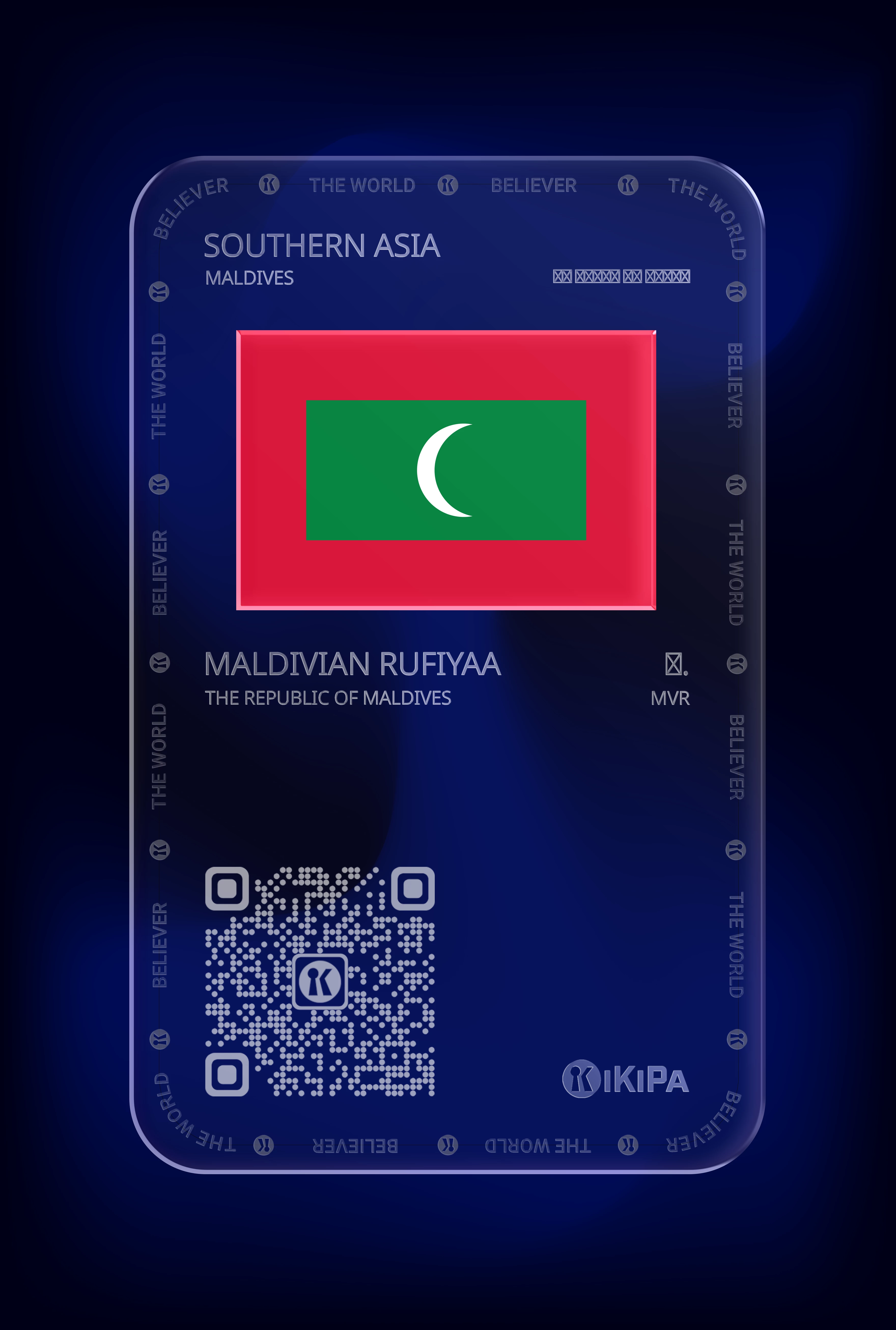
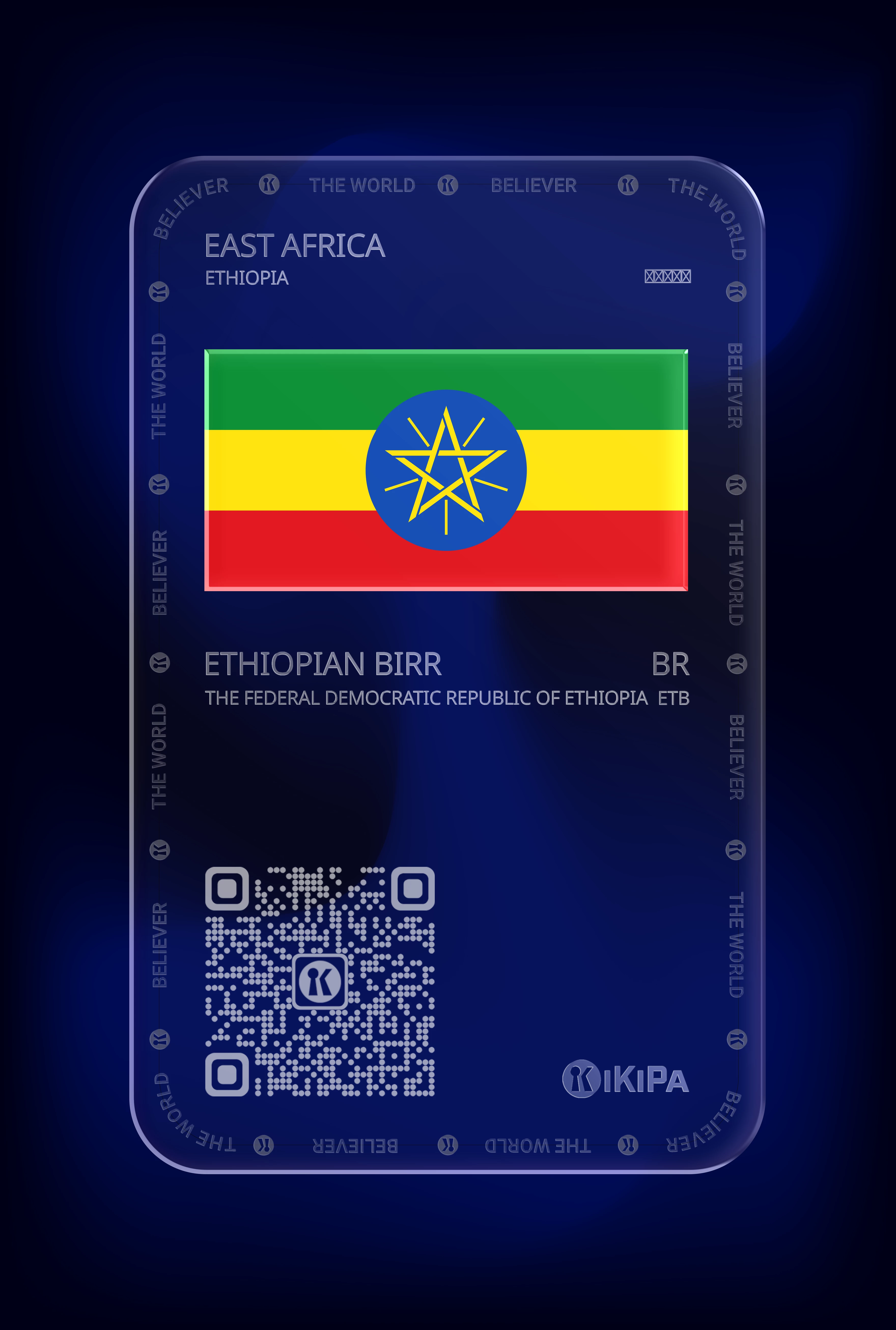
I have PS2025 on my mac and am working with complex scripts to generate NFTs. Two fields are using Noto Sans (for local language fields) - I have 2500+ varients of Noto Sans on my Macbook. How does PS behave, when the selected font, in wrong for the inbound text? I assumed it would switch to one of the Noto Sans varients? 


Thank you!
 

🙂

1 reply

creative explorer
Community Expert
Community Expert
May 25, 2025

@polpowsmp 2500+ variants of Noto Sans on your MacBook? Wow, that's a lot! Having that many variants can lead to font issues, especially if the "wrong" variant is initially selected. Photoshop's behaviour when a selected font doesn't fully support the incoming text is to try and substitute missing glyphs with characters from another font, often a default system font or a more comprehensive Noto Sans variant if one is available and properly recognized by the system and Photoshop's font cache. With so many Noto Sans variants, Photoshop might struggle to find the exact matching glyphs or pick the most appropriate fallback, leading to incorrect rendering or placeholder boxes instead of the expected local language characters. 
Try this, make sure your macOS font cache is clean, try installing only the specific Noto Sans variants necessary for your local language fields, and consider using Photoshop's "World-Ready Layout" composer if your language requires complex text shaping, as this often improves how Photoshop handles diverse scripts and font substitutions.

So, how do we do that? First, I would highly recommend disable and remove the 2500+ Noto Sans variants from your MacBook before installing only the specific ones you need. Having such a massive number of fonts, especially variants of the same family, can create significant performance issues and instability not just for Photoshop, but for your entire system.

To correctly identify the right Noto Sans variant for your local language fields, begin by pinpointing the specific language or script you're using, such as Japanese, Korean, Hindi, or Arabic. Then, visit the official Google Fonts Noto page at fonts.google.com/noto, which serves as the authoritative source for these fonts. Utilize the search and filter functionalities on the website, where you can type in the language name (e.g., "Japanese," "Korean") or the script name (e.g., "Hangul," "Devanagari") to efficiently narrow down the extensive Noto font collection. Finally, download and install only the precise Noto Sans variant(s) that directly correspond to your language, a crucial step that will significantly enhance Photoshop's performance and text rendering accuracy by eliminating the need to process thousands of irrelevant font files.


m