June 16, 2020
Answered

PS 21.2.0 Library Problem - Second Ghost Version Pasted

  • June 16, 2020
  • 4 replies
  • 1044 views

If I drag a graphic from my Library into an image, it appears fine. I can resize it and move it around. I hit ENTER and it places the vector smart object.   


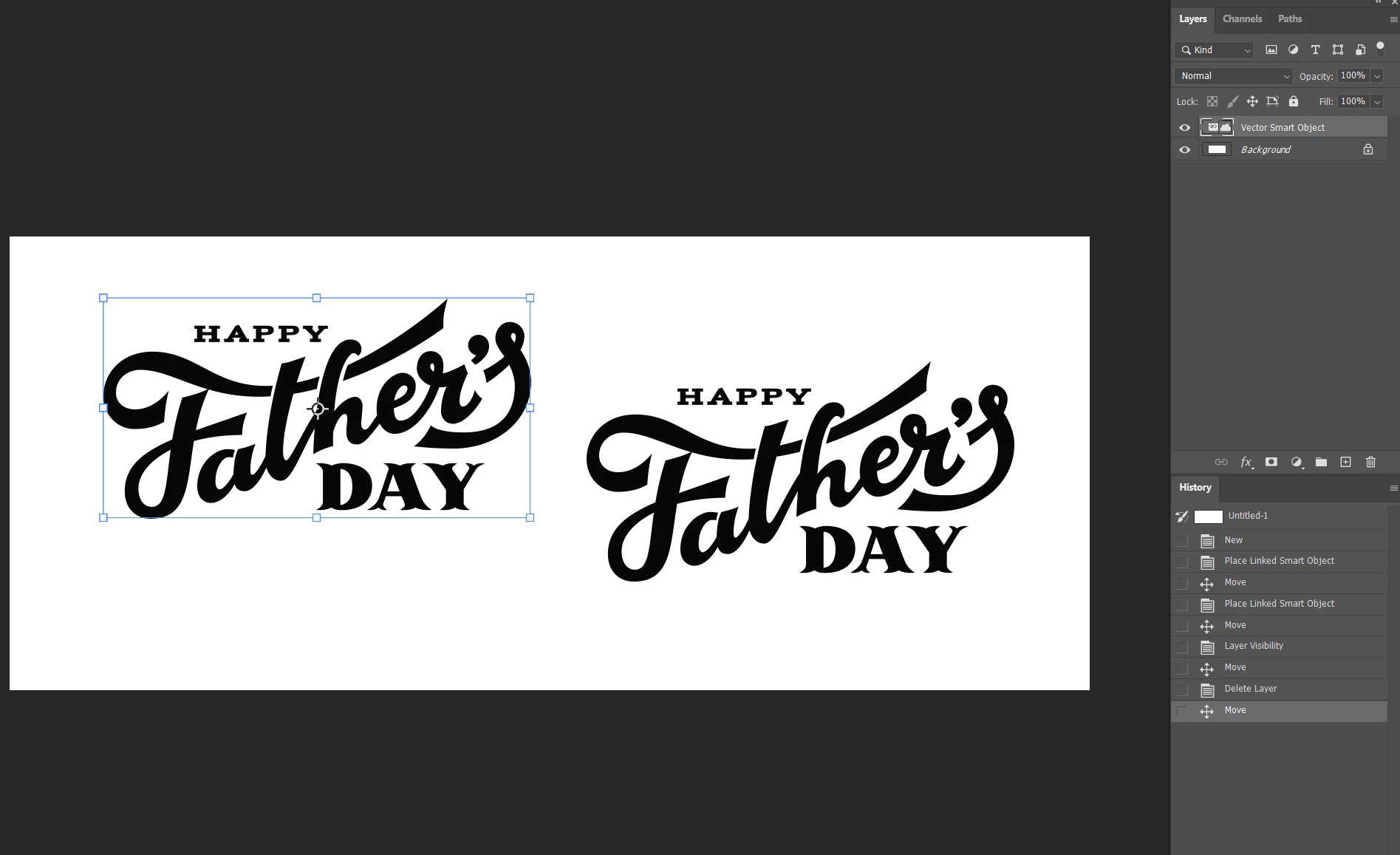
In the example below, I dragged the graphic in and then placed it. Then, I went to drag it aside and that worked normally, as you can see here, but it left a copy of it behind! It's not clickable or moveable.

If I then hide that layer, the selected one goes away, but the copy is still there.  If I make the background hidden, the copy goes away. When I unhide the background, it's gone. But as soon as I unhide the vector smart object and try to move it - it makes another copy!

What the heck is going on?   I also made a video.   http://somup.com/cY1DbAQ3Uo


This topic has been closed for replies.
Correct answer

Hi

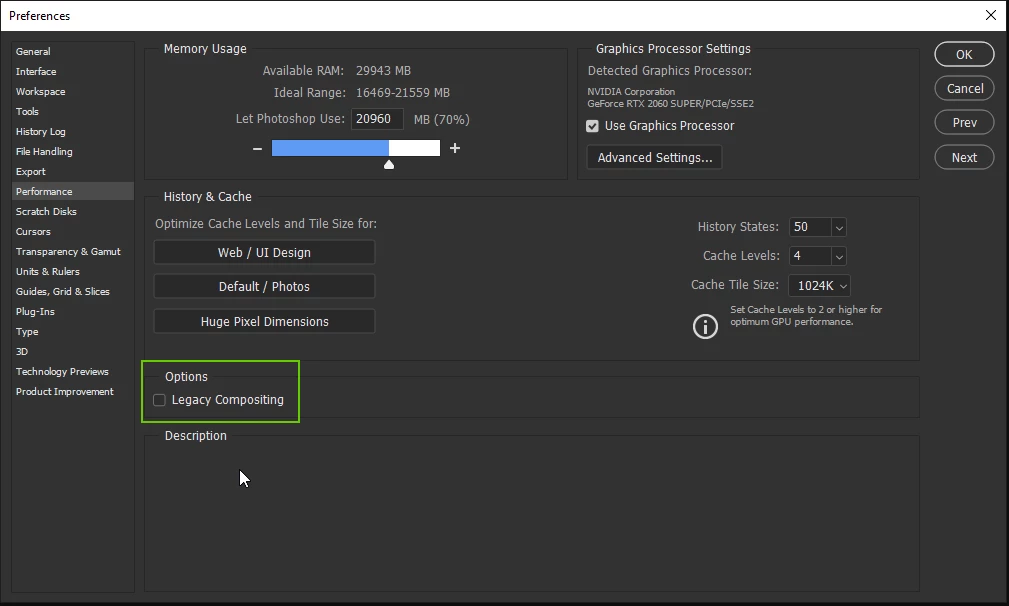
Check in preferences to see if legacy compositing is enabled, if it is disable it and restart Photoshop to see if it helps

4 replies

suzannef14803626
Participant
June 27, 2020

Yep... I'm sure thousands of people have been frustrated with this.  I discovered early on that I could remove the "ghost" by hiding/unhiding the background... but man what a pain the neck!


anthonyo61155367
Participant
June 18, 2020

I have had exactly the same problem this morning, it was driving me mad! Thanks for this it seems to have sorted it. 

nb46967238
Known Participant
June 16, 2020

yep, was having the same issue when copy/pasting one image onto new doc.  glad to see a quick fix, thank you!

Participant
June 19, 2020

So happy to find this thread!

This is exactly what was happening to me, it was driving me nuts! 

Thank you!

Correct answer
June 16, 2020

Hi

Check in preferences to see if legacy compositing is enabled, if it is disable it and restart Photoshop to see if it helps

June 16, 2020

YAY!!!!!!!!!!!!!!!! YOU ROCK!!!!!!!!!!!!!!!!!!!!!!!  I would have never looked there. I don't even know what that does, but it was checked.


THANK YOU THANK YOU THANK YOU !

Participant
June 16, 2020

Legacy compositing seems to have been auto-ticked by the June 2020 Photoshop update. I had the same ghost image problem and I wasn't using libraries. Simply moving a shape made with the shape tool produced a ghost image. Moving a pasted-in png produced a ghost image. I had never heard of legacy compositing until seeing this posted. When I unticked and re-started, the ghost images went away.

If anybody is reading this and wondering why blend modes suddenly don't work properly, this is why. The ghost image hidden under your image is preventing the blend mode from working properly between layers.