
Participating Frequently
November 13, 2018
Question

PS CC 2019 - Nearest Neighbor not working properly

  • November 13, 2018
  • 9 replies
  • 1929 views

Hi,

Please! Can some one save me and explain what a hell adobe is trying to do, breaking stuff that worked as long as PS 4.0, back in the 90´s?

This is supossed to be a simple edit:

1 - Crtl + K

2 - Select "Nearest Neighbor"

3 - Select area

4 - Crtl + T

5 - Done

Now, I get this awlfull result:
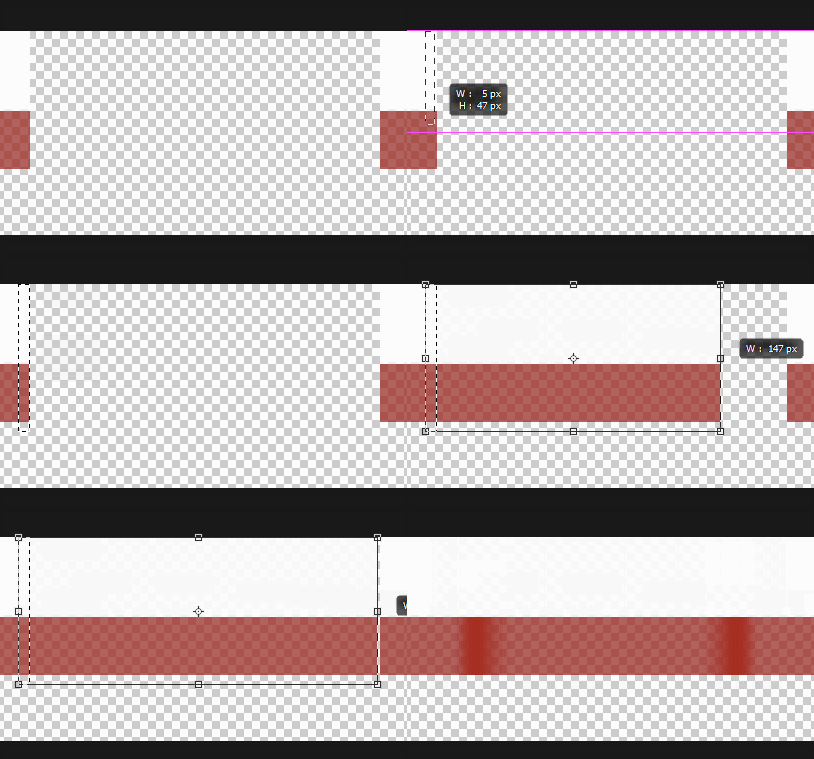
Oh god... I need to do my work...

Make that thing work again!!!

    This topic has been closed for replies.

    9 replies

    Participant
    December 7, 2020

    I just had the same thing happen with resizing some pixel art in PS 22.0.1. I had everything selected properly (I've been a PS user for over 20 years and I've never seen this happen!) but it kept blurring the results when I resized the image using any of the methods (free transform, image size, etc.). I finally went into image size, and cycled through the "Resample" options (it was on nearest neighbor and the preview was actually correct- just not the result when clicking OK). After cycling through them all in the preview, I put it back on nearest neighbor and clicked OK and.. it worked. Weird. 

    Chuck Uebele
    Community Expert
    Community Expert
    November 14, 2018

    Tried it with CS6, and it was doing it then. Might be something that it has done for a long long time.

    Chuck Uebele
    Community Expert
    Community Expert
    November 14, 2018

    Opps, just got it to do what was going on with you.

    Chuck Uebele
    Community Expert
    Community Expert
    November 14, 2018

    Just tried this, and I didn't have an issue. what was your document size,and do you know what the opacity was before the layer was rasterized?

    Participating Frequently
    November 13, 2018

    Found a solution:

    Don´t know why, but with this particular file I have to use a very old trick. Select just 1 pixel and then scale it.

    Thank you.

    Chuck Uebele
    Community Expert
    Community Expert
    November 13, 2018

    Interesting. Is that layer's opacity low, or is it rasterized like that? Do you get the same result with a layer at full opacity, transforming, then lowering the opacity?

    Participating Frequently
    November 13, 2018

    Rasterized.

    If it was just the opacity, it would have worked correctly, because there is not transparency to calculate.

    Participating Frequently
    November 13, 2018

    ---Is it still like that when viewing at 100%?

    ---Please see us full screenshot .

    Don´t get it.

    I found the option on the 20.0 version. Tried that. It still doen´t work.

    Sorry if I was not clear.

    The same error happens on the 19.4 version. I´m downloading older versions, so I can pinpoint when it stopped working.


    Chuck Uebele
    Community Expert
    Community Expert
    November 13, 2018

    Is it still like that when viewing at 100%?

    Participating Frequently
    November 13, 2018

    Hi,

    Made a mistake. Was using an older version (19.4).

    But the problem is older than I thougt.

    I used the 20.0 version, but the result is the same.

    Muqqarib Hassan
    Inspiring
    November 13, 2018

    Please see us full screenshot .

    Muqqarib Hassan
    Inspiring
    November 13, 2018

    Hi, Can you please try to select this option ans restart if you are using Photoshop Cc 2019.

    Participating Frequently
    November 13, 2018

    Hi,

    Thank you for your answer, but I don´t have this option:

    Muqqarib Hassan
    Inspiring
    November 13, 2018

    Can you please tell me which photoshop version you are using ?