
Participant
February 9, 2022
Question

Psd mask layers corrupted.

  • February 9, 2022
  • 2 replies
  • 897 views

I was working on psd file, when some masks began to corrupt: get stripey and change colors.
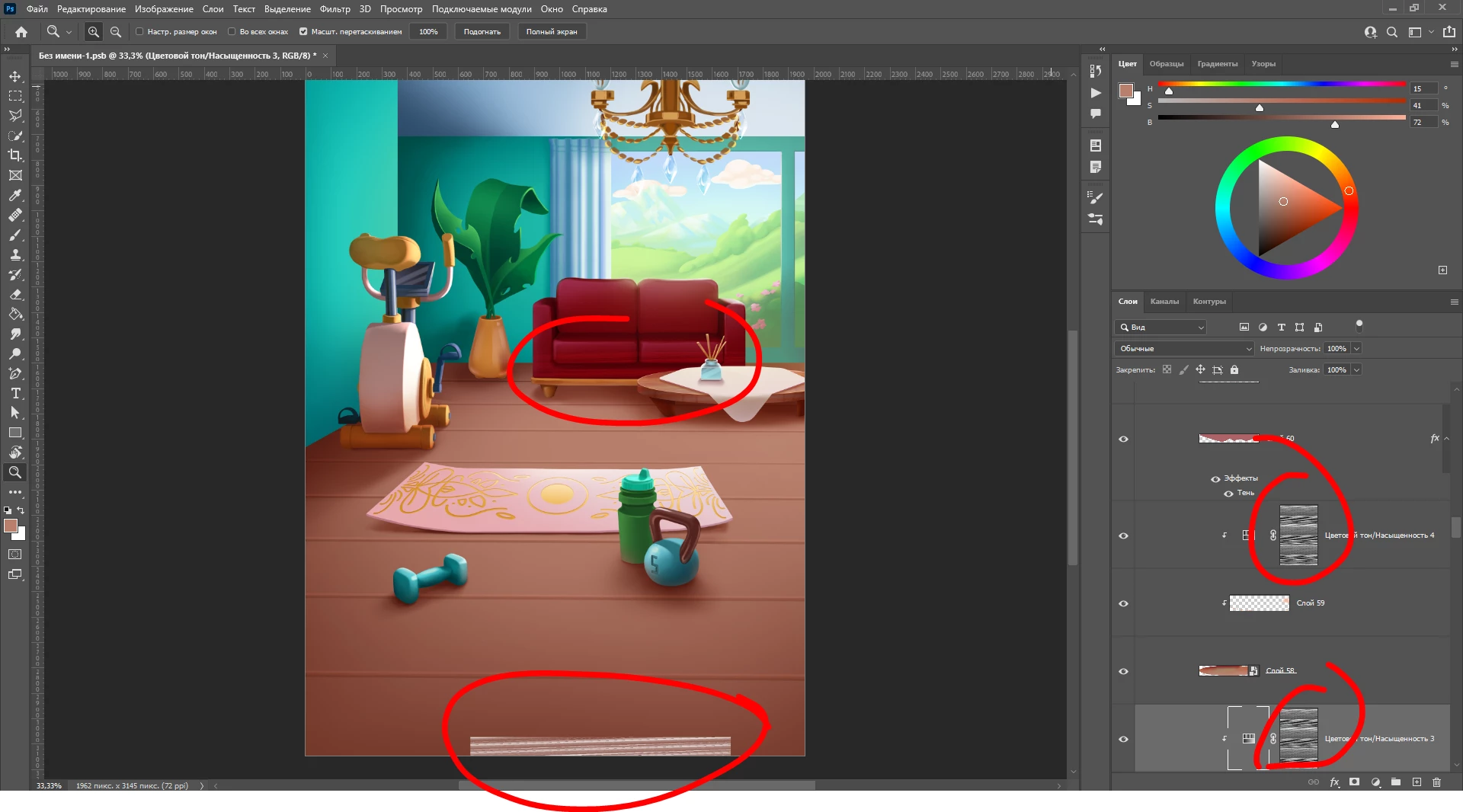
I thought It was a big deal and tried fixing them, by deleting and creating new ones. But then I tried saving it as a png and it looked like this.
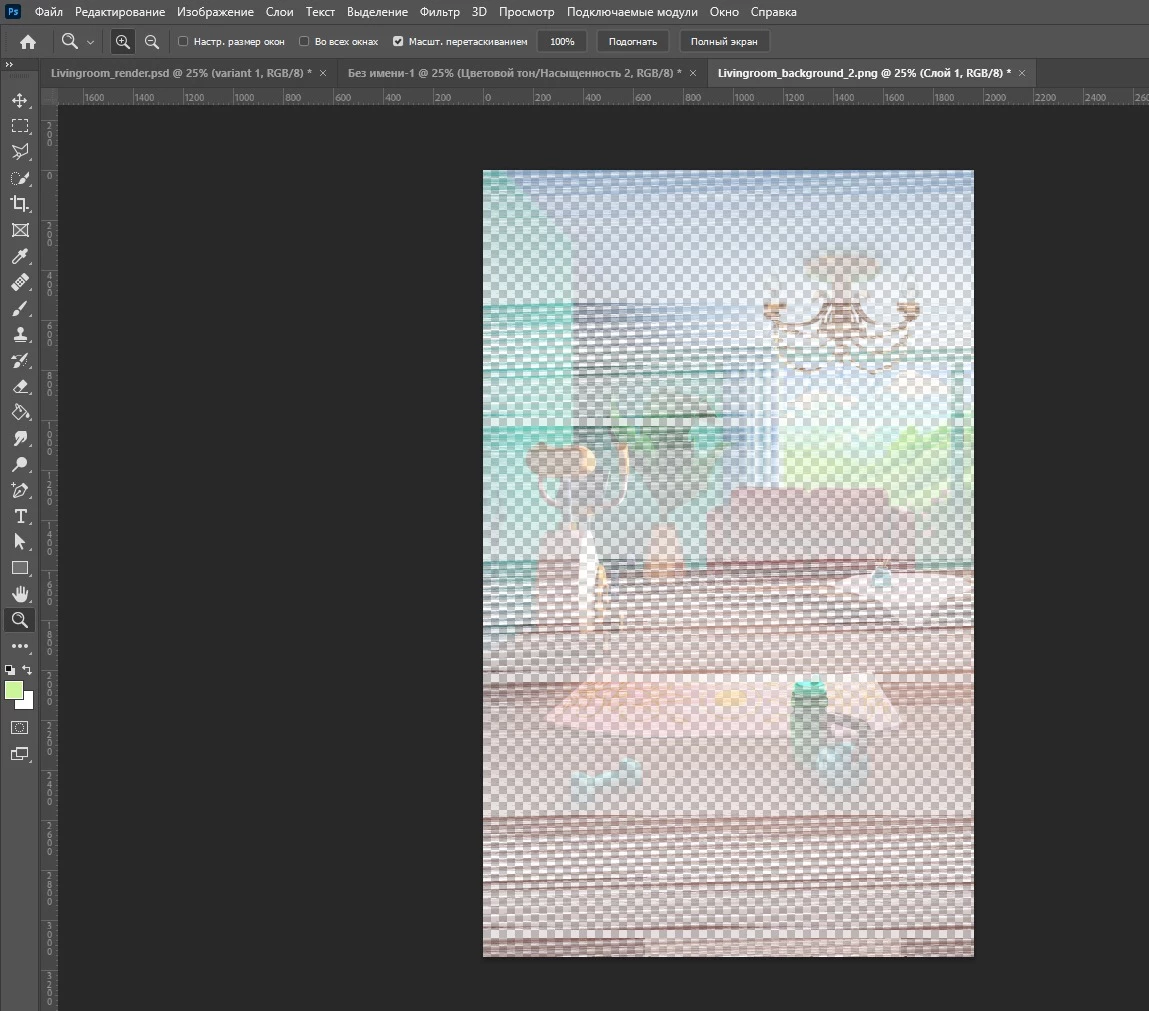
Also, when I tried creating a new file (I didn't shut down PS) instead of the usual white background I got a piece of the image above in black and white, stretched and also corrupted. 
I don't know, what else can I provide for you to look into it, but If I can, please tell me.
Hope this never happens again because I got one or two gray hairs when it happened.

This topic has been closed for replies.

2 replies

Participant
July 21, 2022

This issue is still occuring! 
Photoshop is corrupting files and ruining work.
It seems to take selections and applies them to layer masks.
To combat this i have been removing layer masks within the psd and deleting anything that isnt needed. I then open a fresh psd and duplicate the layers i need from the corrupted file across to it. Save that one down and then close photoshop, clear recent file list and purge cache. I delete the old corrupt file from my desktop and anything linked to it. I force quit everything and restart my computer.

Sometimes this still doesnt work so i tend to save as i go regularly and then as soon as the corruption starts i just quit photoshop, restart my computer and then pick up where i last saved in the psd. 

This is a serious issue and im tired of all of the work arounds - does anyone have any recommendations that can fix this issue?!?!?!?!?!?!?!?!?!?!?!?!?!?!?!?!?!?!?

c.pfaffenbichler
Community Expert
Community Expert
July 21, 2022

Does turning off »Use Graphics Processor« in the Performance Preferences (Photoshop > Preferences > Performance > Graphic Processor Settings) and restarting Photoshop have any bearing on the issue? 

Does turning on »Deactivate Native Canvas« (Photoshop > Preferences > Technology Previews) and restarting Photoshop have any bearing on the issue? 

noahc90895680
Participant
July 31, 2023

I had this issue occur today and tried first closing the file without saving and opening it again. The issue was still there, so I tried turning off the Use Graphics Processor. I closed photoshop (without saving) and opened the file I had been working on, and the issue was fixed.

Legend
February 9, 2022

Can you reproduce this behavior on multiple systems? Last time I saw something like this was bad RAM modules.