Inspiring
January 29, 2022
Answered

PSD preview (quick-look on Mac) is not accurate at all and buggy

  • January 29, 2022
  • 5 replies
  • 5693 views

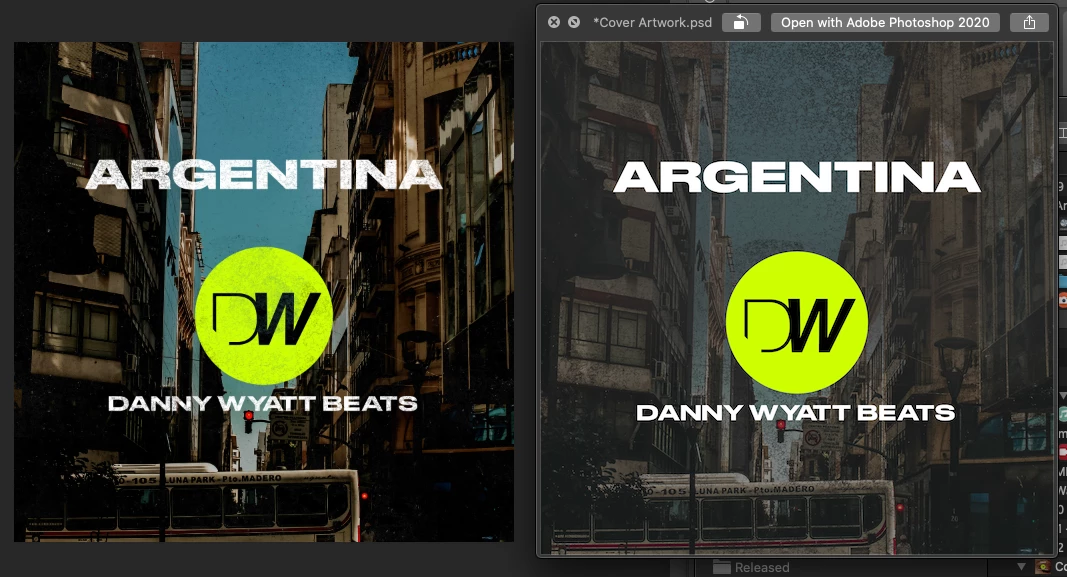
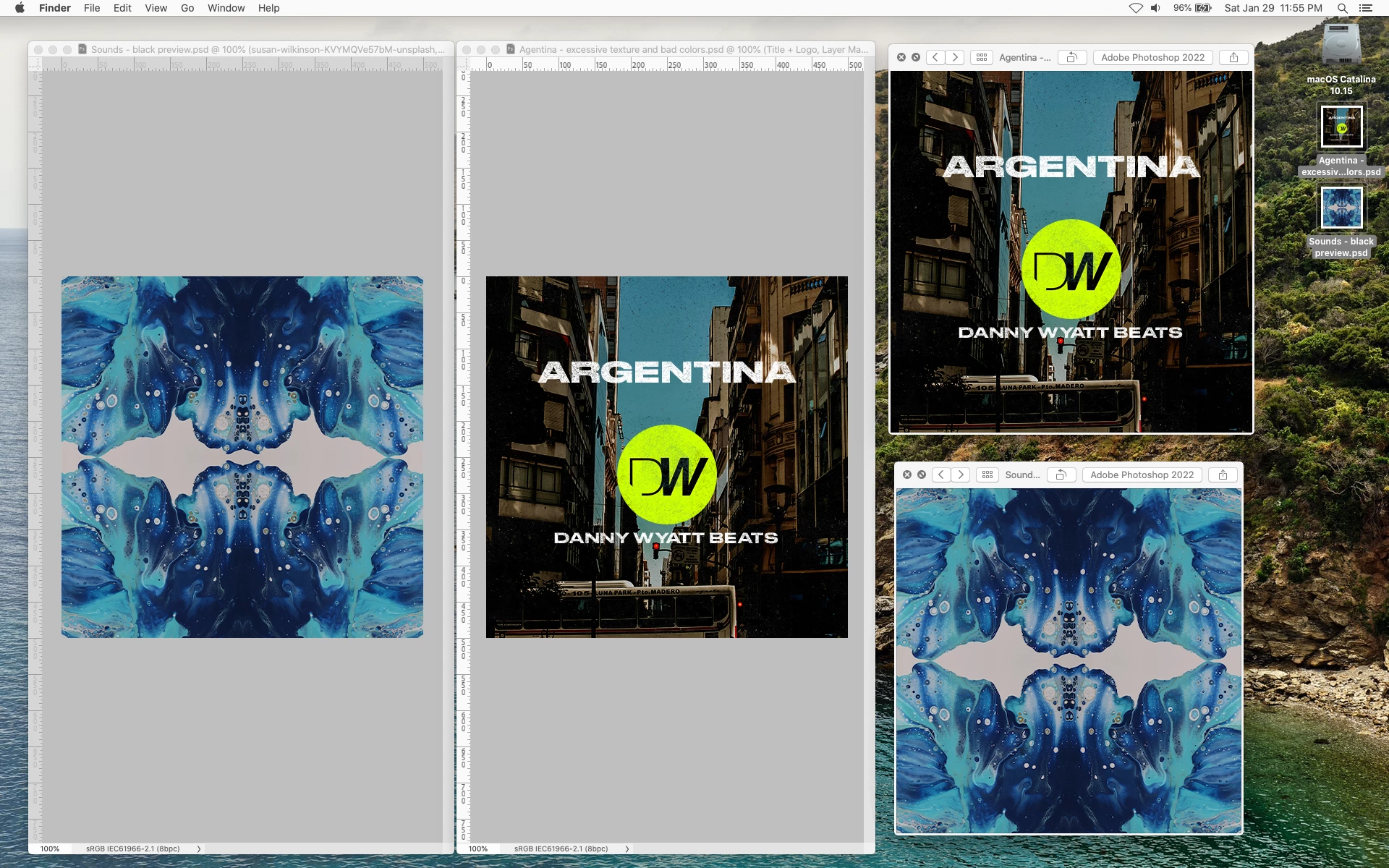
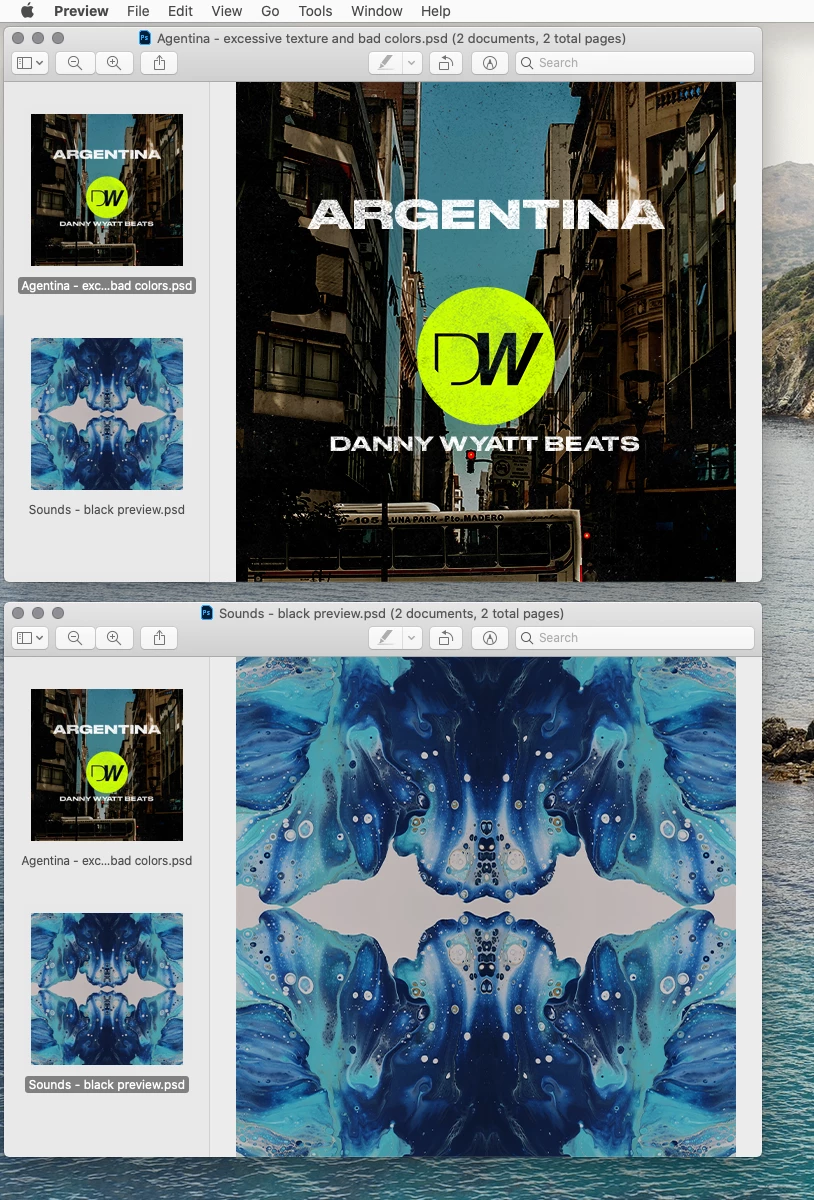
I'm noticing that some of my files are acting weird when I use the quick-look (Mac) to preview them. Even inside the Preview app, they are way different from when I open them with Photoshop.

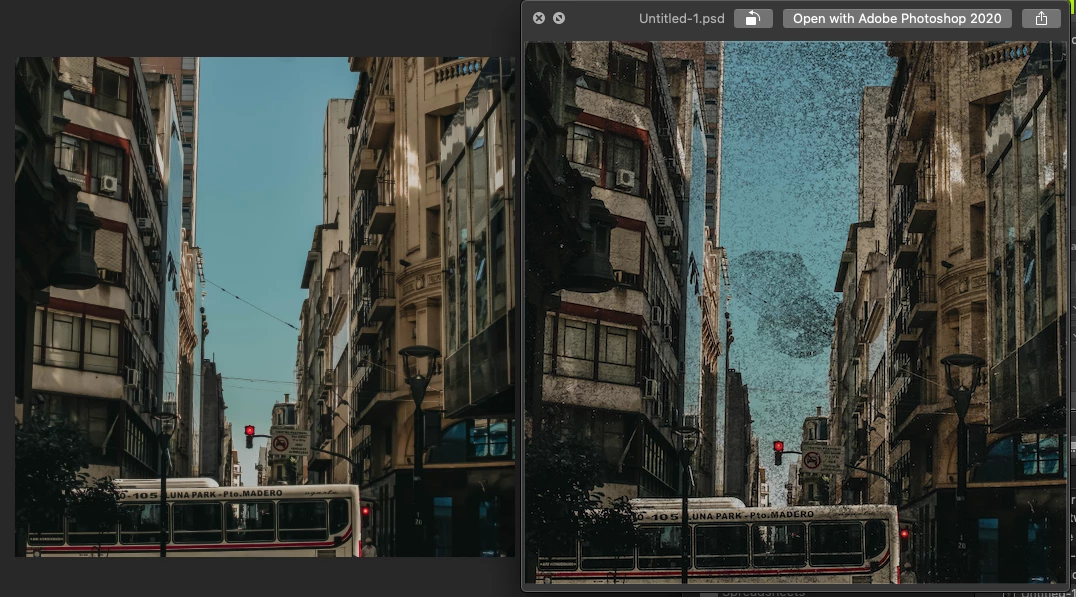
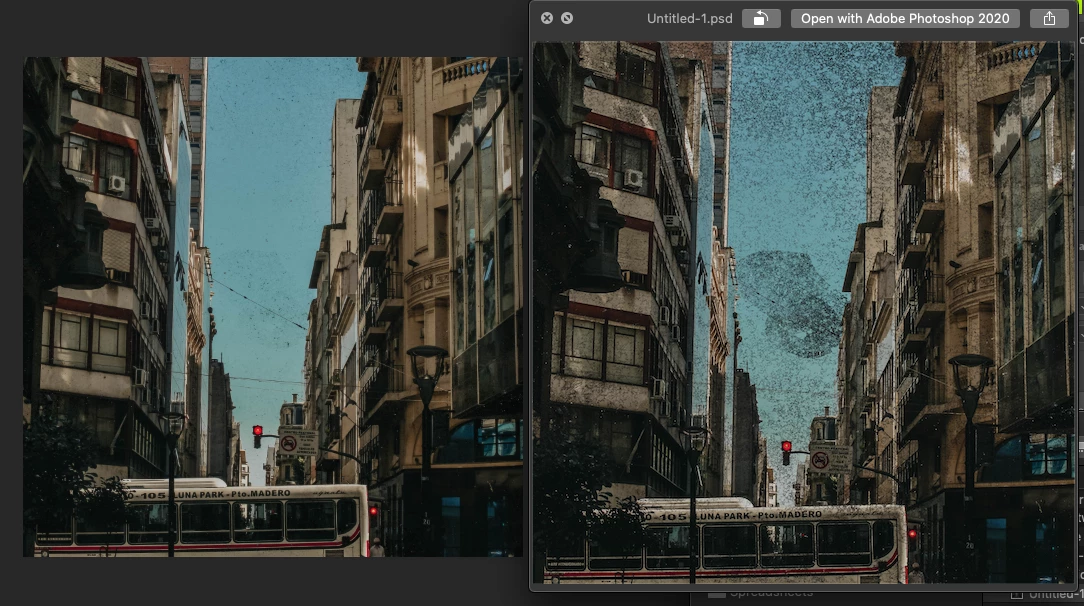
Look at the colors, how different they are. Also note how the "dirt" layer that's on top is way more subtle inside Photoshop, but then when I preview them, it's this big mess, super obvious.

On one experience I don't even have that layer visible and it's still showing up...

Can someone tell me what could be happening?
 

This topic has been closed for replies.
Correct answer Jeff Arola

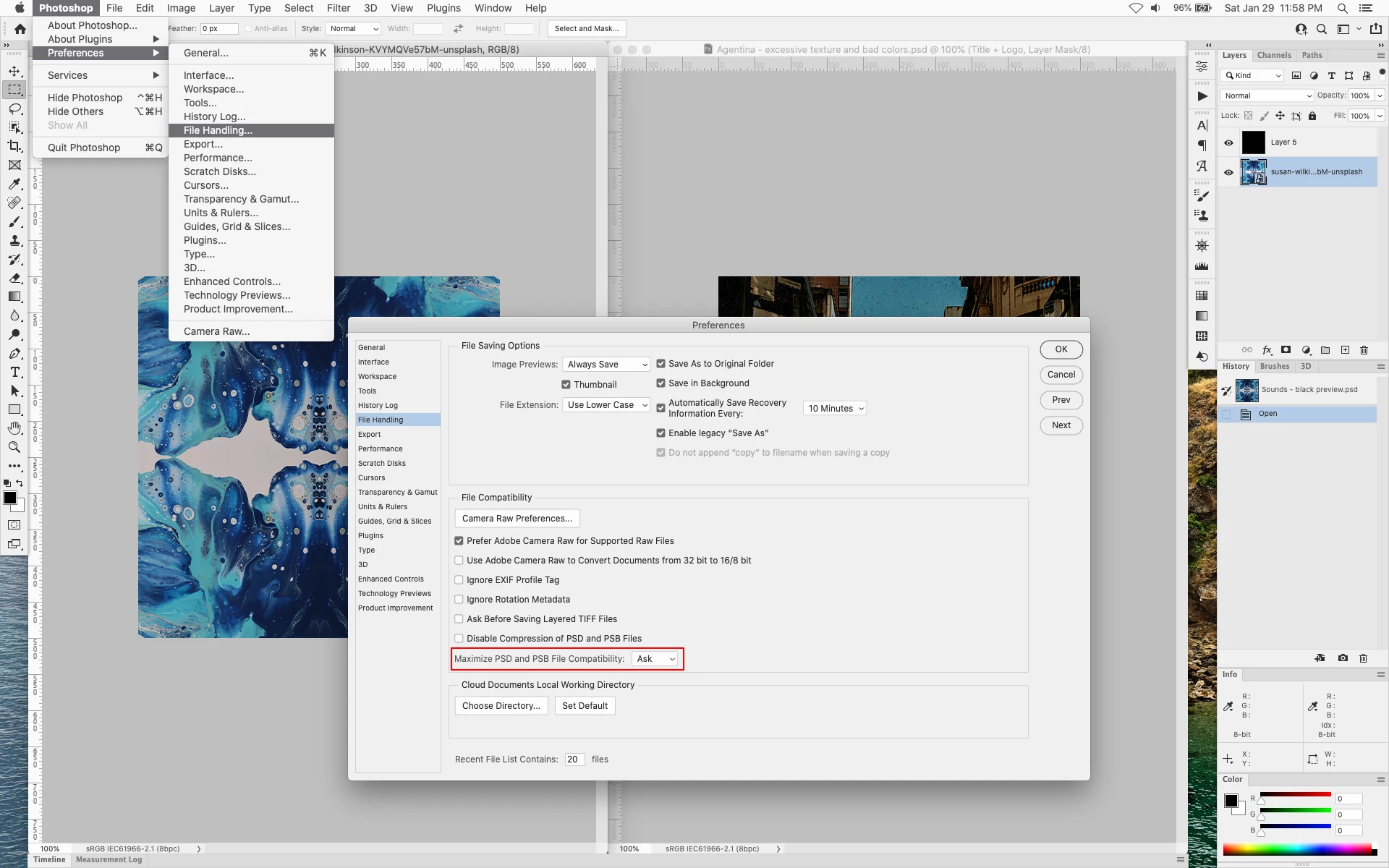
You could save your psd files with Maximize PSD and PSB File Capatibility under Photoshop>Preferences>File Handling.


The downside is your files will be twice as big in terms of size on disk.


5 replies

Participant
June 17, 2022

For me quicklook is only showing small thumbnails when I try to preview images when pressing spacebar. I recently upgraded to an M1 and using Monterey? Annoying, as I use quiklook all the time and need to see a bigger image. Is this something I can set elsewhere?

Participant
June 17, 2022

Def a bug with the OS. It happens every now and then, but fine after a restart. This is not what I expect from apple.

Jeff Arola
Community Expert
Jeff ArolaCommunity ExpertCorrect answer
Community Expert
January 30, 2022

You could save your psd files with Maximize PSD and PSB File Capatibility under Photoshop>Preferences>File Handling.


The downside is your files will be twice as big in terms of size on disk.


gener7
Community Expert
Community Expert
January 30, 2022

I have maximize compatability set to "Always", but this time I used "Save a Copy" to overwrite the file I downloaded and now it works. I was using a "non-destructive change" (i.e. turning a layer visibility off and on) and resaving, but that didn't work.


Nice catch, Jeff. You got me to try again and now it works with Quicklook and Preview.

Brad @ Roaring Mouse
Community Expert
Community Expert
January 30, 2022

You might want to check the Thumbnail option in PS's File handling preferences. That way Quicklook doesn't to try and create one; Let PS do the work... it know what the file should look like!


TheDigitalDog
Inspiring
January 30, 2022

Apple's "Preview" doesn't show the image data correctly so I don't see how this has anything to do with how PS or anything else generates a thumbnail.

What the OP may wish to do is save this as a TIFF rather than a PSD (which has no advantages and some disadvantages outside the Adobe ecosystem).

When I open his PSD in Photoshop and save as a TIFF, Apple Preview does show the image correctly. Clearly the Mac is having 'issues' with PSDs.

Again, TIFF is a far better format to be saving images as.

Author “Color Management for Photographers" & "Photoshop CC Color Management/pluralsight"
gener7
Community Expert
Community Expert
January 30, 2022

Converting the PSD to Tiff does work here.  It's the best idea if Preview can't process the psd.

gener7
Community Expert
Community Expert
January 29, 2022

I would like to examine one of your files and see how it displays on my Macbook Pro Catalina system. Can you make the one with the "dirty sky" available?

Inspiring
January 29, 2022

Hey!


I use Catalina as well. 10.15.7

Please check my reply to @TheDigitalDog above where I share 2 files.

Let me know if you experience the same thing.

Thank you 🙂

gener7
Community Expert
Community Expert
January 30, 2022

Yes, indeed.

TheDigitalDog
Inspiring
January 29, 2022

First of all, the preview in Photoshop is correct.

As to why the Finder or others may not could be based on if you have layers, what kind of layers and possible blend modes etc. Also what kind of documents are saved (TIFF, PSD etc).

The only accurate way to view such data is also at 1:1 (100%) or greater which isn't happening in the Finder and may not by default in say Preview. If you subsample down (zoom out), the previews are not accurate, especially with respect to sharpness, moiré etc which may be what is happening with the 'dirt'.

Bottom line, ignore anything but what you see in Photoshop with such documents.

Author “Color Management for Photographers" & "Photoshop CC Color Management/pluralsight"
Inspiring
January 29, 2022

Thanks for the reply! 🙂


Yes, I rely on what I see inside Photoshop, because ultimately when I export the flatten version, it shows as it should. Still, I would like to being able to preview the files using quick-look without opening the files. I can't confirm this 100%, but I'm 99.9% sure that this is the first time I'm experiencing such a weird thing. 


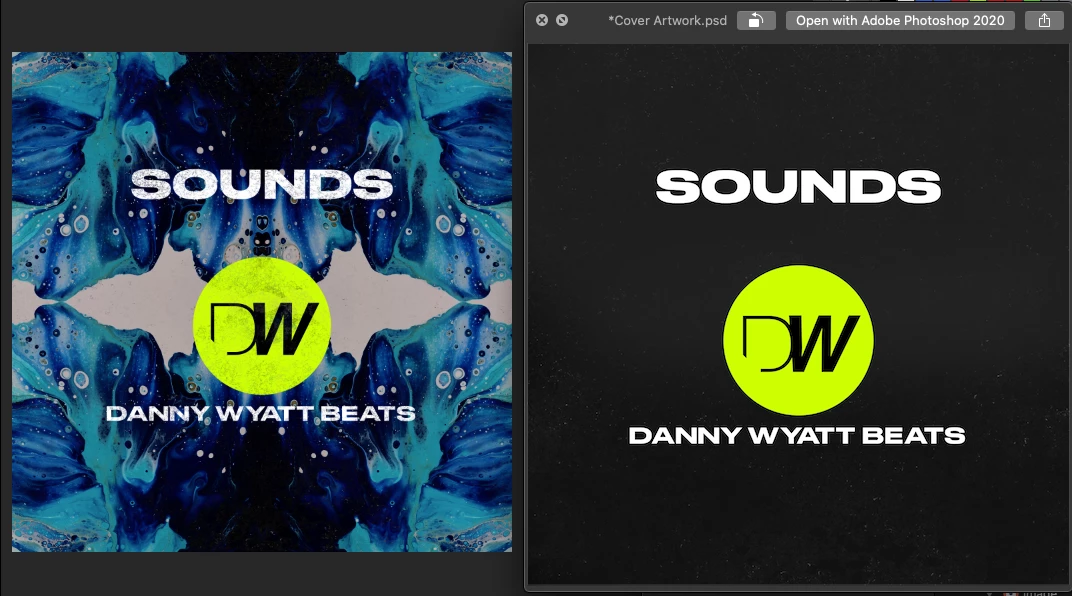
For example I was just testing the file "SOUNDS" and I removed every single layer and only kept the backgorund with the blue texture and then a layer above it that's all black with 20% opacity. All I get on my preview/quick look, is a black preview. Not normal, right? There are no blend modes, no weird effects, anything. Just 2 layers, one of them with 20% opacity.


I also tried resizing the "ARGENTINA" file to 500px so I would be able to see it 1:1 when using quick look. Same thing. Also opened with Preview, same issue. So apparently, something's happening and I can't figure out what...


I'm attaching 2 of those files, let me know if you experience the same thing?

TheDigitalDog
Inspiring
January 29, 2022

The thumbnails in the Finder and the actual images appear very close visually, under OS 12.2.  Big difference in size, hence the use of "close".

This is a screen capture of the two images previewing in Photoshop with the thumbnails to the right.

Author “Color Management for Photographers" & "Photoshop CC Color Management/pluralsight"