
Participant
October 4, 2018
Answered

.psd to .atn

  • October 4, 2018
  • 4 replies
  • 1531 views

i have a psd coloring that i like to use to make my photos very vibrant. however when editing large batches of photos using the batch editor, im unable to mass apply it because its a .psd not a .atn. to use it, i just open the psd file and drag the group on top of the photos. ive tried copying the .psd but i cant get it exactly right. is there any way i can convert it into a .atn? heres a link to the .psd download if that helps anyone
This topic has been closed for replies.
Correct answer Bojan Živković11378569

You can record action to apply exactly same adjustments. There isn't an easy way to just convert things, you must record action which will create adjustment layers with exactly the same parameters. Here is what you can try:

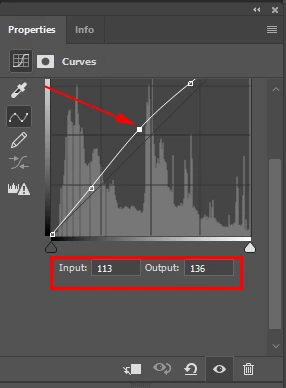
  • Write down parameters which you have applied (Curves - point 1 = input 50, output 60, point 2 = input 113, output 136...)
  • Open any photo, I guess you have JPEG images for example, with only one layer to which you want to apply adjustments. If that's true (otherwise action will be more complex) then open any image with one, Background layer and start recording action: create an adjustment layer and apply parameters which you have written down as a reminder.

4 replies

Participant
November 10, 2022

iwant change from psd to atn

Legend
November 10, 2022

You can't do that. A PSD is an image, an atn is a list of actions. They are not the same thing and there is no way to make one into the other. Its like sitting down to dinner and saying I want to make this casserole into a recipe. A recipe is a set of instructions to make a casserole.

You need to either record an action as explained above, or you may be able to write a script which would do the needed adjustments.

Bojan Živković11378569
Community Expert
Community Expert
October 4, 2018

You can record action to apply exactly same adjustments. There isn't an easy way to just convert things, you must record action which will create adjustment layers with exactly the same parameters. Here is what you can try:

  • Write down parameters which you have applied (Curves - point 1 = input 50, output 60, point 2 = input 113, output 136...)
  • Open any photo, I guess you have JPEG images for example, with only one layer to which you want to apply adjustments. If that's true (otherwise action will be more complex) then open any image with one, Background layer and start recording action: create an adjustment layer and apply parameters which you have written down as a reminder.

Ussnorway7605025
Legend
October 4, 2018

to make it an action you have to open the images with the correct toolbar i.e, not drag | drop but apart from that the file will convert just fine

p.s, the psd file only works at 100% view so don't touch zoom

lambiloon
Community Expert
Community Expert
October 4, 2018

Hi you can save your work as action by applying on image then apply on all images check following to see how you can create action in Photoshop CC.

Ali Sajjad / Graphic Design Trainer / Freelancer / Adobe Certified Professional