
Participant
November 18, 2018
Question

Q: Using Photoshop to perform a linear stretch / distortion

  • November 18, 2018
  • 3 replies
  • 1759 views

Hello hello,

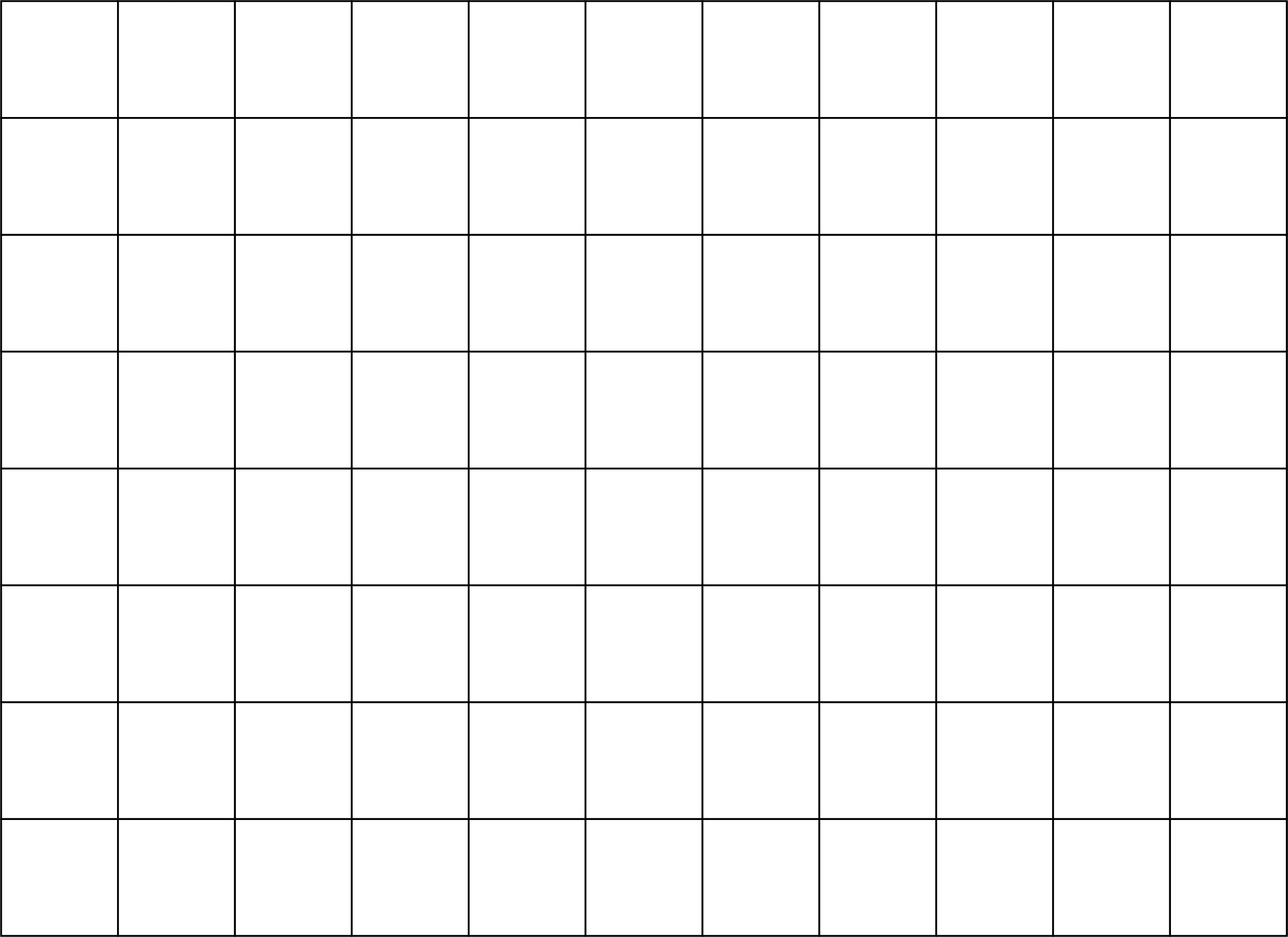
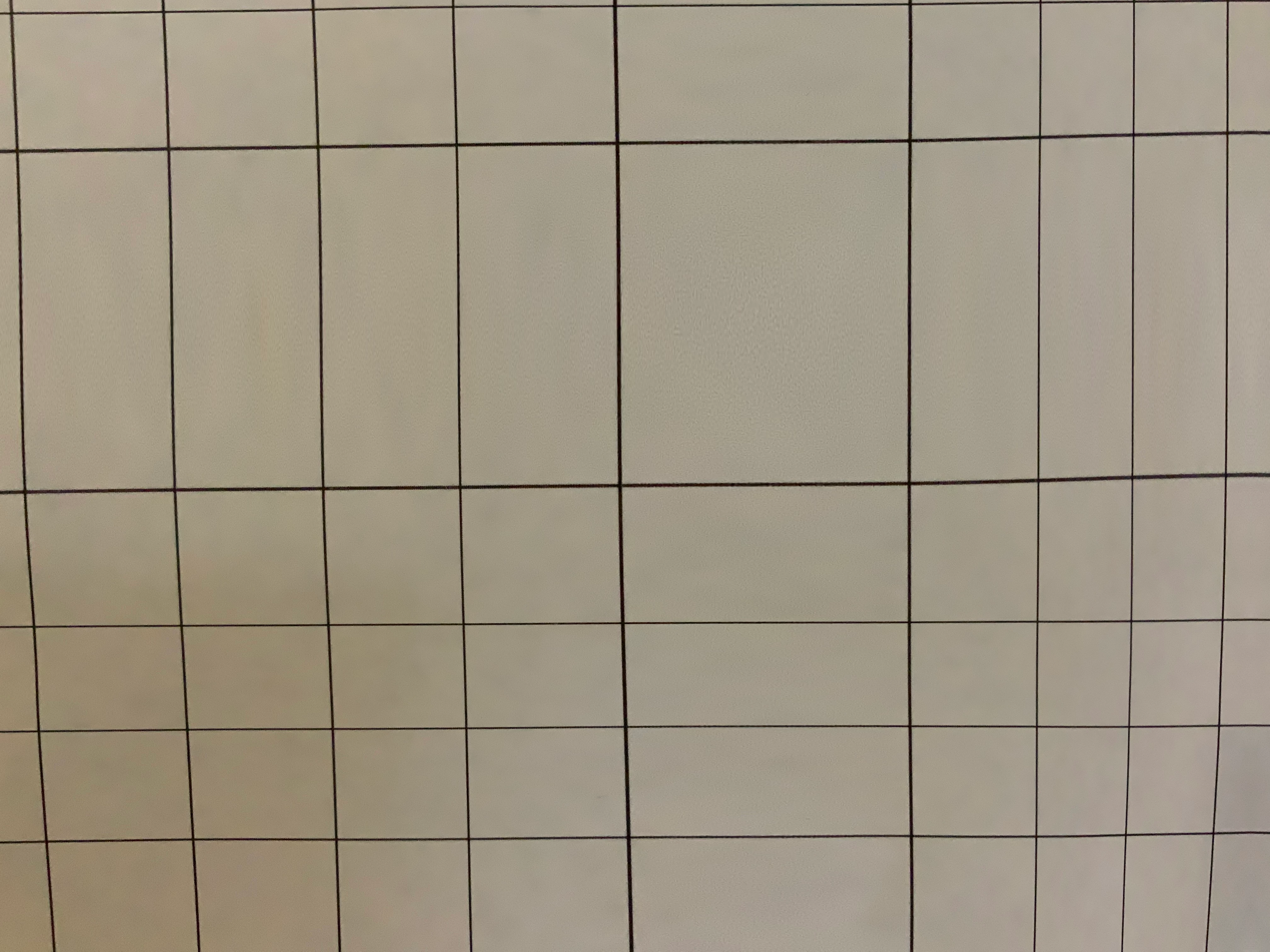
I am looking for a technique that distorts a photo using the scheme shown below (before and after). In the desired after image, you'll note the following characteristics:

1. It "stretches" the image in two directions, horizontally and vertically about a single point.

2. It does so linearly, without creating any spherical or cylindrical distortion.

I know I'm not using the right vocabulary for this, which is why I'm including a photo of the desired final effect I'm looking for. (The reason that I have a photo is that there's an iOS app that creates this effect, but I want to do this in Photoshop because I need to light the scene with flash and I can't take the image with the app.)

And, to be clear on the before and after part: I printed the regular grid (below) out on a sheet of paper, taped it to the wall, and then took a picture with the app to get the "after" image below. I'm looking for a technique in Photoshop that distorts the grid in the same way the app does.

Any guidance on how to do this would be greatly appreciated. I've tried all of the tricks I could think of, and I still can't figure it out. Even help with the right vocabulary for this would be helpful, as I can keep searching other forums.
This topic has been closed for replies.

3 replies

Simmer1
Community Expert
Community Expert
November 19, 2018

Hi,

I agree with Dave, Transform > Wrap would be your best bet probably.

The Liquify Tool may be another option.

Semaphoric
Community Expert
Community Expert
November 19, 2018

You could do this using the Spherize filter twice: first set to "Horizontal only", and then with "Vertical only"


davescm
Community Expert
Community Expert
November 18, 2018

If it is just the grid - then I would redraw it.

But if you need to introduce distortion into an image , using the same distortion as that grid then I would use Perspective Warp. Layout a series of blocks in Layout mode then switch to warp and pull them into shape.

Dave

Participant
November 18, 2018

Thank you.

What's the trick for laying out + warping the blocks such that no curvature (or very little) is introduced into the lines during the warp step?

davescm
Community Expert
Community Expert
November 18, 2018

No real trick as such.

Put your image in a smart object and use perspective warp on that smart object. That way if it is not quite right you can click on perspective warp next to the smart object and re-adjust it.

Also you can turn on the grid (View >Show>Grid) to give you some guidlines when adjusting.

With the layout below :

I just pulled the pins to draw out the middle sections

Dave