joaosp
Inspiring
July 28, 2016
Answered

Quick export saving wrong size

  • July 28, 2016
  • 19 replies
  • 74516 views

I'm trying to export a simple document using File > Export > Quick export as PNG. It's a banner with 240x400 but Photoshop is exporting with dimensions 212x400, it is reducing width and I have no idea why. I ever had seen something like that before.

Does anyone have an idea? Is there some reported bug about?
This topic has been closed for replies.
Correct answer fredm81834773

I think I know what the original question was, or at least I know what I was trying to do when I found this thread.

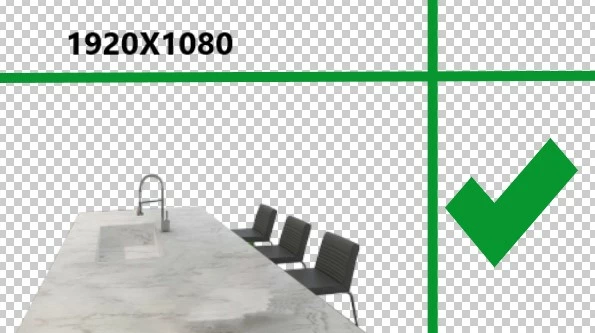
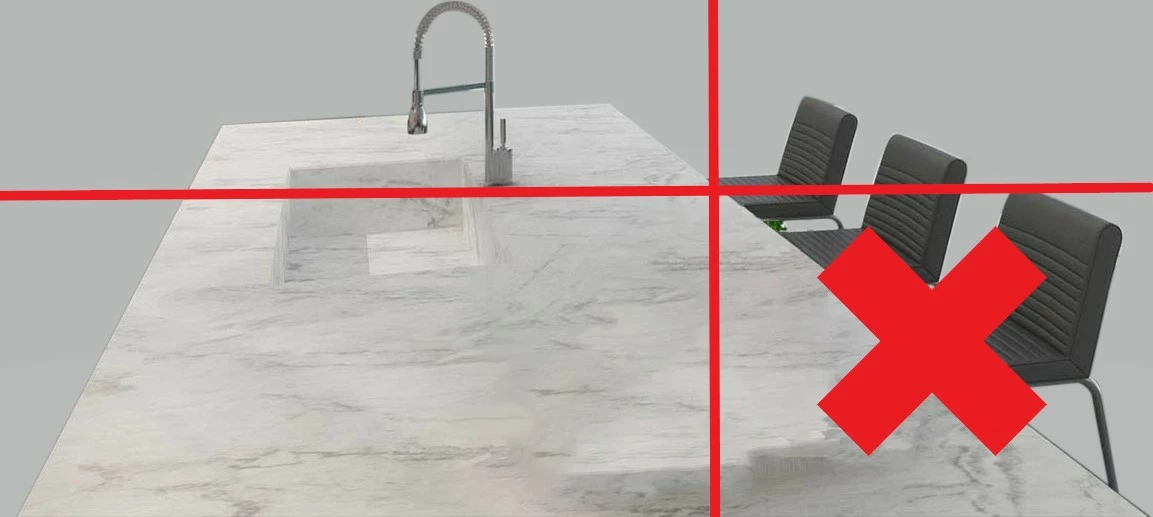
I was trying to export a .png WITH the area of transparency that I had created.

SO NOT THIS:

BUT THIS:

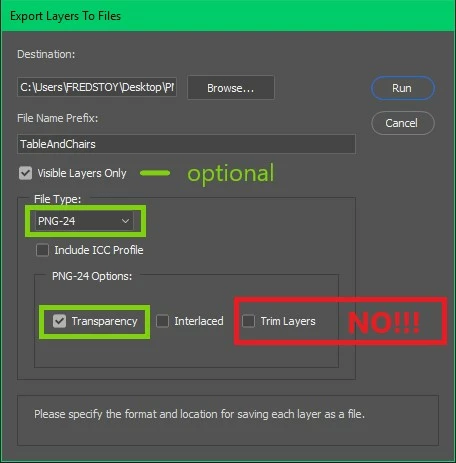
To get the dimensions I wanted I had to do THIS:

File >Export >Layers To Files...

19 replies

Participant
September 24, 2021

 Work with 'artboard'. in tool bar-> move tool -> right click -> select artboard tool-> make artboard desired size.

 I guess, artboard acts as a kind of frame, and without this, Photoshop will recognize your image as a single object and export the image to the minimum square containing the object.


Participant
April 19, 2022

So, here is the actual fix for anyone that still needs it or happens upon this page.

  1. Select the desired artboard for export
  2. Shift+v to select the artboard tool (or click-and-hold on the move tool icon then select the artboard tool)
  3. Select the gear icon on the far-right of the overhead toolbar [figure a.]
  4. Uncheck Shrinkwrap Canvas On Save [figure b.]
  5. Alt+Shift+Ctrl+w to export your artboards
  6. Select the desired artboard on the export menu
  7. Change the file type to PNG
  8. See that the image size has the desired artboard's dimensions
  9. Click Export
  10. Done


[figure a.]


[figure b.]

rynokins
Participant
August 11, 2021

Here's my solution:

  • A white rectangle with the Rectangle Tool, set to the width/height & x/y of the layer grouping you want to export.
  • Set the rectangle as the very last item in the group.
  • In your layers panel, set the rectangle's Opacity to 25% and set the Fill to 1%.
    The opacity will be entirely impreceptible when your transparent png is on a black background.
  • Quick export will honor your dimensions.


This method gives you a much nicer transparency than the legacy Save For Web does, plus you can alter your Export Settings to PNG8 if you're exporting for web.

martinrohr
Participant
March 17, 2021

As many of you reported this as a bug, let me assure you, it is not one… For a long time now, if you want to export multiple layers of different objects that are cropped strictly to the egdes, you would go for the new Export as… If you want to export the whole canvas with all the transparent pixels, then use the legacy version. But yeah, there should be a simple button in the Export as dialog window to select wheather you want to export the layer cropped or with all the empty pixels that surround it in your design (canvas). So, this definately should be added in the future. You can still expand the canvas size in the Export as… dialog window, but it centers your object which is not always desirible.

Inspiring
May 14, 2020

Having the same issue! its driving my crazy.

I need to export an image inside a transparent document, but photoshop is cropping it   on export as PNG.

I reverted to using Save for Web Lagacy.


Please FIX!

March 7, 2020

I Mostly use photoshop to cut out frames for my animation and everything is scanned in the same position but when i quick export is as an PNG the Image is not centered as it was in the photoshop file. I never had this problem before and would realy like a way to fix this 

Inspiring
May 14, 2020

edited.

Participant
December 18, 2019

that is so stupid. What if you need the transparency for layer positioning in rapid production of ads? I have millions of dollars of placements due. And why is it happening in video?

Participant
December 9, 2019

My workaround to this was to just import my photoshop file to procreate and export it as a png from there.


My $10 ipad app has the ability to do this and not the professional program that I pay nearly $30 A MONTH for. 

If you're gonna have such an expensive program please ensure it at least works properly because as of nearly 2020 this is still an issue. What a joke, adobe. 😞

joaosp
joaospAuthor
Inspiring
January 3, 2019

I figured it out: if you have any transparency, those areas on your canvas will be ignored. Photoshop does not understand that you wanna export your document exactly as it is or as you left it.

The best we can do is to set the "jpg" as the default extension on quick export preferences. If you're gonna export to PNG, make sure to apply a background color below all your layers. If you don't, it will ignore transparent areas.

Inspiring
January 3, 2019

This current functionality is just ridiculous.  Most people use PNGs in web design because it allows for transparent backgrounds.  If Export As doesn't export the entire canvas and only the artwork itself, then why bother including PNG as an export option at all?!!  Makes no sense.  But at least legacy Save For Web still works.  Thank god!

Anyway, yet another unnecessary workaround I found is to add a background shape to fill the required dimensions of the canvas/artboard and give it a transparent fill.

julianhelfricht
Participant
December 7, 2018

This bug still exists. In my case it is happening, when exporting a smart object layer (that is scaled over 100% extending over the canvas boundaries).