

StepUp Media
Participating Frequently
June 24, 2020
Question

Quick Selection Tool have a blurred/smooth edge. I need a hard edge by default.

  • June 24, 2020
  • 8 replies
  • 20919 views

Hi community,


UPDATE / TL;DR: It seems like the Quick Selection Tool blurrs out the edge. Copy/pasting content in the selection, erasing content inside the selection, or other actions, ends up with a blurred/feathered edge. Suddenly changed months/years ago.


I have suggested an option to sharpen the edge to Adobe. Maybe it'll be implemented in the near future.


Screenshot example; Black is the content. White is the background. Erasing on the selection edge makes the content edge blurred.
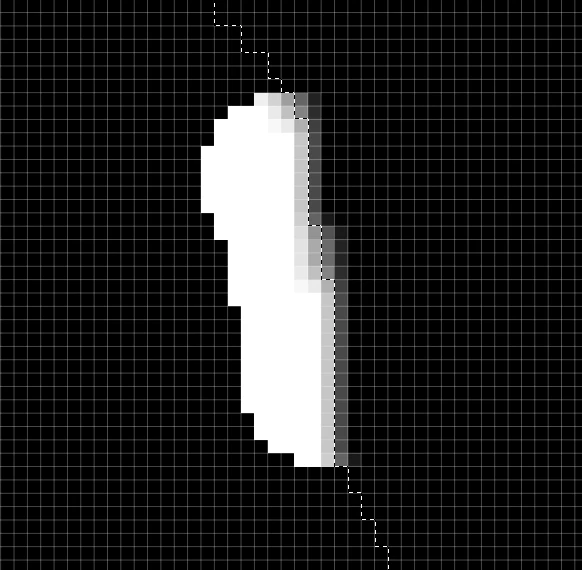
I'd like a hard edge when I select using the Quick Selection Tool.

Attempts: I have reset the tool. Reset Photoshop. Adjusted Eraser tool settings/brush sizes and -hardness. Hardness is at 100% for Quick Selection Tool.


ORIGINAL POST

Excuse my long explanation for a simple issue, and thanks in advance for the help.


For a while, I have struggled adjusting my Quick Selection Tool to have a hard edge on my cut, after I have used the tool to cut out an object. The edge of the cut is blurred by maybe 4-6 pixels, where I need it to be a hard cut.


  • How do I adjust the Quick Selection Tool to have a hard edge?
    • I'm aware of adjusting by Refine Edge and other fancy methods after selection is made, but I don't want to adjust it every time, when I usually want a sharp edge on my selections.


Phrased differently:

  • How do I adjust the default hardness/sharpness of the edge on the selection made by Quick Selection Tool?
    • My selection is sharp/hard on my other computer, but blurry on this computer. So I need to know what setting adjustes the blur on the selection made by Quick Selection Tool, so I can set it to zero by default.


The other selection tools, like Rectangular and Polygon Lasso Tool, are all doing a fine sharp cut. But my Quick Selection Tool have edges like shown on the black/white screenshot attached.


I have attached screenshots. Language is Danish, but the layout should be recognizeable, if you need to check my settings.

  1. The Quick Selection Tool icon (so we all know what tool I mean by "Quick Selection Tool").
  2. The toolbar visible when the Quick Selection Tool is selected.
  3. The settings available when the Quick Selection Tool is selected.
  4. The disappointing black/white result of my selection after pressing "Delete" to cut out my selection. I have fiddled with all those settings shown in the two screenshots of the settings without any change to the selection's hardness.


It's a magical hidden setting somewhere, obviously. But I can't find it. 🙂

Thanks in advance!

This topic has been closed for replies.

8 replies

JJMack
Community Expert
Community Expert
June 25, 2020

I will state that 21.2 select object does a very poor job on my workstation. You should have no trouble seeing that with this screen capture.  The selection set is far from good.


Old magic wand and squic selection far better


Select subject works well also. Just select object is poor.

JJMack
JJMack
Community Expert
Community Expert
June 25, 2020

I can neeve tell what select object will select  when I drag out a selection around an object.


If you carfully drag out selections you may even get a good selection.  Like you cane with the other deletcuon tools quick selection and magic wand. If the oject have well defined edges


JJMack
StepUp Media
Participating Frequently
June 25, 2020

Hello JJMack,

The selection is how the ai figures, and can be done various ways, indeed.

My issue is when I try to delete the content of my selection done with the Quick Selection Tool.  The edges gets so blurry and bad. I seem to remember this starting to become the case maybe 6-12 months ago or something like that. At least it's not a new issue for me. This is how the selection cuts out the selected material. So blurry and strange.

Object is Black, background is White.


This is done after selecting an area with Quick Selection Tool and then using the Eraser tool on the edge.
My wish is to get the Quick Selection Tool to have a hard edge of my cut.

Rafael Aviles
Legend
June 25, 2020

[Removed - didn't see the OP screenshots before replying. Sorry!]

jane-e
Community Expert
Community Expert
June 25, 2020

Rafael, the screenshots show the hardness is set to 100%.

~ Jane

Rafael Aviles
Legend
June 25, 2020

Sorry, I missed that! Never mind.


StepUp Media
Participating Frequently
June 25, 2020

By the way. Does the Quick Selection Tool also have blurred edges for you guys, when you select a part of an image and deletes the content?

Participating Frequently
June 25, 2020

I tried your problem on my system (PS21.2.0)

First I had a hard cut-out edge.

Then I played with the settings and got a soft cut-out.

But now I can't get back, also not with the original settings, restart of PS, ....

So now I have always soft cut-out edges, on the cut-out and also on the original after deleting the selection.

This is ONLY with Quick Selecton.

Now I waiting with you for a solution


Greetings from Vienna

Franz

StepUp Media
Participating Frequently
June 25, 2020

Welcome to my world! 🙂

Thank you for testing - and sorry to hear about the weird irreversible change.

This is starting to sound like a bug.


I'll run this by Adobe.

Chuck Uebele
Community Expert
Community Expert
June 24, 2020

Do you have "Enhance Edge" selected on both computers? The quick selection tool using special algorithms, which are not modifiable. The difference could be how your graphic card sends and processes that information, but that total speculation on my part. It is odd that the two computers give different results. Can you post screen shots of the same image, where you get different results?

StepUp Media
Participating Frequently
June 25, 2020

Thank you Chuck,


Enhance Edge is not enabled.


I will get a screenshot for you soon.

It does feel weird, if there are no settings for the sharpness here.

design-ocusa
Participant
January 6, 2021

I have had this issue since earlier in the year after an update. I've been very frustrated with this as well. I can't find any information anywhere on how to repair this. Collgues of mine have reverted back to older versions to avoid these conflicts. When I make a selection and then free transform that selection, it blurs the edges every time. It never did this before. I've actually started using a different design software for this exact reason at home, but at work I still use Adobe and it's sad that we can't find a resolve for this because I love Adobe and I really prefer it over other softwares. 


Something must have changed. I don't understand how more people haven't complained about this. I've also tried all suggestions on how to get around this issue and none work. Adobe really needs to look into this. I've been using my clone tool instead, but it takes longer and for closer to solid colors, I shouldn't have to take the long route to get the basic done. SMH.

Community Expert
June 24, 2020
StepUp Media
Participating Frequently
June 24, 2020

Thank you,


I am aware of those adjustments available for the selection. I just don't want to sharpen the edge every single time I make a selection with the Quick Selection Tool. The change came a while back but it hasn't always been like that. I need the standard for the Quick Selection Tool to be a sharp edge.

jane-e
Community Expert
Community Expert
June 24, 2020

Hi

This is a user forum, and you can request new features to the developers here: https://feedback.photoshop.com/photoshop_family .


~ Jane

Community Expert
June 24, 2020

I think you can have better result increasing contrast from the refine edge dialog box

Community Expert
June 24, 2020

Sorry, the anti alias option is relative to the other selection tools only.

Community Expert
June 24, 2020

Hi, have you uncheck the antialias tool option?

StepUp Media
Participating Frequently
June 24, 2020

Hello Francesco,


Would you mind showing me through a screenshot where I can find that option?
My program is regretfully set up in the Danish language.