Tyrannax
Known Participant
February 7, 2020
Question

RAW photo is overcontrasted/oversaturated in Photoshop

  • February 7, 2020
  • 4 replies
  • 1553 views

Hey all, I'm a bit puzzled here.


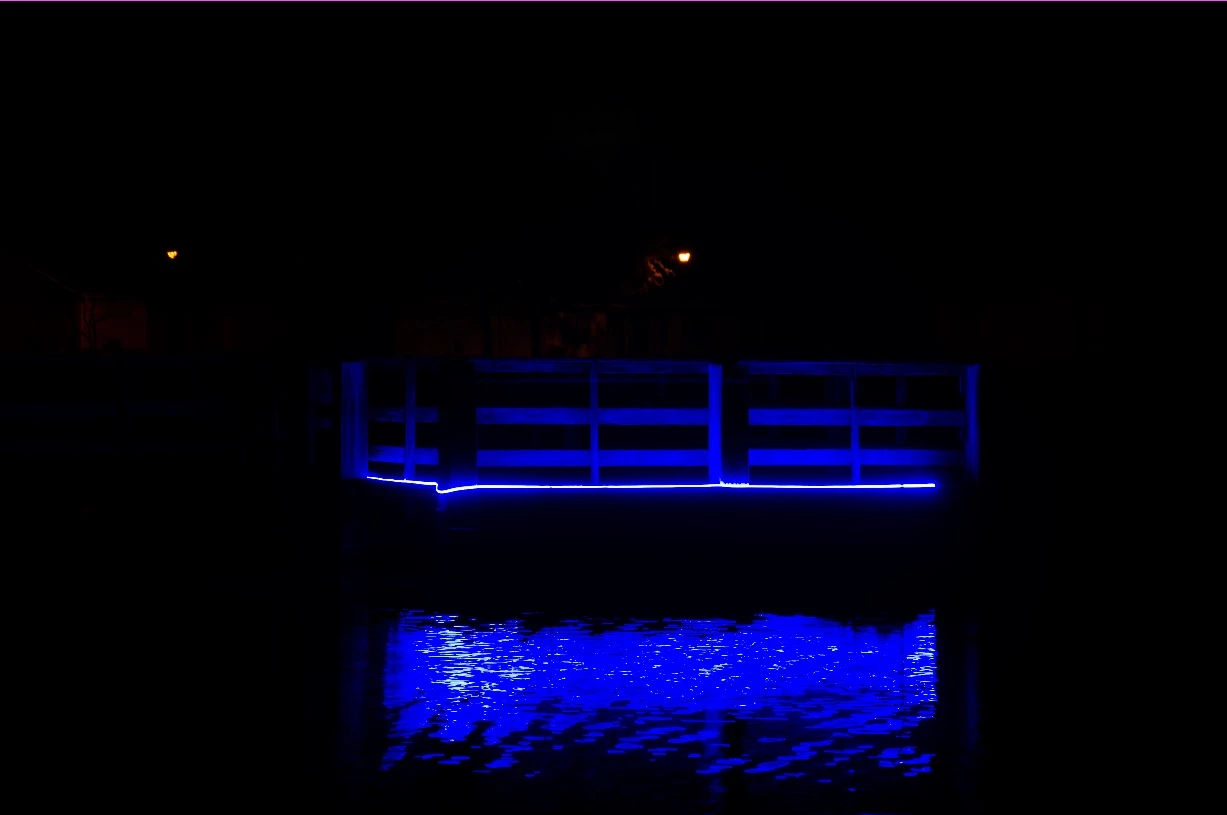
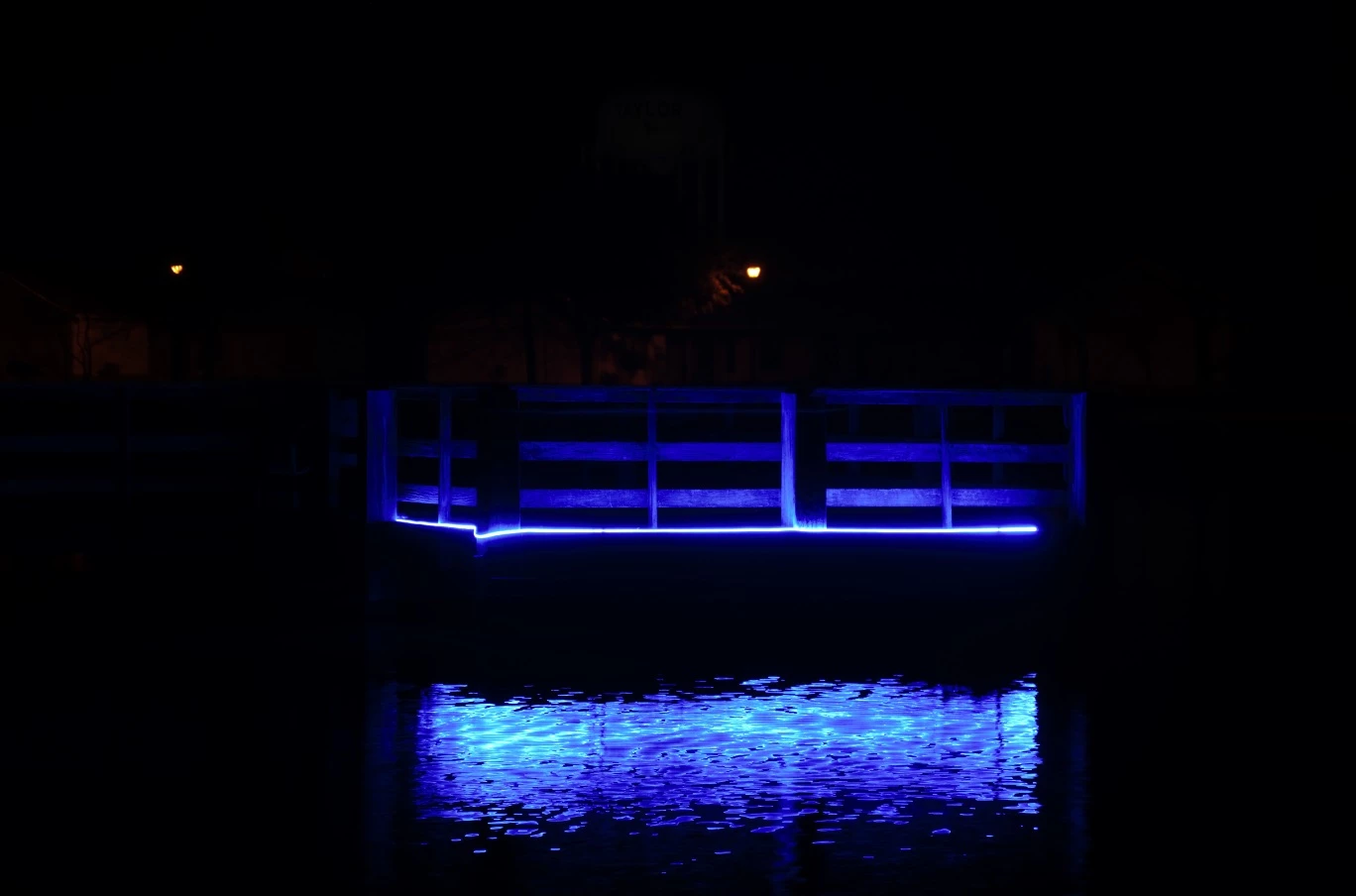
Although I understand that Window's photo viewing application dosen't adjust for colors like Photoshop (and instead shows them in a jpeg format), I can't help but prefer Window's version of this photo. The first image below is what is shown in Window's. The second is Photoshop. To be honest I'm not entirely sure how I can even go about replicating Window's version of this photo. The level of contrast makes this photo almost unusable, at least to someone with my limited abilities in photo editing. Why exactly is there such a a strong disparity between the two images? Also, is there a way in which I might be able to salvage this image? 


Thanks everyone.
This topic has been closed for replies.

4 replies

davescm
Community Expert
Community Expert
February 11, 2020

Hi

Without doing anything else, in Camera Raw 12.2, I just selected the camera matching "Camera Standard profile". That gets much closer to your camera jpeg example


However, like Rob , I would continue to adjust the sliders

Dave

rob day
Community Expert
Community Expert
February 11, 2020

This is mostly a temperature adjustment with some HSL blue desaturation


rob day
Community Expert
Community Expert
February 8, 2020

Can you share the .NEF file?

Tyrannax
TyrannaxAuthor
Known Participant
February 10, 2020

Sure thing- how exactly do I go about doing that though? I'm not seeing an option to attach files. 


Thanks!

davescm
Community Expert
Community Expert
February 10, 2020

On you post click on the 'more' button and choose Edit reply. Then, underneath the posting box you will see a small 'paperclip' icon.

If the file type is not accepted, you can use Dropbox or similar and post a link.

Dave

D Fosse
Community Expert
Community Expert
February 8, 2020

I assume that by "raw photo" you mean you are actually shooting raw files and that's what you're getting out of the camera?


This isn't about color management, not yet. This is about raw file processing. Your raw file came up in the Camera Raw (ACR) plugin first, before opening a rendered RGB copy into Photoshop. Did you do anything at all there? Or did you just accept all the default settings as they were?


A raw file has to be processed, and all the parameters need to be set. You're not supposed to click "open" without doing anything - that defeats the whole purpose of shooting raw in the first place! The sliders are there to be used, so use them. Learn how.


The "Windows" example has nothing to do with Windows. It's the camera-processed embedded jpeg. That's automatic processing. The whole idea is that you can do better than automatic processing.


Tyrannax
TyrannaxAuthor
Known Participant
February 8, 2020

I'm used to using Lightroom, not Photoshop (but I'm getting the same results there). I've been recreationally editing photos for years, and have had no problems opening up RAW files, editing them, and saving them as JPG, etc. When importing the RAW files into Lightroom (or in this case, Photoshop), I've never had an issue where the image uploaded in such a way that it looked almost unusable. Typically, RAW files tend to be desaturated and flat looking for me. This is something I haven't seen before. This is what Photoshop gives me when I open the photo up.


Thank you for the help!


February 8, 2020

This is about raw file processing. Your raw file came up in the Camera Raw (ACR) plugin first, before opening a rendered RGB copy into Photoshop. Did you do anything at all there? Or did you just accept all the default settings as they were?


A raw file has to be processed, and all the parameters need to be set. You're not supposed to click "open" without doing anything - that defeats the whole purpose of shooting raw in the first place! [***********]The sliders are there to be used, so use them. 


[Link to survey website removed by moderator.]