Inspiring
October 29, 2023
Answered

Recorded action Save as to current folder (instead of a pre-specified folder)?

  • October 29, 2023
  • 3 replies
  • 2831 views

In a recorded action I use a Save as in order to ensure the file is saved with the correct settings. When recording I have been careful to only click on the items I want to be set/adjusted when saving. However, even though I don't click the folder, a specific folder is included in the recorded action. How can I record an action where the file is saved in the current folder, not a pre-specified one? 
 

Correct answer Stephen Marsh

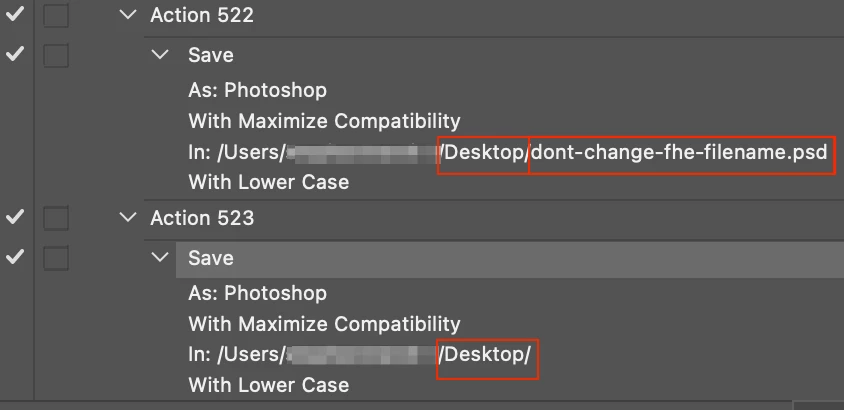
Actions record an absolute, machine/platform specific filename and path.


It is possible to only record the absolute file path, without a name if you don't click on or change the name when recording the action:


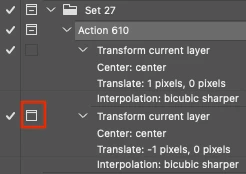
You can check the modal control to make the action step interactive, as highlighted below with the red box:


Otherwise, you would need a script.


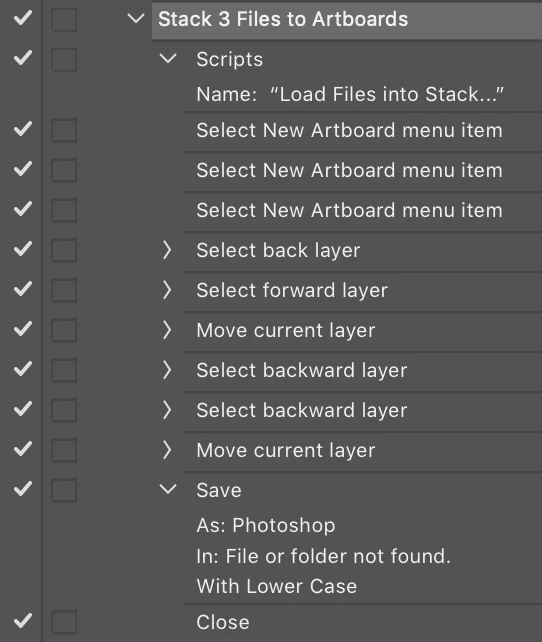
P.S. There is a hack to record saving the file to a temporary external file path that is then made unavailable (such as a server or removable device), then the path is shown as "file or folder not found" and the action would then default to the current path. Refer to the second last Save step example below:


3 replies

Stephen Marsh
Community Expert
Community Expert
November 4, 2023

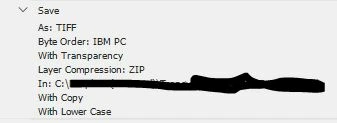
The following script will Save As to the current folder with settings as discussed in this topic:


/*
Save As TIFF to Current Folder.jsx
v1.0, 5th November 2023, Stephen Marsh
https://community.adobe.com/t5/photoshop-ecosystem-discussions/recorded-action-save-as-to-current-folder-instead-of-a-pre-specified-folder/td-p/14194382
*/

#target photoshop

    (function () {

        try {
            activeDocument.path;
            var docPath = activeDocument.path.fsName;
            var docName = activeDocument.name.replace(/\.[^\.]+$/, '');
            var saveFileTIFF = new File(docPath + '/' + docName + '.tif');

            /*
            // Interactive confirmation to overwrite an existing file...
            if (saveFileTIFF.exists) {
                // true = 'No' as default active button
                if (!confirm("The file '" + docName + ".tif' exists, overwrite: Yes or No?", true))
                    return;
            }
            */
            
            // Use true to Save As a Copy, false to Save As
            saveTIFF(saveFileTIFF, false);

        } catch (e) {
            alert("Error!" + "\r" + e + ' ' + e.line);
        }

    }());


function saveTIFF(saveFileTIFF, aCopy) {
    tiffSaveOptions = new TiffSaveOptions();
    tiffSaveOptions.embedColorProfile = true;
    // ByteOrder.MACOS or ByteOrder.IBM
    tiffSaveOptions.byteOrder = ByteOrder.IBM;
    tiffSaveOptions.transparency = true;
    tiffSaveOptions.layers = true;
    tiffSaveOptions.layerCompression = LayerCompression.ZIP;
    tiffSaveOptions.interleaveChannels = true;
    tiffSaveOptions.alphaChannels = true;
    tiffSaveOptions.annotations = true;
    tiffSaveOptions.spotColors = true;
    tiffSaveOptions.saveImagePyramid = false;
    // NONE | JPEG | TIFFLZW | TIFFZIP
    tiffSaveOptions.imageCompression = TIFFEncoding.TIFFZIP;
    activeDocument.saveAs(saveFileTIFF, tiffSaveOptions, aCopy, Extension.LOWERCASE);
}


There is /* commented out */ placeholder code to confirm overwriting an existing file (the script will overwrite an existing file without interaction unless the disabled code is enabled).


https://prepression.blogspot.com/2017/11/downloading-and-installing-adobe-scripts.html


Inspiring
November 5, 2023

Super, I'll try this tomorrow (I'm in Europe so pretty late her 🙂). It is really super kind of you to make all this effort, I so appreciate it! 🌟🌟🌟🌟🌟

Stephen Marsh
Community Expert
Community Expert
November 2, 2023

@Chris201Chris 


So how did the updated action go?


Inspiring
November 4, 2023

😂 I'm not having much luck I'm afraid. This action opens up the save as window and "waits"... so it is the same as if I instead of starting the action just press Shift+Ctrl+S...

(I don't know if there are any more methods to try, but if there is, and you are willing to try again, could you please add the alternative "Image compression: zip" as well - I know I did't have it in my original action, but am trying to compress my files when possible)

Stephen Marsh
Community Expert
Community Expert
November 4, 2023

But it DID open to the current image location, yes???  :]


I believe that you have now exhausted the possibilities of Actions if you don't wish to have interactivity. 

A script can silently save into the current directory without a dialog.


The script save step can be recorded into an Action.

Stephen Marsh
Community Expert
Stephen MarshCommunity ExpertCorrect answer
Community Expert
October 29, 2023

Actions record an absolute, machine/platform specific filename and path.


It is possible to only record the absolute file path, without a name if you don't click on or change the name when recording the action:


You can check the modal control to make the action step interactive, as highlighted below with the red box:


Otherwise, you would need a script.


P.S. There is a hack to record saving the file to a temporary external file path that is then made unavailable (such as a server or removable device), then the path is shown as "file or folder not found" and the action would then default to the current path. Refer to the second last Save step example below:


Inspiring
October 30, 2023

I now tried the third alternative, but it looks a bit differenct in my action, as the folder name (I named it temp-nonexisting) shows up (as it was when it was recorded) and I get an error message when running the action (and it seems as the other save settings were not performed).

How did you do in order for the recorded action to turn up as "In: File or folder not found"?

Inspiring
October 31, 2023

@Chris201Chris 


My apologies, I must have remembered the process wrong.


On the same platform, the path to the dismounted volume is still retained. But when opening the action created on the Mac in Windows, it path is not recognised.


On the Mac, without using Windows, I did need to use xtools:


.../xtools v2.3/apps/ActionFileToXML.jsx


Save the updated XML file, then:


.../xtools v2.3/apps/ActionFileFromXML.jsx


You can download my (new) version here:


https://www.dropbox.com/scl/fi/nr70u8c579rhjrbwob9g3/Save-As-TIFF.atn?rlkey=2frrsz1kz6x8elruwfl7usg4v&dl=0


Many thanks!
However, it seems the path is still "read" when running the (your) action on my windows PS. Could it be that the error handling is different on the Mac compared to Windows?