
Known Participant
December 25, 2018
Question

Reduce sky Gradient

  • December 25, 2018
  • 1 reply
  • 1140 views

Hello,

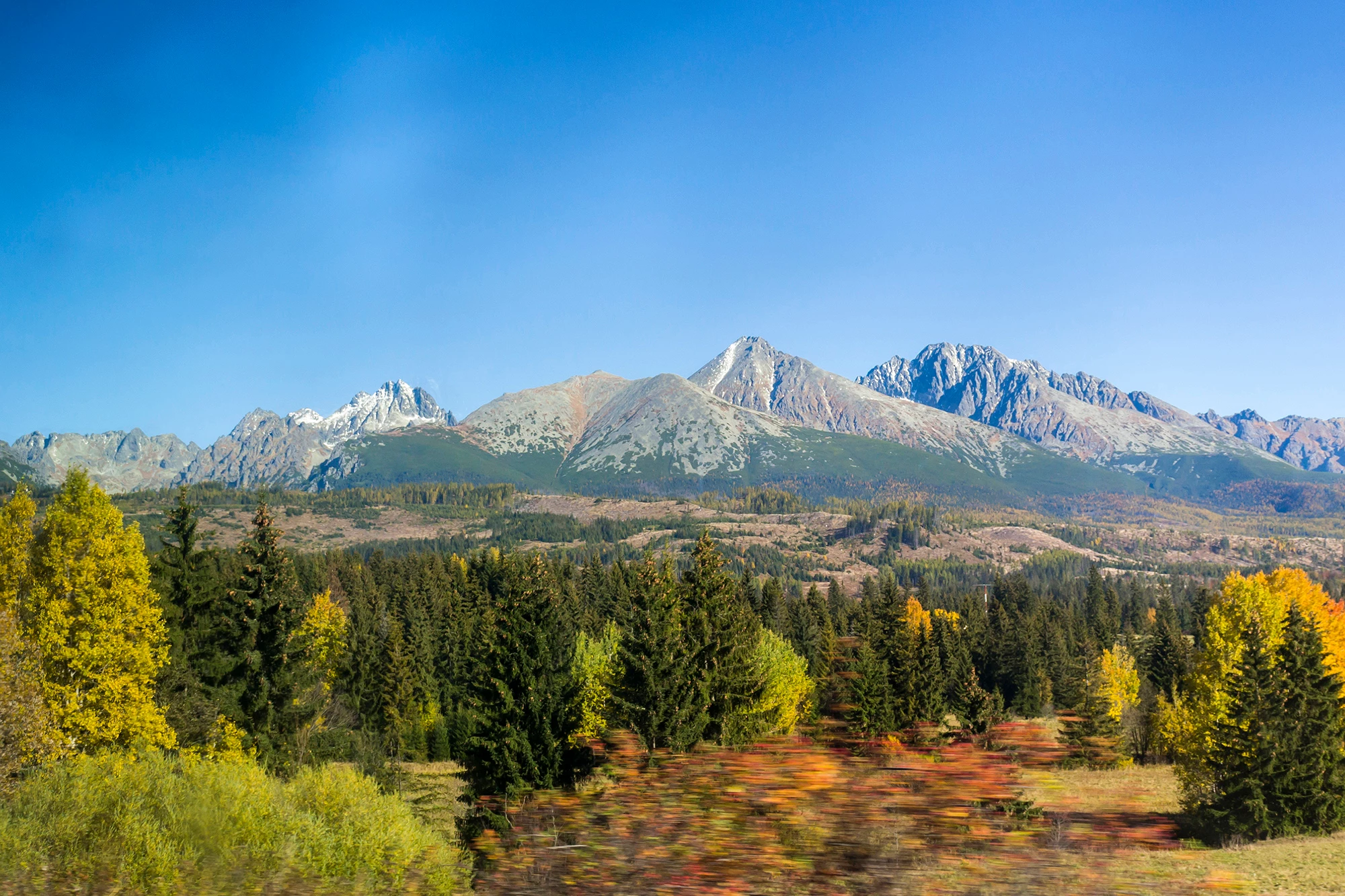
I would like ask, what is the best way for reduce sky gradient.

I had try - vector mask with duplicate desaturate layer and gradient tool.  Visible spots.

               - selection of sky, levels settings- same, like change lightnes and saturation af blue, don't reduce gradient.

               - selection if sky, then selective color, replace blue. Similar, visible spots.

               - smudge tool - visible spots

I have lot of photos with horizontal, vertical or both ways. So I cant use horizontal or vertical gradient tool easy. Have I use plugin? Thanks
This topic has been closed for replies.

1 reply

Trevor.Dennis
Community Expert
Community Expert
December 25, 2018

It is nearly always best to copy the foreground to a new layer, in cases like this, and do your new sky on a layer beneath the copied foreground.  This avoids any artefacts caused by bad selection, and anti aliasing problems, if you try to do it on the same layer.  Always use layers when you can, and overlap.

Known Participant
December 27, 2018

Thanks,

And New sky did you create from original sky with default gradient presets - foreground to backround?

Trevor.Dennis
Community Expert
Community Expert
December 27, 2018

A single swipe across the sky with the Quick Select tool makes an almost perfect selection.  I did have to remove a couple of tiny bits of the mountain peaks with a smaller cursor, hold down the Alt (Opt) key.

Invert the selection (Shift Ctrl I)  and copy to a new layer.

Make a new layer for the sky between background and the copied mountain peaks.

I've put some red behind the mountains to demonstrate how well this works.

My preferred method of selecting the new foreground and background colours, is to select the Brush tool, and Alt click the colours I need.  You'll  need to hit the X key to toggle foreground and background colours to sample the second colour.  You could click on the foreground colour to open the colour panel, but that takes more clicks.  We hate wasting our clicks.

OK you are good to go.  Select the Gradient tool, and make sure you have the first option selected, which is Foreground to Background.

Holding down the Shift key while you drag, will force it to be perfectly vertical.   When you release the mouse will control where the gradient falls.  Note it will fill the layer behind the copied mountains layer.

Learning the Gradient editor is a very useful skill, so never miss an opportunity to practice

Click on the gradient in the Options bar to open it.  Then click just beneath the gradient to bring up some new sliders. 

The way it works is that the Active colour point has a Black triangle above it (the one with the cyan box around it).  Other, non active, colour points will have grey triangles above them.

With a colour point active, select a colour either from the image or the Colour Swatches, and drag to fine tune.  It's actually a lot of fun.