
Participant
November 8, 2020
Answered

Remove a yellowish strip in a scanned image

  • November 8, 2020
  • 2 replies
  • 1443 views

Hello, in the attached scan of a colour negative (of me, quite a few years back....) you can see a large yellowish band at the bottom (and in other areas, but that's the one that annoys me most). I've searched through forums and read about channel mixing, hue/saturation settings with various masks and got totally lost and nowhere near to resolving this (and in later images which will have the same problem). Could anyone help?

thanks, Jan


This topic has been closed for replies.
Correct answer Norman Sanders

If you look at the separate Channels you will see the problem in the Blue and the smoothness in the green channel in the shirt area.  You are going to replace the Blue channel contents with a modified version of the Green channel.


Use the Quick Selection tool to Select the entire shirt.

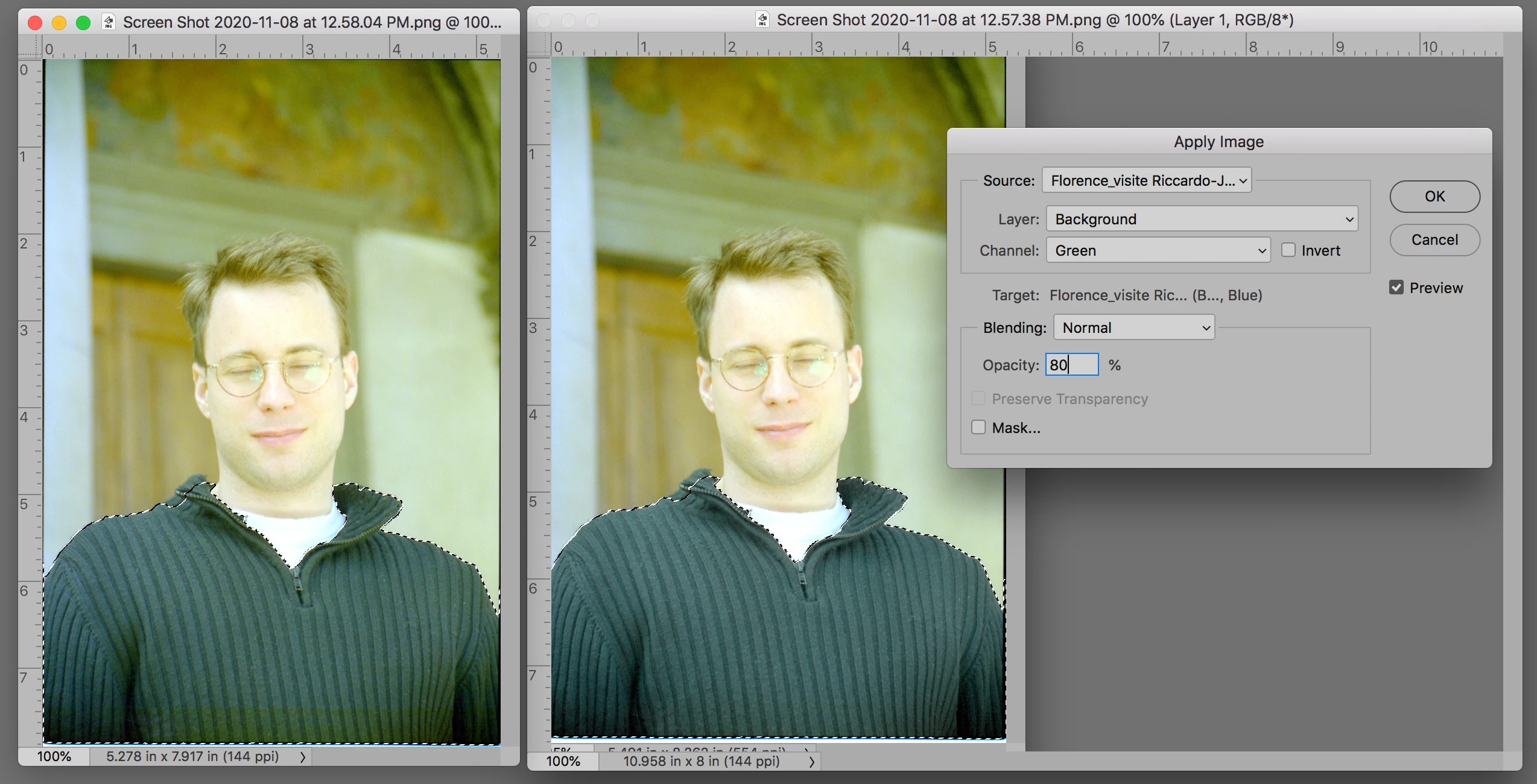
Choose the Blue channel followed by Image > Apply Image

Use the settings shown.

Once ok’d you are free to darken the shirt if desired. I chose not to change it since the shift in the Yellow did not cause a significant shift in color in what is essentially, a snapshot. I also see an overall yellow cast in the original shirt which this technique corrects. 


2 replies

Norman Sanders
Norman SandersCorrect answer
Legend
November 8, 2020

If you look at the separate Channels you will see the problem in the Blue and the smoothness in the green channel in the shirt area.  You are going to replace the Blue channel contents with a modified version of the Green channel.


Use the Quick Selection tool to Select the entire shirt.

Choose the Blue channel followed by Image > Apply Image

Use the settings shown.

Once ok’d you are free to darken the shirt if desired. I chose not to change it since the shift in the Yellow did not cause a significant shift in color in what is essentially, a snapshot. I also see an overall yellow cast in the original shirt which this technique corrects. 


Participant
November 11, 2020

Very helpful and efficient answer, thank you! worked beautifully - I wish I had asked sooner! 

TomasLBN
Participant
November 8, 2020

I would try to either select your sweater or either the band specificly. You could then add an adjustment layer and then edit out the band using 'selective color' so you can go into each color seperately. I've toyed with it a little bit really quick and I'd say you could get rid of it by altering the green and yellow colors within your selected area. 

You can use selective color on your entire image for color correction, and go even further by adding more adjustment layers for the colorbalance and levels.

My photoshop is in dutch but I hope you can make out how to do it 🙂