Participating Frequently
March 1, 2018
Question

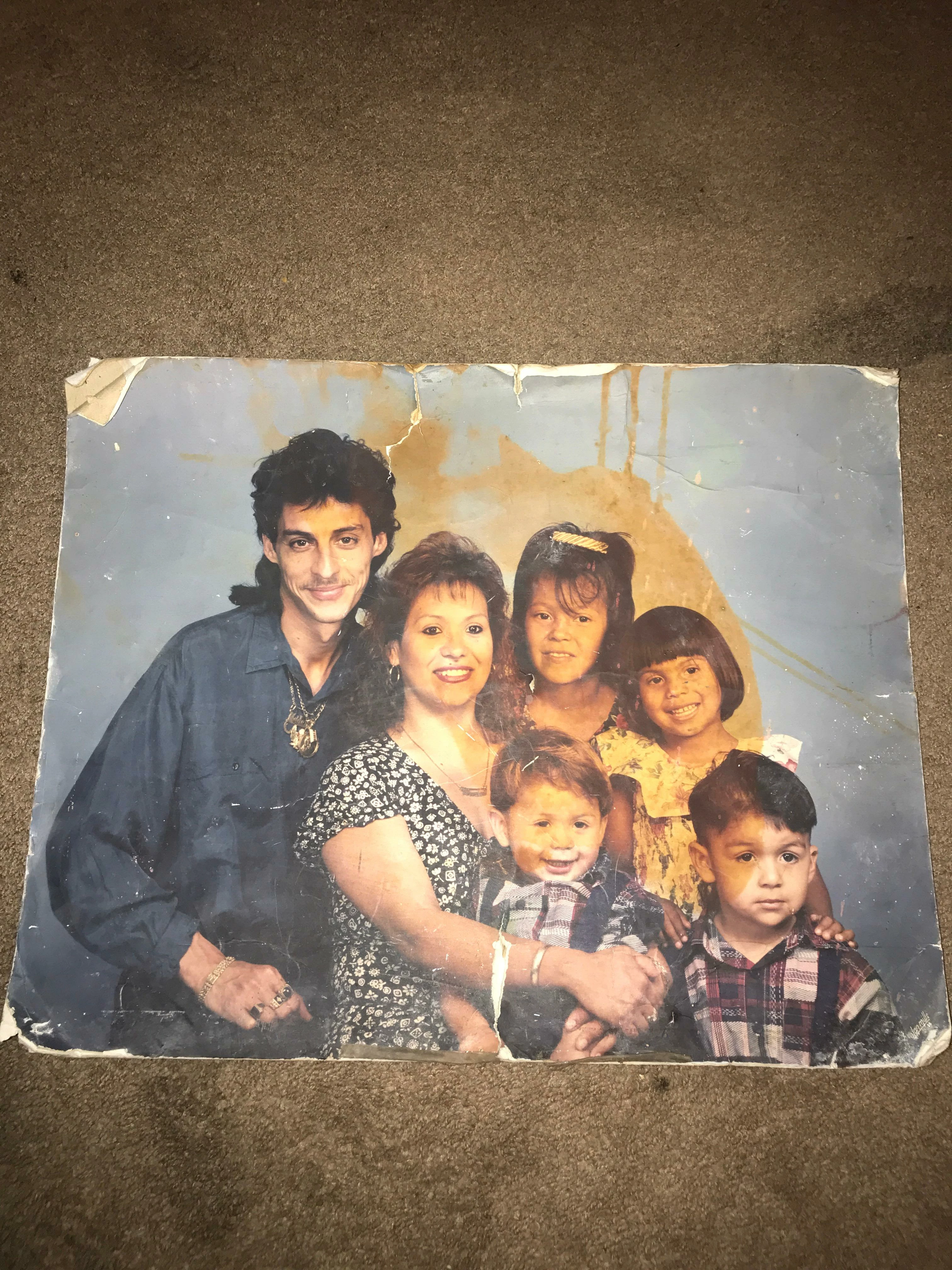
Remove stain that covers app 50% of color photo in cs5

  • March 1, 2018
  • 4 replies
  • 698 views

This photo really poses a challenge!  Entire faces are covered with this stain!  Any suggestions for removal of the stain?
    This topic has been closed for replies.

    4 replies

    Norman Sanders
    Legend
    March 1, 2018

    Regarding Content Aware Fill:

    Use the Quick Selection tool to make a Selection of the background.

    Cmd+J to put it on a separate Layer

    Lock the transparent part of the layer for insurance (it is the symbol adjacent to the word Lock)

    Use the Lasso tool to select the stained areas.

    Choose Edit > Fill ... Content Aware (Next to the word Contents)

    The reason the background is placed on a separate layer its to keep Photoshop from referencing the people as it calculated the fill content.

    Good luck!

    Norman Sanders
    Legend
    March 1, 2018

    Perspective Crop will square up the image

    Content Aware Fill will get rid of the stain in the background

    The faces require individual correction but the print is badly bleached, stained and splotchy so there is little to recover.

    Woman's face needs more time than I devoted to it.

    I overdid the sharpening.

    Under pressure to do some chores.

    Participating Frequently
    March 1, 2018

    Can you add more detail as to how to use Content Aware Fill?

    Legend
    March 1, 2018

    I would try Curves or Selective Color for that area. Match the dark grey background and the rest of it should come close.

    Participating Frequently
    March 1, 2018

    thank you for your feedback.  Can you be a little more specific on how to use selective color?  thanks, yvonne

    Omar.Fathy
    Community Expert
    Community Expert
    March 1, 2018

    You Can Edit the image Channels from Channels Panel      Window> Channels  and it will be more easy if you change the color mode to CMYK from Image> mode.

    You can also use the adjustment layers from Image> Adjustment .... it will give you a mask to adjust exact area and leave another.

    Participating Frequently
    March 1, 2018

    thank you for your feed back. How would I use the channels to get rid of this stain?  thanks for your time, yvonne
