Participant
September 11, 2017
Answered

Remove sweat marks from collar of textured/patterned shirt

  • September 11, 2017
  • 1 reply
  • 795 views

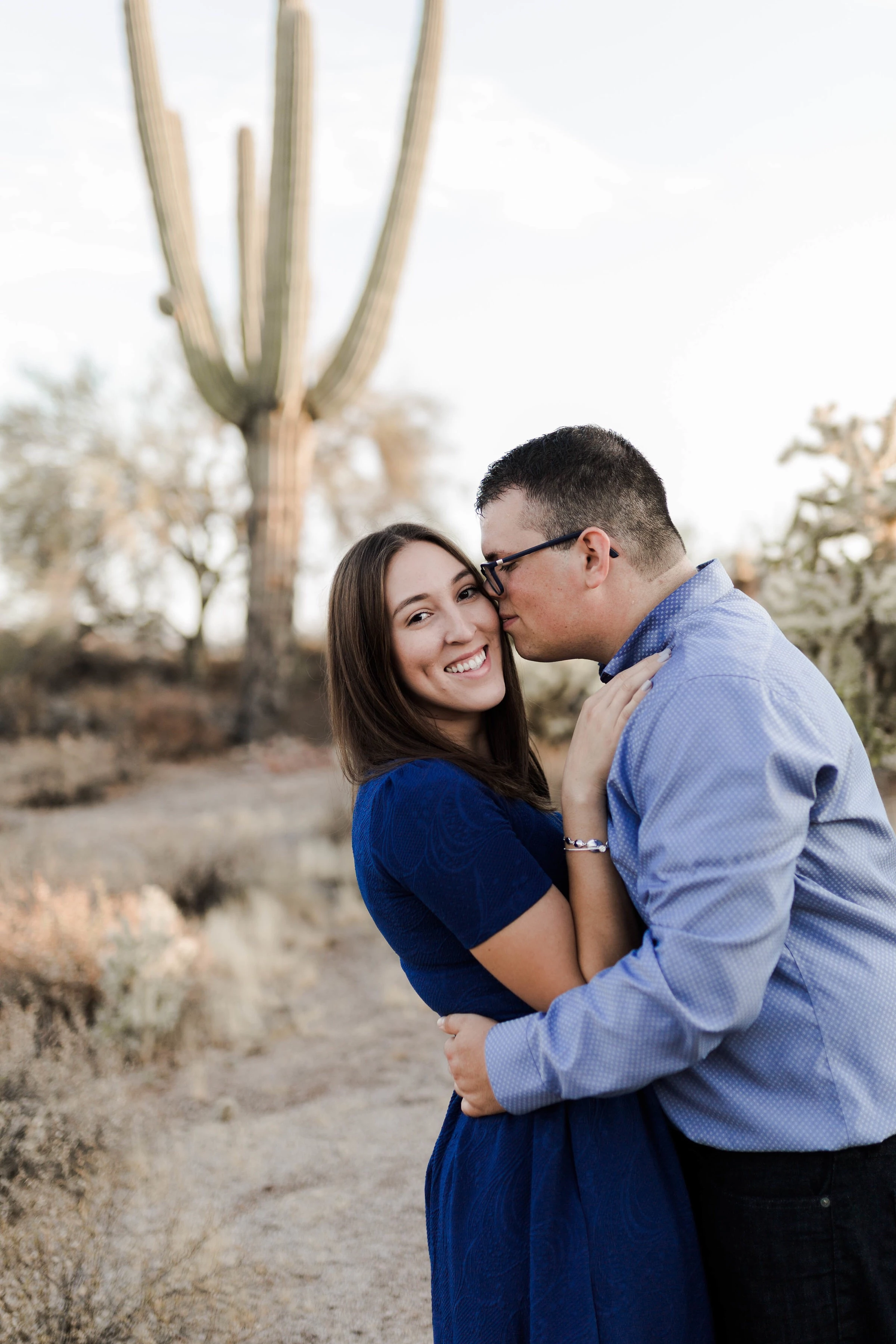
Hi!  I am new to the forum, but not new to photoshop.  I am getting overwhelmed trying to figure out how to fix this.  The photographer couldn't fix it and I am the one designing the announcements (I know the couple), so I thought maybe I could, but maybe I am in over my head!  I have tried the clone tool, but I am striking out on fixing it.  I need to get this done and to the couple so they can print them. Any ideas on how to fix this, or can someone help me fix it?
This topic has been closed for replies.
Correct answer davescm

Hi

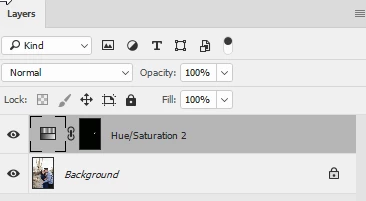
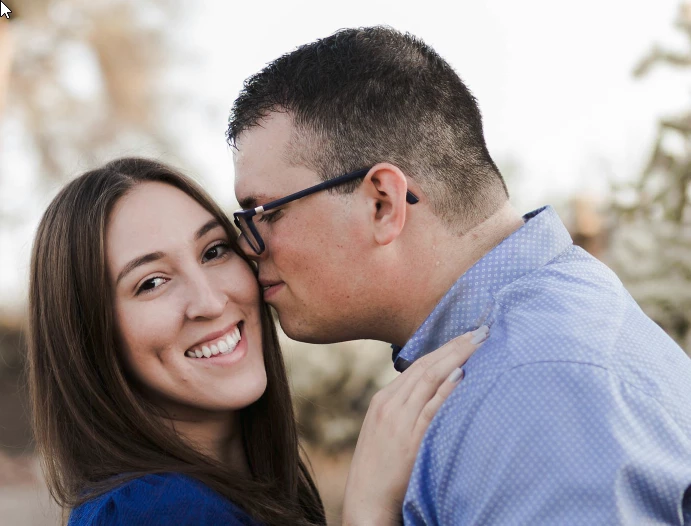
You could try a Hue and Sat adjustment layer with a mask:

Dave

1 reply

davescm
Community Expert
davescmCommunity ExpertCorrect answer
Community Expert
September 11, 2017

Hi

You could try a Hue and Sat adjustment layer with a mask:

Dave

Participant
September 11, 2017

Dave,

That looks great, better than what I was trying to do before!  Could you explain to me how you did that please, so I can do that on the original picture.

Thanks so much, Misty

davescm
Community Expert
Community Expert
September 11, 2017

I made a rough selection around the sweat-mark and added a Hue and Saturation adjustment layer. This automatically had a mask in the shape of the selection.

I then adjusted the lightness and saturation sliders to get a close match to the rest of the collar.

Finally I clicked on the mask of the Hue/Sat layer and painted round the edges of the selection with a soft brush in black and white. Where I painted black the adjustment had no effect and white had a full effect. (Grey has a partial effect) By using a soft brush I was able to soften the transition between the two.

You may want to add a couple of the Hue/Sat adjustment layers so you can affect different parts of the collar in different ways.

Dave