Participating Frequently
November 5, 2017
Answered

Removing Black Patches on Face and Throat

  • November 5, 2017
  • 1 reply
  • 1733 views

I have a 7 day trial of Adobe Photoshop CC. I took a black and white selfie with my inexpensive Android phone. I then transferred the photo to my Windows 10 computer.

I noticed that on my face there were black patches (it looks like fuzz). I've used the Patch tool and was able to remove a lot of the black patches on my face. However, when I used the Patch tool on my throat, I could not seem to lighten it. Can anyone tell me what I can do? I am a beginner and have no experience with graphic editing software.

Thank you.
This topic has been closed for replies.
Correct answer Nancy OShea

Sorry.  There is not enough information in your screenshot.

Suffice it to say, you can't make a silk purse from a badly lit photograph. There's only so much you can do.

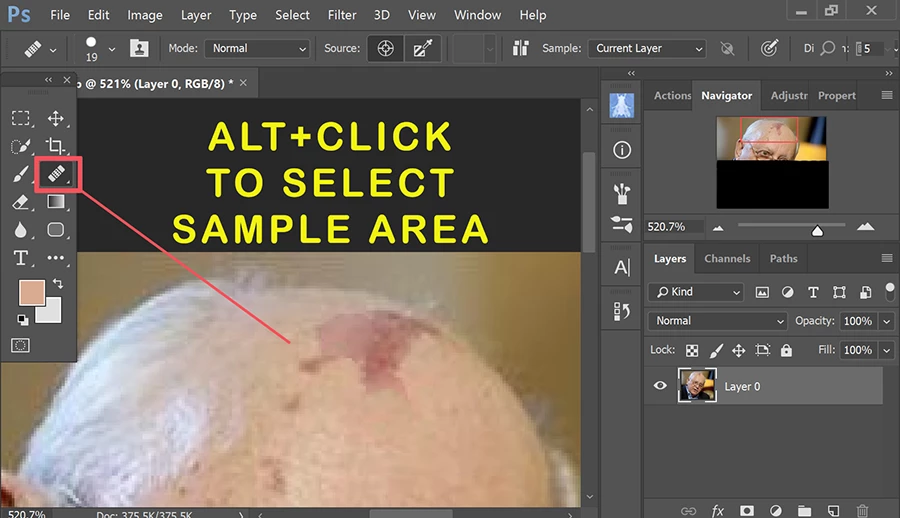
Below is a screenshot of a man with a birthmark.  Use the Healing Brush to sample an adjacent area with which to fill in the discoloration.   For best results, make multiple samples in different areas to keep the replacement tones as natural as possible.

1 reply

Nancy OShea
Community Expert
Community Expert
November 5, 2017

Can you show us a screenshot of the area you're working with?

Nancy O'Shea— Product User & Community Expert
Participating Frequently
November 6, 2017

The person in the photo requested that I cover her face. At the bottom middle you can see the patchy black mixed with white. This is the person's throat and upper chest area. (On each side is the person's hair.) I hope this can give you an idea of the problem. Thank you.

Nancy OShea
Community Expert
Nancy OSheaCommunity ExpertCorrect answer
Community Expert
November 6, 2017

Sorry.  There is not enough information in your screenshot.

Suffice it to say, you can't make a silk purse from a badly lit photograph. There's only so much you can do.

Below is a screenshot of a man with a birthmark.  Use the Healing Brush to sample an adjacent area with which to fill in the discoloration.   For best results, make multiple samples in different areas to keep the replacement tones as natural as possible.

Nancy O'Shea— Product User & Community Expert