
sallyl33437202
Participant
February 20, 2017
Answered

Removing photos from Photoshop CC 2107

  • February 20, 2017
  • 2 replies
  • 5414 views

I am a learner, beginner with photoshop and this seems to me to be a basic question. I have an imported one of my photos into photoshop. I have edited it and now I want to remove it. Can someone please tell me how to do this?
This topic has been closed for replies.
Correct answer Barb Binder

It is now on the Recent Files screen as a Recovered File. I can't get into it, but it is still on the screen as a thumbprint. I want to remove the recovered Thumbprint.

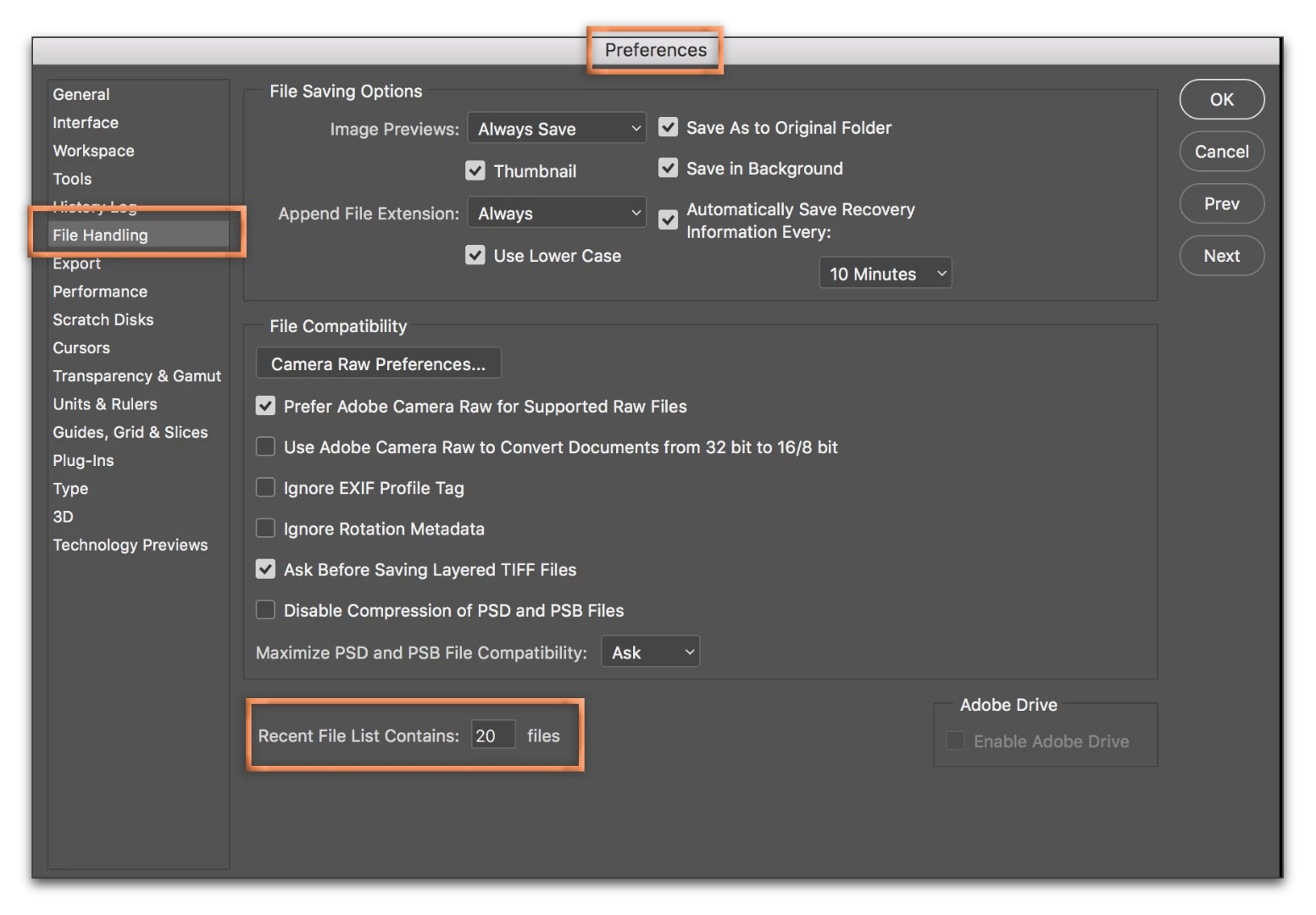
To remove all recent files (this one and any others) from the Start Workspace:

  1. Preferences > File Handling > Recent File List Contains
  2. Change the number to 0 files. Click OK.
  3. Close Photoshop and then reopen it.
  4. The list will be cleared.
  5. Then return to Preferences > File Handling > Recent File List Contains and reset it back to 20 files (or the number of your choice). Click OK.

2 replies

Silkrooster
Legend
February 20, 2017

If you have multiple images in the layers panel, you can drag the layer to the trash can.

If you have multiple tabs open (one image per tab) you can select that tab to make it the active one the close the tab.

Another option to close the active tab is in the file menu just choose close.

Derek Cross
Community Expert
Community Expert
February 20, 2017

Do you mean Delete or Save the image?

sallyl33437202
Participant
February 20, 2017

Thanks for your response.

I don't want to save it. I want to delete it from Photoshop CC.  Originally I dragged it from my desktop onto the Photoshop page that says Recent Files using the Open site.  I worked on it and changed it and saved it. Then when I tried to delete it my Apple Computer saved it.  It is now on the Recent Files screen as a Recovered File. I can't get into it, but it is still on the screen as a thumbprint. I want to remove the recovered Thumbprint.

Sorry to be so wordy but I hope I'm explaining myself clearly.

Derek Cross
Community Expert
Community Expert
February 20, 2017

Not entirely sure what you're after, but if you untick in the Photoshop Preferences under the General tab: Show "Start" Workspace When Opening a File, when you close Photoshop and relaunch it you wont have the Start window. Try this and let us know if that's want your after. If not maybe a screenshot would help.