Fractalis1234
Participant
June 17, 2018
Answered

Removing speckling by merging two similar images

  • June 17, 2018
  • 2 replies
  • 323 views

I am a 3D artist who renders using a ray marching process. This often results in images with pixels which haven't been rendered correctly giving a speckled look when zoomed in. If I render the exact same scene twice then the speckles are in different places. Is there a way I could combine multiple versions of the (almost) same image and eliminate the speckles? As the only difference between the images is the pattern of speckles, this could be a perfect solution however I'm not sure how to go about it.

Thanks!
This topic has been closed for replies.
Correct answer Trevor.Dennis

I had to think about this, as it has changed since the old days of Median Stack which we used use with Photoshop extended.

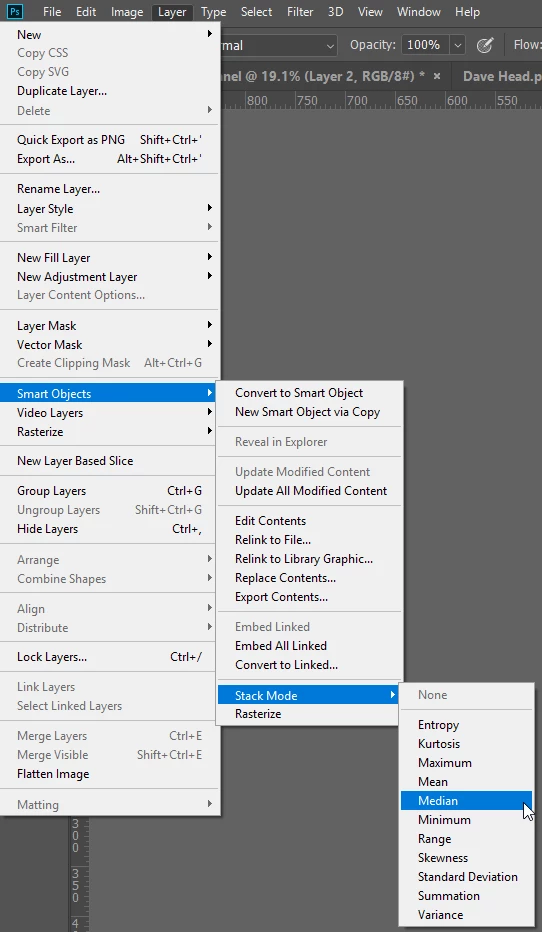
Nowadays you select all the layers and make them a Smart Object.

Then go Layer > Smart Object > Stack Mode > Median

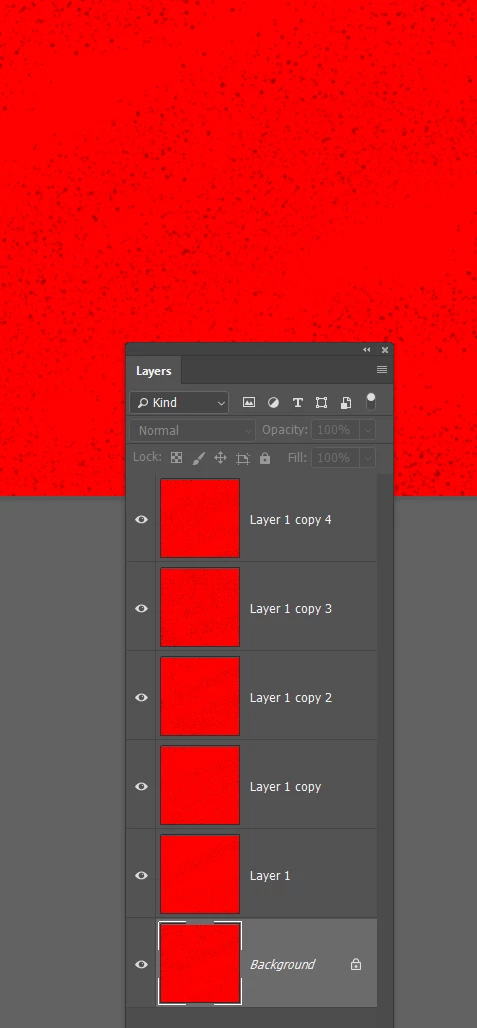
[EDIT]  I wanted to try it out just for interest, so put random spatter on some pure red layers

The result is not perfect, but it is a huge improvement.

2 replies

Stephen Marsh
Community Expert
Community Expert
June 17, 2018

Another option is to use darken blending mode in layers to remove lighter specs, or lighten blending mode in layers to remove darker specs. Another option is to manually bled/average layers using varying opacity, which is no longer necessary with the mean blend mode previously mentioned.

You may or may not need to mask out these corrections from the main hero/subject of the image, then use either the spot healing tools, clone stamp or similar to work the critical subject matter.

Keep in mind that depending on final end use, this could all be “busy work” that apart making a nice clean master file, may be for nothing if the image is duplicated and reduced in pixel size for other purposes.

Trevor.Dennis
Community Expert
Trevor.DennisCommunity ExpertCorrect answer
Community Expert
June 17, 2018

I had to think about this, as it has changed since the old days of Median Stack which we used use with Photoshop extended.

Nowadays you select all the layers and make them a Smart Object.

Then go Layer > Smart Object > Stack Mode > Median

[EDIT]  I wanted to try it out just for interest, so put random spatter on some pure red layers

The result is not perfect, but it is a huge improvement.

Fractalis1234
Participant
June 18, 2018

Thanks! This works nicely