
Aadde01
Participant
November 26, 2018
Beantwortet

resizing issue / jagged lines in PS CC 2019

  • November 26, 2018
  • 5 Antworten
  • 6326 Ansichten

Ever since I updated to CC 2019 I have been having trouble with resizing. it seems no matter what I do in reference to resizing an image/layer in photoshop the result ends up cracked / jagged. This have never been an issue for me before.

Anyone else experiencing this ? Or know how I can work around it?
For now I have been going back to photoshop 2018 whenever I´m doing something I need to 100%.

I'm working on late 2015 iMac 5K retina (32 GB ram, 4 GHz Intel Core i7)

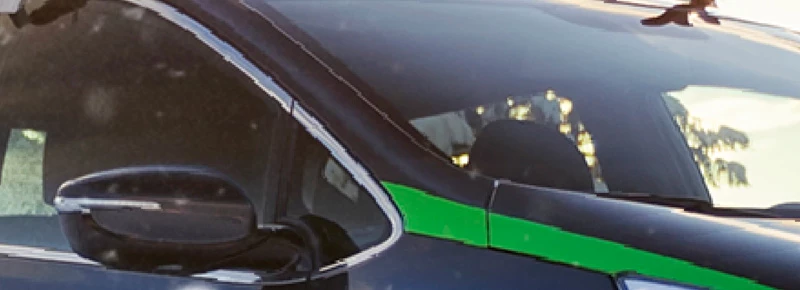
As an example look at how the window trim and green line on this car ends up after I downscaled the layer to match the frame I´m working in.
This should be consistent lines and not jagged. I'm using free transform.
Dieses Thema wurde für Antworten geschlossen.
Beste Antwort von cyrilgaja@gmail.com

@vizdesigner

@Aadde01

Guys, I finally fix this! It's absolutely easy  (as usually): When you are in transform mode (cmd+t) you must set correct "interpolation" on upper bar. For example Bicubic or automatic or smooth modes works well. @Good luck!

C

5 Antworten

Participant
September 21, 2020

I have the same problem here.

My work requires image cutouts for a web. So I always do some object cutouts from the original image and place it on 300x 300 pixels with white background. Using Photoshop CC 2019, the result always ends up jagged & creates zigzag edges.

I have done the preference, general, image interpolation but it didn't work. I also check whenever I go CTRL + T and try the interpolation option one by one, but none of it could make any better quality.  This is frustrating to me. Then I tried to use Photoshop CC 2017 and compared the result after cutting out and resizing object.

The first image with CC 19 happened to be cracked after I rezised and made some adjustments with the free transform. But then in the 2nd image, I did the same treatment (cutting object selection & free transform) in CC 17, and yesh it ends up so much better with smooth edges. Is there any setting that I missed in cc 19?

Participant
January 30, 2019

@vizdesigner

@Aadde01

Guys, I finally fix this! It's absolutely easy  (as usually): When you are in transform mode (cmd+t) you must set correct "interpolation" on upper bar. For example Bicubic or automatic or smooth modes works well. @Good luck!

C

Participant
May 15, 2020

Thank you soooo much!!! It cause me so much problems, no it's all ok!

Participant
January 21, 2019

I have this issue as well. I am creating digital art for xbox and playstation stores and we keep seeing jagged lines. I can't find a fix for this.

Participant
January 9, 2019

Hey Aadde01, I have the same problem. did you solve it somehow?

Cheers!

melissapiccone
Community Expert
Community Expert
November 26, 2018

How are you viewing this image? You need to be at 100% to see the true image. What does it look like at 100%?

Melissa Piccone | Adobe Trainer | Online Courses Author | Fine Artist
Aadde01
Aadde01Autor
Participant
November 27, 2018

Hi Melissa
The viewing of this example is not relevant as this is a recurring problem. however I view it.

Let me do another example, exported.

I did the exact same procedure in cc 2018 and 2019.
Create an 800 x 800 pixel document, open a photo. drag it to my 800x800 and resize it (downscale) to fit the frame.
Then export for web in Maxiumum jpg.

Notice the difference?

First one: cc 2018


second one cc 2019

Trevor.Dennis
Community Expert
Community Expert
November 27, 2018

Can you check Preferences > General > Interpolation?  It's looking like it might be set to Nearest Neigbour.  Just about anything would be better than that, but the default 'Bicubic Automatic' works

Then check the same thing in the Image Size panel